<?xml version="1.0" encoding="utf-8"?>
<feed xmlns="http://www.w3.org/2005/Atom">
  <generator uri="https://jekyllrb.com/" version="4.3.4">Jekyll</generator>
  <link href="/feed.xml" rel="self" type="application/atom+xml" />
  <link href="/" rel="alternate" type="text/html" />


  <link href="/feed-page-2.xml" rel="next" type="application/atom+xml" />
  

  <updated>2026-04-05T23:41:10-04:00</updated>
  <id>https://blog.newsblur.com/feed.xml</id>
  <title type="html">The NewsBlur Blog</title>
  
  <subtitle>NewsBlur is a personal news reader that brings people together to talk about the world.
A new sound of an old instrument.
</subtitle>


  <entry>
    <title type="html">Introducing Premium Pro: high-frequency fetching for instant notifications</title>
    <link href="https://blog.newsblur.com/2026/04/06/premium-pro/" rel="alternate" type="text/html" title="Introducing Premium Pro: high-frequency fetching for instant notifications" />
    <published>2026-04-06T00:00:00-04:00</published>
    <updated>2026-04-06T00:00:00-04:00</updated>
    <id>https://blog.newsblur.com/2026/04/06/premium-pro</id>
    <content type="html" xml:base="https://blog.newsblur.com/2026/04/06/premium-pro/">
      <![CDATA[<p>Some of you don’t just read the news. You monitor it. You’re tracking competitors, watching for security disclosures, following regulatory changes, or covering a beat where being 30 minutes late means you missed the story. NewsBlur has always been a great reader, but for people who need it to be a monitoring tool, I wanted to build something that takes feed fetching and filtering seriously.</p>

<p>Premium Pro is the new top tier. It includes everything in <a href="https://newsblur.com/pricing/archive">Premium Archive</a> and adds two things that matter when speed is the priority: high-frequency fetching and a 10,000 site limit. And when you pair that with Premium Archive features like classifier-driven notifications, Pro becomes a real-time monitoring system.</p>

<h3 id="every-feed-fetched-every-5-minutes">Every feed fetched every 5 minutes</h3>

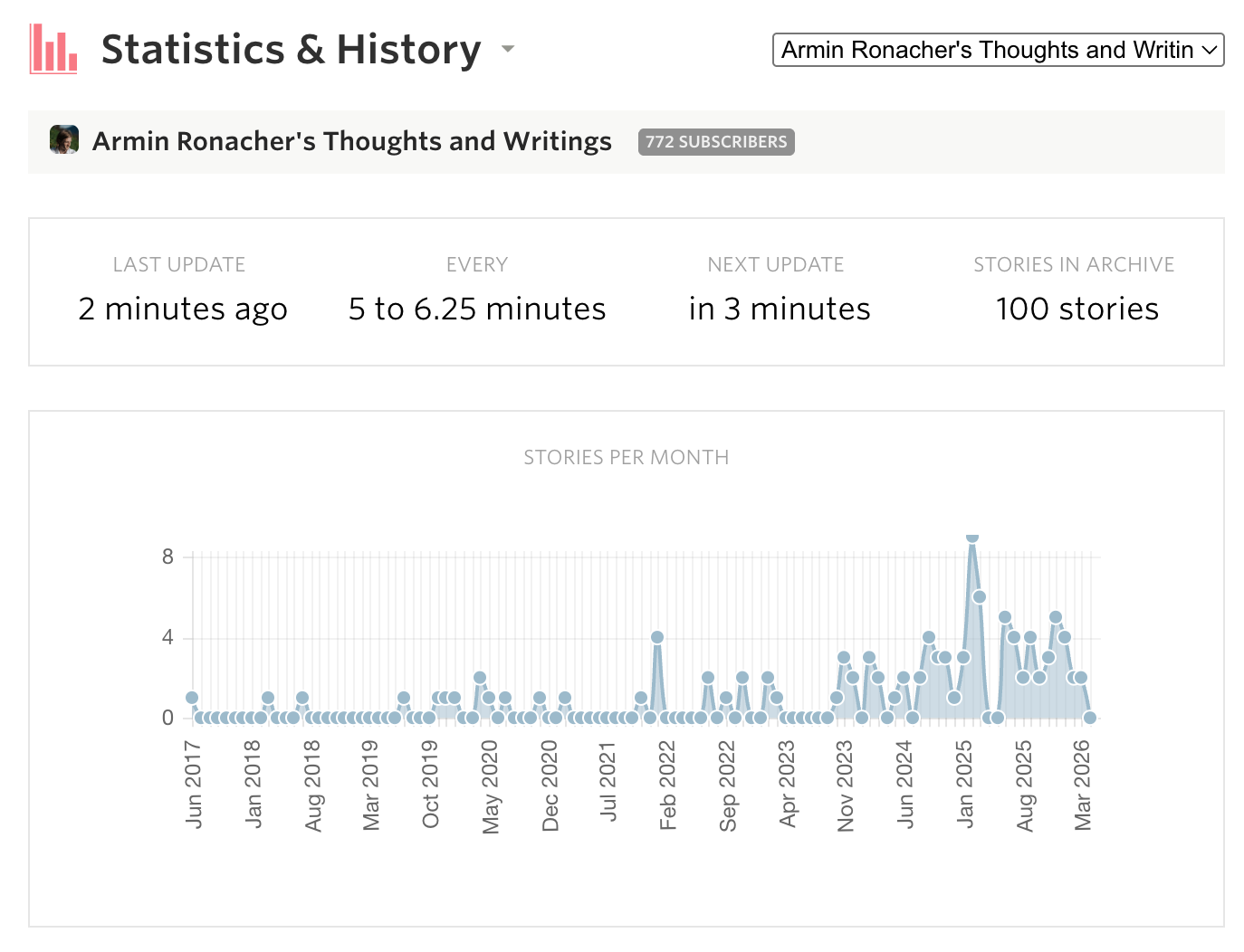
<p>This is the headline feature. When you’re on Pro, every single feed in your account is checked every 5 minutes. This isn’t based on how often the feed publishes or how popular it is. It’s every feed, every time, regardless.</p>

<!-- SCREENSHOT: Feed statistics showing 5-minute fetch interval -->
<p><img src="/assets/pro-fetch-frequency.png" style="width: 90%;border: 1px solid rgba(0,0,0,0.1);margin: 24px auto;display: block;" /></p>

<p>For context, most RSS readers check feeds every hour or two. Even NewsBlur’s Premium tier updates feeds up to 5x more often than standard, but Pro goes further. If a CVE drops, a competitor publishes a press release, or a regulatory filing appears, you’ll see it in minutes, not hours.</p>

<h3 id="notifications-that-actually-keep-up">Notifications that actually keep up</h3>

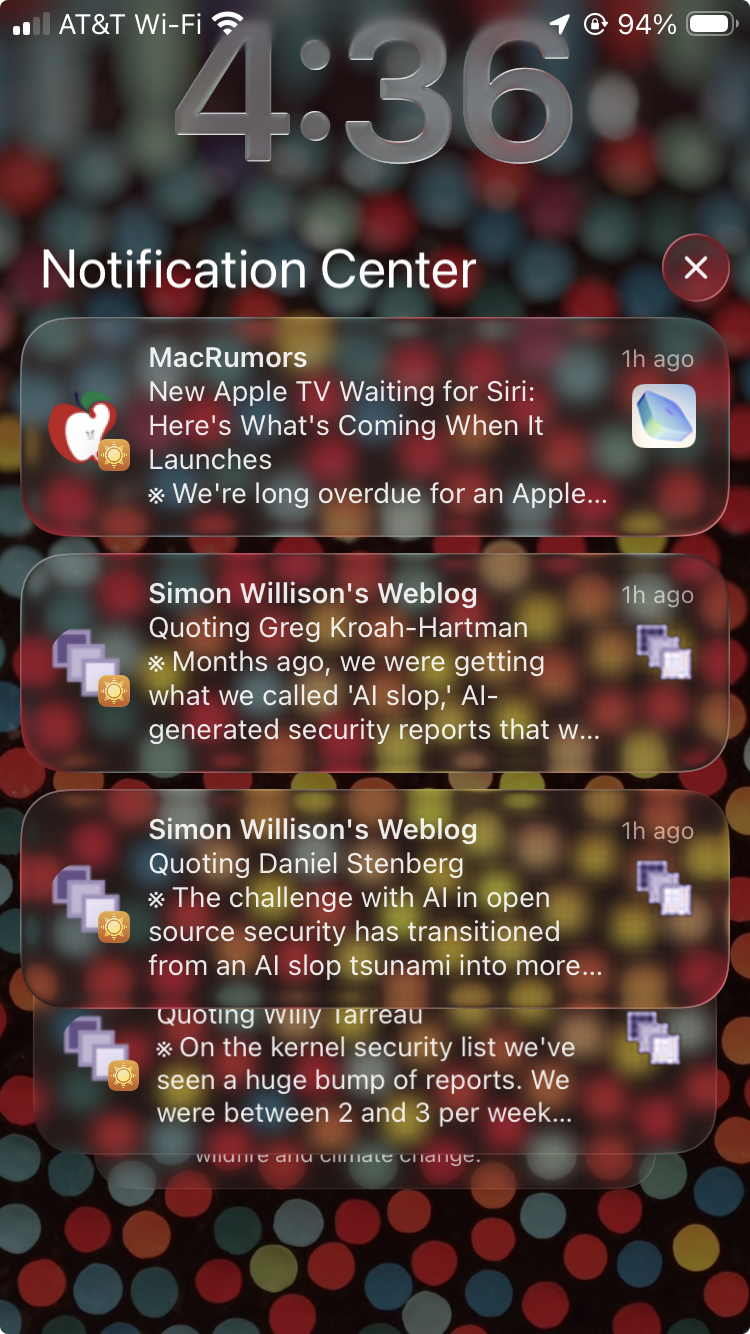
<p>Fast fetching only matters if you find out about new stories quickly. NewsBlur has a full notification system that pairs perfectly with Pro’s 5-minute polling. You can enable notifications per feed and choose whether to be notified about all unread stories or only Focus stories that match your intelligence training.</p>

<p>Notifications go to every platform at once: iOS push notifications, Android push notifications, browser notifications on the web, Mac notifications, and email. Set up a few critical feeds with notifications enabled and you have a real-time alerting pipeline built on RSS.</p>

<!-- SCREENSHOT: iOS push notifications from NewsBlur -->
<p><img src="/assets/pro-notifications-all-platforms.png" style="width: 50%;border: 1px solid rgba(0,0,0,0.1);margin: 24px auto;display: block;" /></p>

<h3 id="classifier-driven-notifications-supercharged-by-pro">Classifier-driven notifications, supercharged by Pro</h3>

<p>Premium Archive recently added the ability to attach notifications directly to individual classifiers. Train a tag, author, title keyword, or phrase, and turn on notifications for that specific classifier. Track a specific author across a folder of feeds. Watch for a tag like “layoffs” or “acquisition” across your entire account. Get pinged the moment a story about a competitor shows up anywhere in your subscriptions. Classifier notifications work at every scope: per-feed, per-folder, or global across all your feeds.</p>

<p>These classifiers now come in three flavors. Standard classifiers match exact tags, authors, and keywords. Regex classifiers let you write patterns like <code class="language-plaintext highlighter-rouge">\bCVE-\d{4}-\d+\b</code> to catch any CVE identifier, or <code class="language-plaintext highlighter-rouge">iPhone|iPad|MacBook</code> to track multiple products in a single classifier. And natural language classifiers let you describe what you’re looking for in plain English, like “stories about startup funding rounds over $50M” or “any mention of regulatory action against tech companies.” All three types can have notifications attached.</p>

<!-- SCREENSHOT: Classifier tag with Notify on Match popover -->
<p><img src="/assets/pro-classifier-notification.png" style="width: 100%;border: 1px solid rgba(0,0,0,0.1);margin: 24px auto;display: block;" /></p>

<p>On their own, classifier notifications are already useful. But on Pro, where every feed is checked every 5 minutes, they become something else entirely. Create a natural language classifier for exactly the kind of story you’re watching for, attach a notification, and within minutes of that story appearing in any of your feeds, you have a push notification on your phone. That’s the difference between knowing about something the same day and knowing about it the same hour. If you’re already using classifier notifications on Premium Archive, Pro is what makes them fast enough for real monitoring.</p>

<h3 id="follow-up-to-10000-sites">Follow up to 10,000 sites</h3>

<p>Pro raises the feed limit to 10,000. Premium supports 1,024 sites, Premium Archive supports 4,096, and Pro takes it to 10,000. If you need comprehensive coverage across industries, beats, competitors, or research domains, this is the ceiling you’ve been looking for.</p>

<h3 id="everything-in-archive-included">Everything in Archive, included</h3>

<p>Pro includes the full <a href="https://newsblur.com/pricing/archive">Premium Archive</a> feature set. That means every story archived and searchable forever, Ask AI for answering questions about stories, full-text content training, global and folder-scoped intelligence training, per-feed auto-mark-read timers, and more. Pro adds speed and precision on top of that foundation.</p>

<p>You also get priority support, so when you need help, you’re at the front of the line.</p>

<h3 id="pricing">Pricing</h3>

<p>Premium Pro is $29/month. It’s monthly rather than yearly because the high-frequency fetching infrastructure costs more to operate. You’re paying for dedicated polling of up to 10,000 feeds every 5 minutes. If your work depends on being the first to know, Pro pays for itself.</p>

<p>You can upgrade from the <a href="https://newsblur.com/?next=premium">Premium page</a> on the web. If you have feedback or ideas for Pro, I’d love to hear them on the <a href="https://forum.newsblur.com">NewsBlur forum</a>.</p>
]]>
    </content>


    <category term="web" />
    
    
    <summary type="html">
      <![CDATA[Some of you don’t just read the news. You monitor it. You’re tracking competitors, watching for security disclosures, following regulatory changes, or covering a beat where being 30 minutes late means you missed the story. NewsBlur has always been a great reader, but for people who need it to be...]]>
    </summary>
    
  </entry>
  
  <entry>
    <title type="html">Widely Read Stories and Long Reads: surfacing stories worth your time</title>
    <link href="https://blog.newsblur.com/2026/04/05/widely-read-stories-and-long-reads/" rel="alternate" type="text/html" title="Widely Read Stories and Long Reads: surfacing stories worth your time" />
    <published>2026-04-05T00:00:00-04:00</published>
    <updated>2026-04-05T00:00:00-04:00</updated>
    <id>https://blog.newsblur.com/2026/04/05/widely-read-stories-and-long-reads</id>
    <content type="html" xml:base="https://blog.newsblur.com/2026/04/05/widely-read-stories-and-long-reads/">
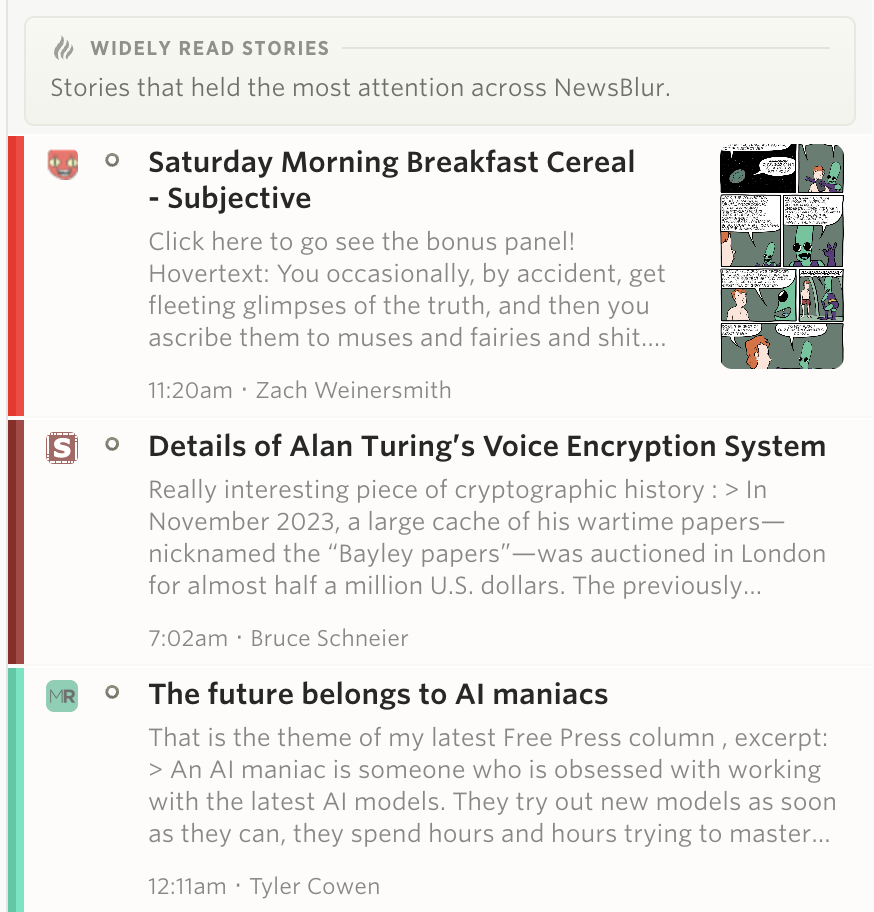
      <![CDATA[<p>There are two questions I keep coming back to when I open my reader: what are other people reading right now, and what’s worth setting aside time for? Not what’s trending on social media or what an algorithm thinks will get clicks. What are actual readers spending their time on?</p>

<p>Two new feeds in the sidebar answer those questions: <strong>Widely Read Stories</strong> and <strong>Long Reads</strong>. Both are ranked by actual reading time rather than clicks or social shares.</p>

<h3 id="widely-read-stories">Widely Read Stories</h3>

<p>This feed collects stories that three or more NewsBlur readers have spent meaningful time with over the past week. “Meaningful time” means at least 3 seconds of actual reading, so quick scrolls and accidental opens don’t count. The list is refreshed every hour and stories are sorted by publish date, so you see the latest widely read articles first.</p>

<p><img src="/assets/widely-read-stories.png" style="width: 100%;border: 1px solid rgba(0,0,0,0.1);margin: 24px auto;display: block;" /></p>

<p>Think of it as a window into what the NewsBlur community is reading right now. It’s not an algorithm trying to maximize engagement. It’s just the stories that real people are spending their time on.</p>

<h3 id="long-reads">Long Reads</h3>

<p>The Long Reads feed takes a different angle. Instead of counting readers, it ranks stories by average time spent per reader. A story that five people each read for four minutes ranks higher than a story that fifty people glanced at for thirty seconds. This naturally surfaces longer, deeper articles that reward sustained attention.</p>

<p><img src="/assets/long-reads.png" style="width: 100%;border: 1px solid rgba(0,0,0,0.1);margin: 24px auto;display: block;" /></p>

<h3 id="your-classifiers-apply-here-too">Your classifiers apply here too</h3>

<p>These aren’t just raw lists of stories. When you open Widely Read Stories or Long Reads, your trained classifiers run against every story. Tags, authors, titles, and text classifiers all apply, so stories from feeds you’ve trained show up with the same green and red intelligence scoring you see everywhere else in NewsBlur. If you’ve trained a tag as interesting or an author as disliked, those scores carry through into the trending feeds.</p>

<p><img src="/assets/widely-read-classifiers.png" style="width: 80%;border: 1px solid rgba(0,0,0,0.1);margin: 24px auto;display: block;" /></p>

<h3 id="dashboard-support">Dashboard support</h3>

<p>Both feeds are available as dashboard river options. Open your dashboard settings, pick “Widely Read Stories” or “Long Reads” from the river dropdown, and the feed appears as a panel alongside your other dashboard rivers.</p>

<p><img src="/assets/widely-read-dashboard.png" style="width: 100%;border: 1px solid rgba(0,0,0,0.1);margin: 24px auto;display: block;" /></p>

<h3 id="availability">Availability</h3>

<p>Widely Read Stories and Long Reads are available now on the web. Look for them in the sidebar below Global Shared Stories. If you have feedback or ideas, please share them on the <a href="https://forum.newsblur.com">NewsBlur forum</a>.</p>
]]>
    </content>


    <category term="web" />
    
    
    <summary type="html">
      <![CDATA[There are two questions I keep coming back to when I open my reader: what are other people reading right now, and what’s worth setting aside time for? Not what’s trending on social media or what an algorithm thinks will get clicks. What are actual readers spending their time on?...]]>
    </summary>
    
  </entry>
  
  <entry>
    <title type="html">Quote and share highlighted text from any story</title>
    <link href="https://blog.newsblur.com/2026/04/03/quote-and-share/" rel="alternate" type="text/html" title="Quote and share highlighted text from any story" />
    <published>2026-04-03T00:00:00-04:00</published>
    <updated>2026-04-03T00:00:00-04:00</updated>
    <id>https://blog.newsblur.com/2026/04/03/quote-and-share</id>
    <content type="html" xml:base="https://blog.newsblur.com/2026/04/03/quote-and-share/">
      <![CDATA[<p>When you share a story on NewsBlur, sometimes the whole article isn’t the point. You want to call out a specific paragraph, a key finding, a sentence that made you think. Until now, you’d have to manually copy-paste text into the comment box and add your own formatting. Now you can select any text in a story, click Quote, and it drops into the share dialog as a styled blockquote, ready for you to add your own commentary underneath.</p>

<h3 id="how-it-works">How it works</h3>

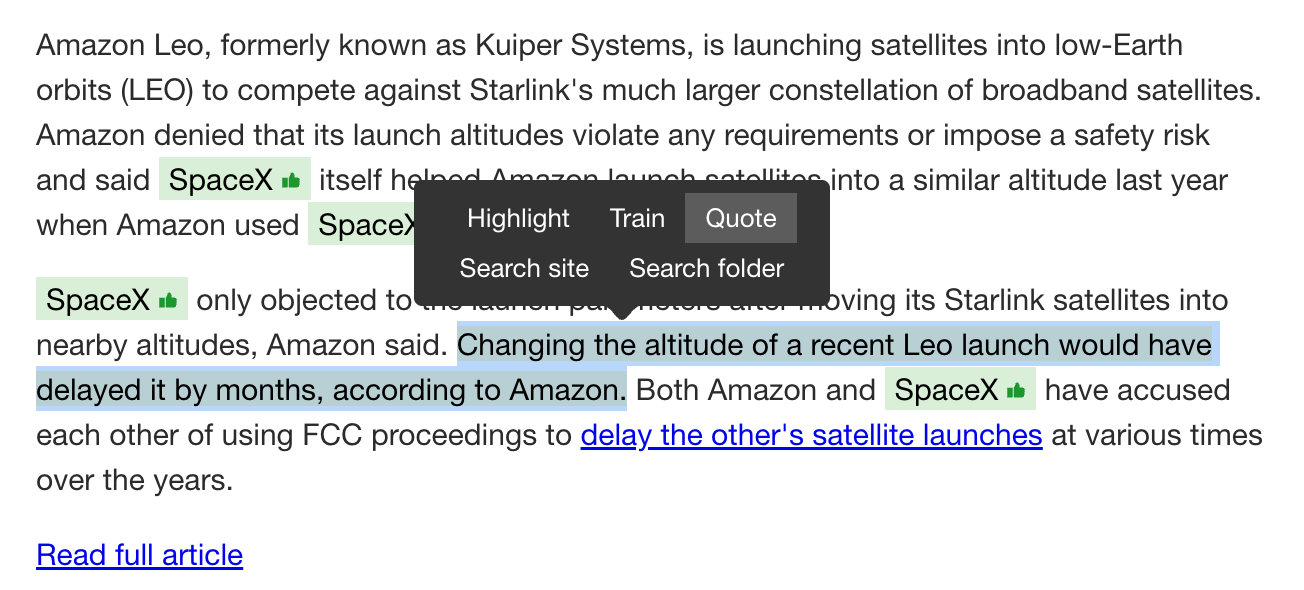
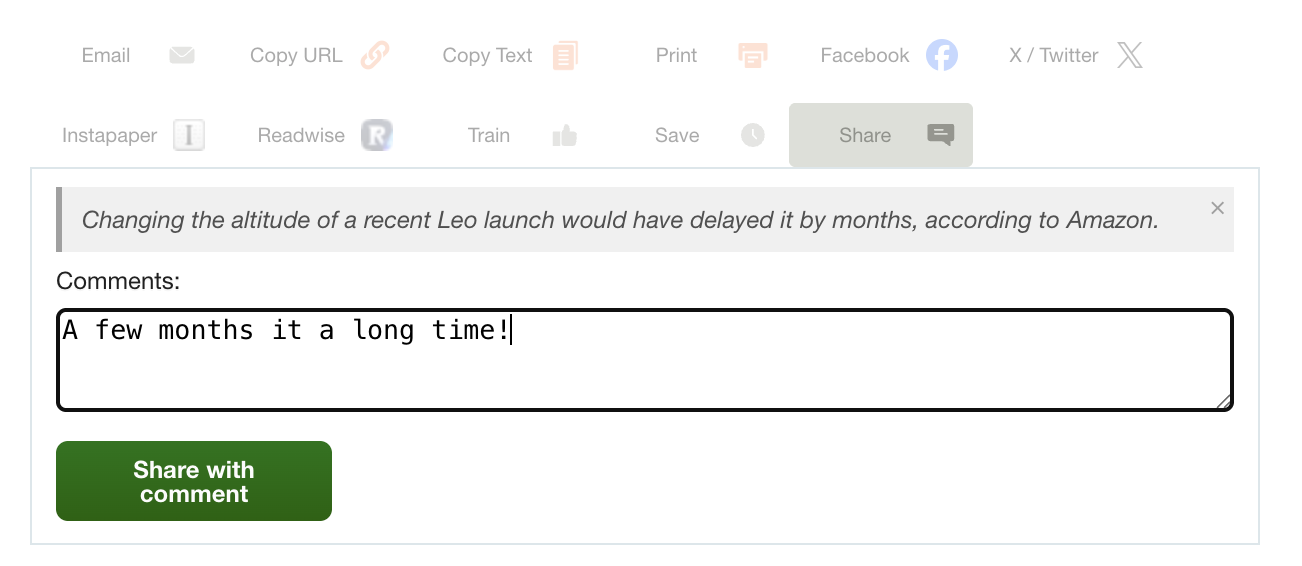
<p>Select text in any story and a popover appears with the usual options: Highlight, Train, and Search. There’s now a new option: <strong>Quote</strong>. Click it, and the share dialog opens with your selected text rendered as a blockquote above the comment field.</p>

<p><img src="/assets/quote-selection-popover.png" style="width: 80%;border: 1px solid rgba(0,0,0,0.1);margin: 24px auto;display: block;" /></p>

<p>Add your own comment below the quote, or just share the quote by itself. The share button updates to say “Share with comment” when there’s a quote or comment present. If you change your mind, click the × on the blockquote to remove it.</p>

<p><img src="/assets/quote-share-dialog.png" style="width: 80%;border: 1px solid rgba(0,0,0,0.1);margin: 24px auto;display: block;" /></p>

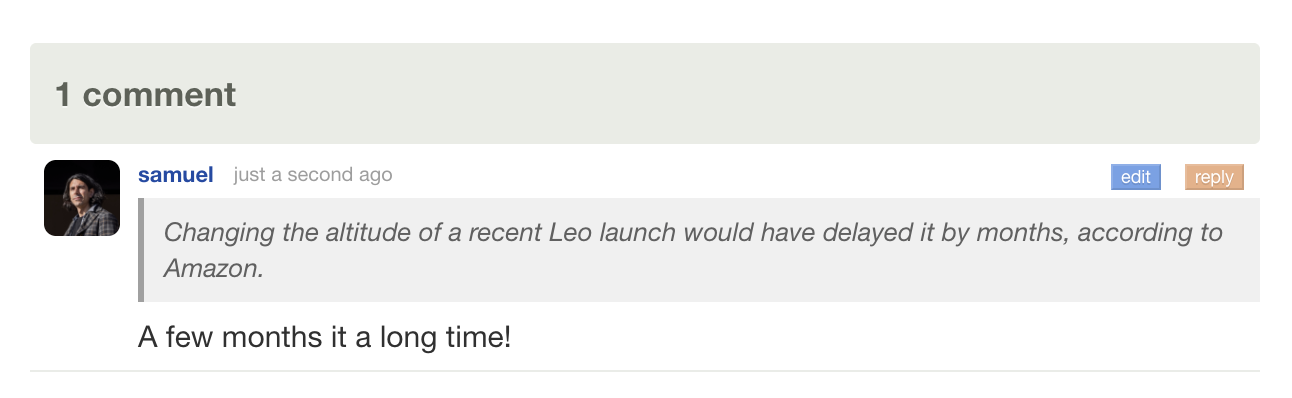
<p>Once shared, the blockquote renders with a left border and italic styling in the comment thread, so other readers can see exactly what caught your eye before reading your take on it.</p>

<p><img src="/assets/quote-shared-comment.png" style="width: 80%;border: 1px solid rgba(0,0,0,0.1);margin: 24px auto;display: block;" /></p>

<p>The quote feature works anywhere text selection is available: the story detail view, highlighted text, and search results. It’s available now on the web. If you have feedback or ideas, please share them on the <a href="https://forum.newsblur.com">NewsBlur forum</a>.</p>
]]>
    </content>


    <category term="web" />
    
    
    <summary type="html">
      <![CDATA[When you share a story on NewsBlur, sometimes the whole article isn’t the point. You want to call out a specific paragraph, a key finding, a sentence that made you think. Until now, you’d have to manually copy-paste text into the comment box and add your own formatting. Now you...]]>
    </summary>
    
  </entry>
  
  <entry>
    <title type="html">Natural language text and image classifiers: Train your feeds with plain English</title>
    <link href="https://blog.newsblur.com/2026/04/02/natural-language-text-and-image-classifiers/" rel="alternate" type="text/html" title="Natural language text and image classifiers: Train your feeds with plain English" />
    <published>2026-04-02T00:00:00-04:00</published>
    <updated>2026-04-02T00:00:00-04:00</updated>
    <id>https://blog.newsblur.com/2026/04/02/natural-language-text-and-image-classifiers</id>
    <content type="html" xml:base="https://blog.newsblur.com/2026/04/02/natural-language-text-and-image-classifiers/">
      <![CDATA[<p>The Intelligence Trainer has always worked with exact matches. You type a keyword, a tag, an author name, and NewsBlur filters on that literal string. Regex mode added flexibility, but you still need to know exactly what to type. If you want to hide clickbait, you’d have to enumerate every clickbait pattern you can think of. If you want to focus on stories about local government accountability, good luck expressing that as a regex.</p>
<p>Natural language classifiers let you describe what you want in plain English. Instead of matching keywords, NewsBlur sends your description and each story to an AI model that understands what you mean. Write “stories about practical cooking techniques, not restaurant reviews” and it just works. Write “product launch announcements” and it finds them regardless of how each site phrases it. And with image classifiers, you can filter on what’s actually shown in a story’s photos, not just what’s written in the text.</p>

<h3 id="text-classifiers">Text classifiers</h3>

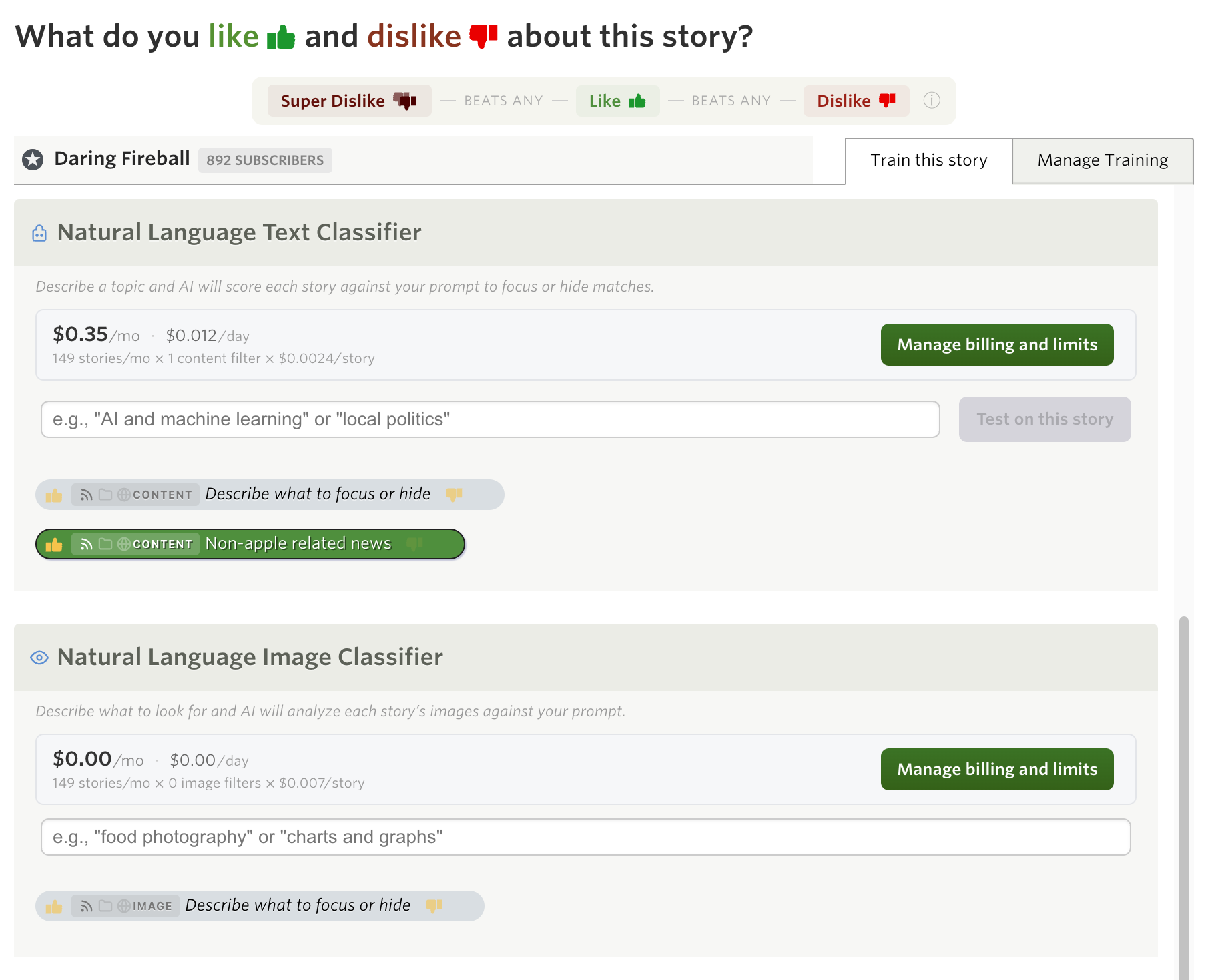
<p>Open the Intelligence Trainer on any feed and you’ll see a new section: <strong>Natural Language Text Classifier</strong>. Type a description of what you want to focus on or hide, and press Enter. Not sure if your prompt will catch the right stories? Click <strong>Test on this story</strong> to see how the classifier would score it before you save, so you can refine your wording.</p>

<p><img src="/assets/nl-text-classifier-input.png" style="width: 90%;border: 1px solid rgba(0,0,0,0.1);margin: 24px auto;display: block;" /></p>

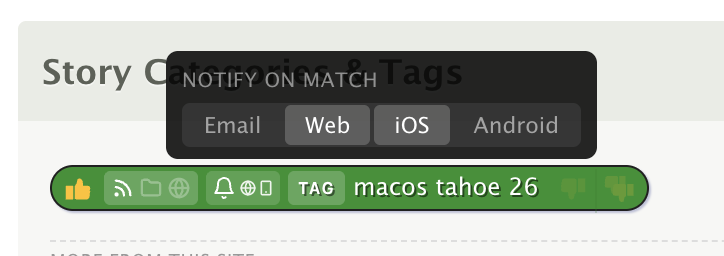
<p>Your prompt is saved as a classifier pill, just like title and author classifiers. Toggle it between focus (green) and hidden (red) to control whether matching stories are promoted or suppressed. You can add multiple prompts per feed, and each one works independently.</p>

<p>When you save a new prompt, NewsBlur immediately classifies your recent stories against it. Within a few seconds, you’ll see stories re-sort as the classifications come in. From then on, every new story is classified as it arrives.</p>

<p>The classifier sends each story’s title and content to the AI model along with your description. The model decides whether the story matches, doesn’t match, or is clearly the opposite of what you described. That three-way classification means a “focus” prompt can also actively hide stories that are the antithesis of your interest.</p>

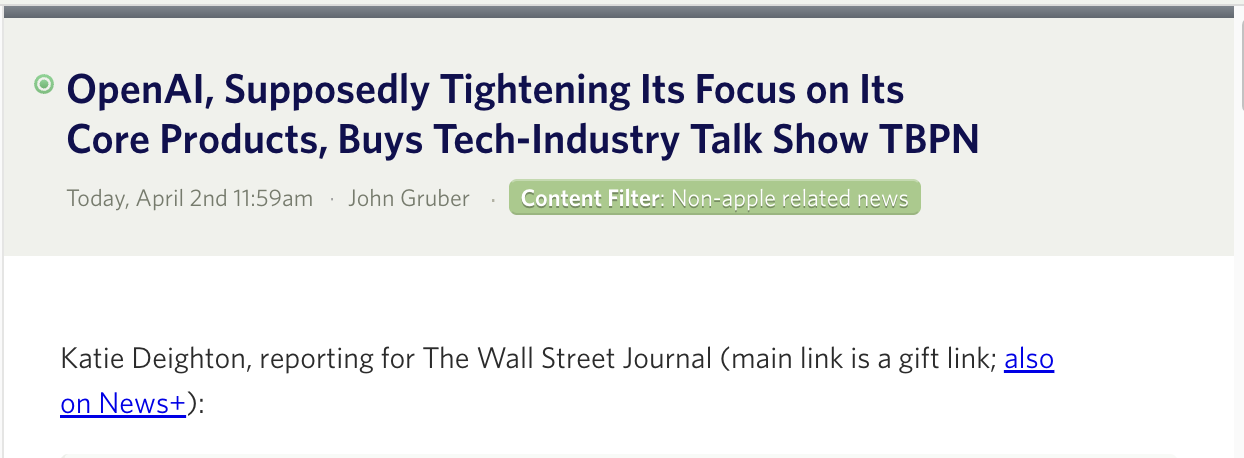
<p>When a text classifier matches, you’ll see a colored pill in the story header showing which prompt matched.</p>

<p><img src="/assets/nl-classifier-story-pills-text.png" style="width: 90%;border: 1px solid rgba(0,0,0,0.1);margin: 24px auto;display: block;" /></p>

<h3 id="image-classifiers">Image classifiers</h3>

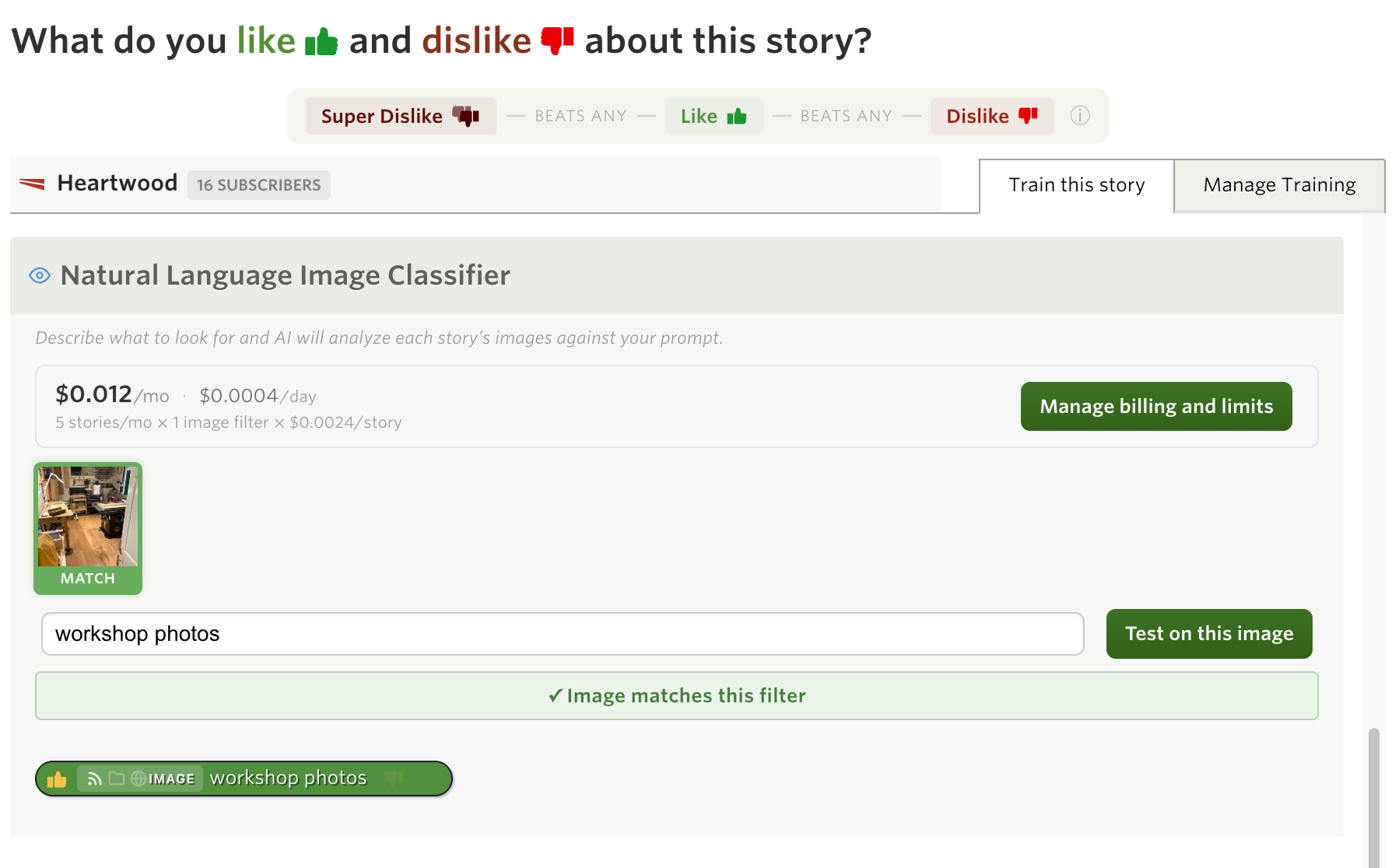
<p>Image classifiers work the same way, but they look at the photos in each story instead of the text. Describe what you want to see (or hide) visually, and the AI model examines each image to decide if it matches.</p>

<p><img src="/assets/nl-image-classifier-input.png" style="width: 90%;border: 1px solid rgba(0,0,0,0.1);margin: 24px auto;display: block;" /></p>

<p>Some examples:</p>

<ul>
  <li><strong>“Charts and data visualizations”</strong> — Focus on stories with graphs, tables, or infographics</li>
  <li><strong>“Screenshots of user interfaces”</strong> — Find product announcements that include actual UI screenshots</li>
  <li><strong>“Nature and landscape photography”</strong> — Surface photography posts in mixed-content feeds</li>
  <li><strong>“Memes”</strong> — Hide (or focus on) image macros and memes</li>
</ul>

<p>The image classifier is strict about what counts as a match. It only triggers when the subject is literally visible as the main focus of the image, not when something is vaguely related or appears in a logo or watermark. “Food photos” matches a photo of a plate of pasta, not a restaurant storefront.</p>

<p>Image classifier matches also show as pills in the story header, just like text classifiers.</p>

<p><img src="/assets/nl-classifier-story-pills-image.png" style="width: 90%;border: 1px solid rgba(0,0,0,0.1);margin: 24px auto;display: block;" /></p>

<h3 id="combining-with-classifier-notifications">Combining with classifier notifications</h3>

<p>Natural language classifiers become even more powerful when paired with <a href="/2026/03/27/super-dislikes-and-classifier-notifications/">per-classifier notifications</a>. Set up a text classifier like “breaking news about AI regulation” on a high-volume news feed, then attach a notification to that classifier pill. You’ll get a push notification or email only when a story matches your natural language description, not every time the feed publishes.</p>

<p>This turns NewsBlur into a semantic alert system. Instead of monitoring keywords, you’re monitoring concepts. A classifier for “security vulnerabilities in open source libraries” will catch stories whether they say “CVE,” “zero-day,” “supply chain attack,” or any other phrasing. Add a notification and you have a monitoring pipeline that understands what you care about.</p>

<h3 id="scoping">Scoping</h3>

<p>Like all classifiers in NewsBlur, natural language classifiers support three scope levels:</p>

<ul>
  <li><strong>Per site</strong> — Applies only to the feed you’re training (default)</li>
  <li><strong>Per folder</strong> — Applies to every feed in the folder</li>
  <li><strong>Global</strong> — Applies to every feed you subscribe to</li>
</ul>

<p>A global text classifier like “sponsored content” can hide promotional stories across your entire feed list with a single prompt.</p>

<h3 id="usage-based-billing">Usage-based billing</h3>

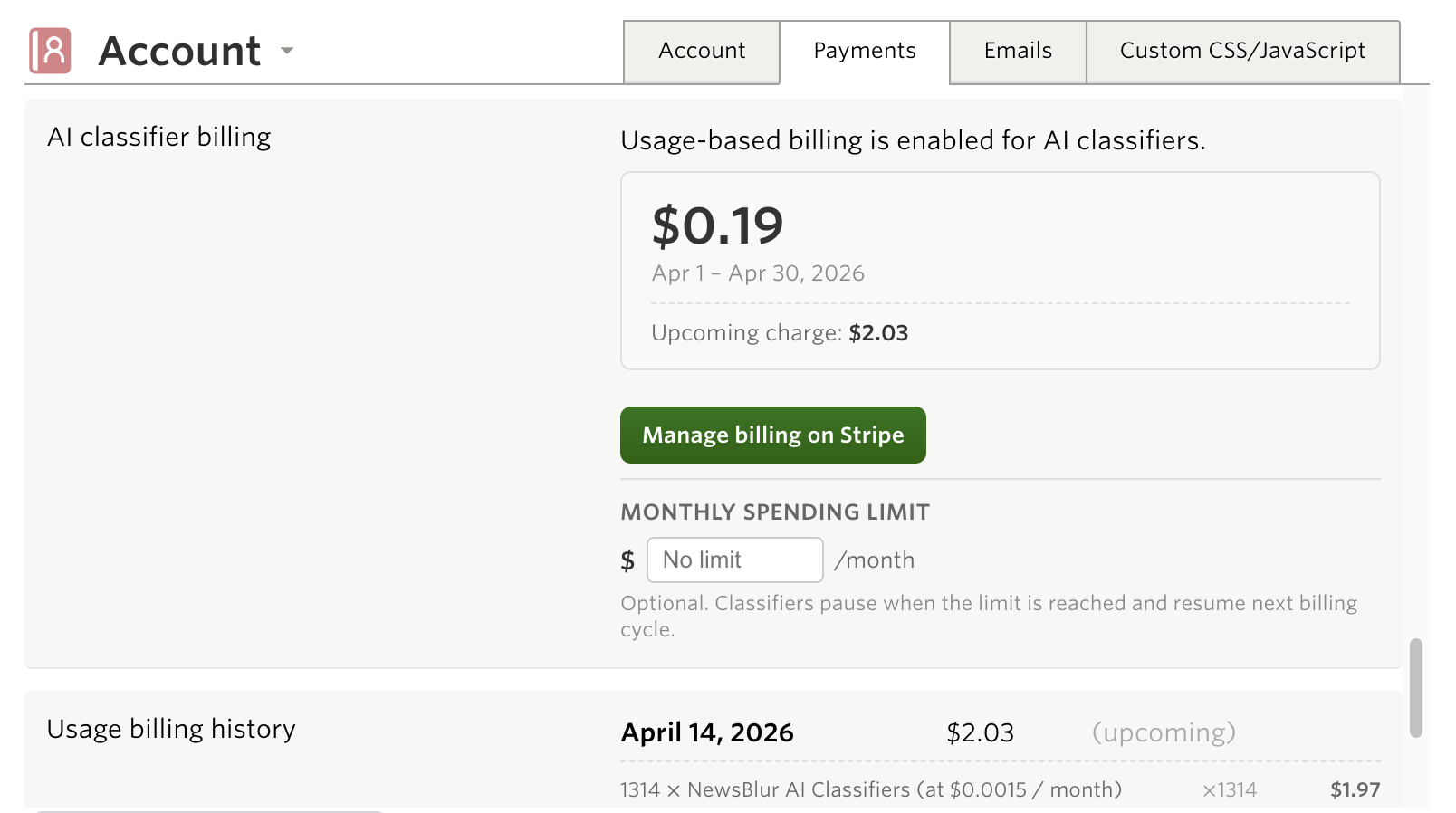
<p>Natural language classifiers use AI models to evaluate every story, which means there’s a real cost per classification. Rather than bundling this into a fixed subscription tier, NewsBlur uses usage-based billing so you only pay for what you use.</p>

<p>Text classifications cost roughly a tenth of a cent per story. Image classifications cost more because they process image data, roughly half a cent per story. The actual cost depends on story length and image count, but for a typical feed publishing 30 stories a month with one text classifier, you’d pay about 5 cents a month.</p>

<p>You can set a monthly spending limit to cap your costs. If you hit the limit, classification pauses until the next billing cycle. Your existing cached results still show, but new stories won’t be classified until the limit resets.</p>

<p><img src="/assets/nl-classifier-billing.png" style="width: 60%;border: 1px solid rgba(0,0,0,0.1);margin: 24px auto;display: block;" /></p>

<h3 id="availability">Availability</h3>

<p>Natural language text and image classifiers are available now on the web for Premium subscribers with usage-based billing enabled. Enable it from <strong>Manage &gt; Account</strong> to get started.</p>

<p>If you have feedback or ideas for improvements, please share them on the <a href="https://forum.newsblur.com">NewsBlur forum</a>.</p>
]]>
    </content>


    <category term="web" />
    
    
    <summary type="html">
      <![CDATA[The Intelligence Trainer has always worked with exact matches. You type a keyword, a tag, an author name, and NewsBlur filters on that literal string. Regex mode added flexibility, but you still need to know exactly what to type. If you want to hide clickbait, you’d have to enumerate every...]]>
    </summary>
    
  </entry>
  
  <entry>
    <title type="html">The NewsBlur CLI Tool, AI Skill, and MCP Server</title>
    <link href="https://blog.newsblur.com/2026/04/01/mcp-server-and-cli/" rel="alternate" type="text/html" title="The NewsBlur CLI Tool, AI Skill, and MCP Server" />
    <published>2026-04-01T00:00:00-04:00</published>
    <updated>2026-04-01T00:00:00-04:00</updated>
    <id>https://blog.newsblur.com/2026/04/01/mcp-server-and-cli</id>
    <content type="html" xml:base="https://blog.newsblur.com/2026/04/01/mcp-server-and-cli/">
      <![CDATA[<p>NewsBlur has always had an API. Every feature in the web app, the iOS app, and the Android app runs through it. But APIs are for developers. Today I’m shipping three new ways to interact with your NewsBlur: a command-line tool that puts your entire NewsBlur in your terminal, an AI skill that teaches your agent every CLI command without eating your context window, and an MCP server that connects any MCP-compatible agent directly to your account.</p>

<h3 id="quickstart">Quickstart</h3>

<p><strong>CLI tool</strong> — install and log in:</p>

<div class="language-bash highlighter-rouge"><div class="highlight"><pre class="highlight"><code>uv pip <span class="nb">install </span>newsblur-cli
newsblur auth login
</code></pre></div></div>

<p><strong>AI skill</strong> — install into Claude Code, Cursor, Windsurf, or any Skills-compatible tool:</p>

<div class="language-plaintext highlighter-rouge"><div class="highlight"><pre class="highlight"><code>npx skills add samuelclay/newsblur-cli-skill
</code></pre></div></div>

<p><strong>MCP server</strong> — connect from Claude Code, Claude Desktop, Codex, or any MCP client:</p>

<div class="language-plaintext highlighter-rouge"><div class="highlight"><pre class="highlight"><code>claude mcp add --transport http newsblur https://newsblur.com/mcp/
</code></pre></div></div>

<p>All three require a <a href="https://newsblur.com/?next=premium">Premium Archive</a> or Premium Pro subscription. On first use, a browser window opens for OAuth authorization. Your token is stored locally and you can revoke access at any time.</p>

<hr />

<h3 id="cli-tool">CLI tool</h3>

<p>Everything you do in NewsBlur, from your terminal. Full documentation is on the <a href="https://newsblur.com/features/cli">CLI feature page</a>.</p>

<p><strong>Read stories</strong> from feeds, folders, or everything at once:</p>

<div class="language-bash highlighter-rouge"><div class="highlight"><pre class="highlight"><code>newsblur stories list                          <span class="c"># unread stories</span>
newsblur stories list <span class="nt">--folder</span> Tech <span class="nt">--limit</span> 5  <span class="c"># filter by folder</span>
newsblur stories search <span class="s2">"machine learning"</span>     <span class="c"># full-text search</span>
newsblur stories saved <span class="nt">--tag</span> research          <span class="c"># saved stories by tag</span>
newsblur stories infrequent                    <span class="c"># rarely-publishing feeds</span>
newsblur stories original 123:abc456           <span class="c"># fetch full article text</span>
</code></pre></div></div>

<p><strong>Get your daily briefing</strong> with AI-curated summaries:</p>

<div class="language-bash highlighter-rouge"><div class="highlight"><pre class="highlight"><code>newsblur briefing                              <span class="c"># today's briefing</span>
newsblur briefing <span class="nt">--limit</span> 1                    <span class="c"># just the latest</span>
newsblur briefing <span class="nt">--json</span>                       <span class="c"># structured output</span>
</code></pre></div></div>

<p><strong>Manage feeds and folders:</strong></p>

<div class="language-bash highlighter-rouge"><div class="highlight"><pre class="highlight"><code>newsblur feeds list                            <span class="c"># all subscriptions</span>
newsblur feeds folders                         <span class="c"># folder tree with counts</span>
newsblur feeds add https://example.com         <span class="c"># subscribe</span>
newsblur feeds add https://blog.com <span class="nt">-f</span> Tech    <span class="c"># subscribe into a folder</span>
newsblur feeds remove 42                       <span class="c"># unsubscribe</span>
newsblur feeds organize move_feed <span class="nt">--feed-id</span> 42 <span class="nt">--from</span> News <span class="nt">--to</span> Tech
</code></pre></div></div>

<p><strong>Take actions on stories:</strong></p>

<div class="language-bash highlighter-rouge"><div class="highlight"><pre class="highlight"><code>newsblur save 123:abc <span class="nt">--tag</span> ai <span class="nt">--tag</span> research  <span class="c"># save with tags</span>
newsblur unsave 123:abc                        <span class="c"># remove from saved</span>
newsblur <span class="nb">read</span> <span class="nt">--feed</span> 42                        <span class="c"># mark feed as read</span>
newsblur share 123:abc <span class="nt">--comment</span> <span class="s2">"Worth reading"</span>
</code></pre></div></div>

<p><strong>Train your intelligence classifiers:</strong></p>

<div class="language-bash highlighter-rouge"><div class="highlight"><pre class="highlight"><code>newsblur train show <span class="nt">--feed</span> 42                  <span class="c"># view current training</span>
newsblur train like <span class="nt">--feed</span> 42 <span class="nt">--author</span> <span class="s2">"Name"</span>  <span class="c"># train a like</span>
newsblur train dislike <span class="nt">--feed</span> 42 <span class="nt">--tag</span> sponsor <span class="c"># train a dislike</span>
</code></pre></div></div>

<p><strong>Discover new feeds:</strong></p>

<div class="language-bash highlighter-rouge"><div class="highlight"><pre class="highlight"><code>newsblur discover search <span class="s2">"machine learning"</span>    <span class="c"># search by topic</span>
newsblur discover similar <span class="nt">--feed</span> 42            <span class="c"># find similar feeds</span>
newsblur discover trending                     <span class="c"># trending feeds</span>
</code></pre></div></div>

<p>Every command supports <code class="language-plaintext highlighter-rouge">--json</code> for structured output you can pipe to jq or use in scripts, and <code class="language-plaintext highlighter-rouge">--raw</code> for unformatted text. There’s also a global <code class="language-plaintext highlighter-rouge">--server</code> flag for self-hosted NewsBlur instances:</p>

<div class="language-bash highlighter-rouge"><div class="highlight"><pre class="highlight"><code>newsblur <span class="nt">--server</span> https://my-newsblur.example.com auth login
newsblur briefing <span class="nt">--json</span> | jq <span class="s1">'.items[0].section_summaries'</span>
</code></pre></div></div>

<p><img src="/assets/mcp-cli.png" style="width: 100%;border: 1px solid rgba(0,0,0,0.1);margin: 24px auto;display: block;" /></p>

<h3 id="ai-skill">AI skill</h3>

<p>The CLI is great on its own, but it’s even better when your AI agent knows every command. The NewsBlur CLI skill teaches your agent the full command reference: every subcommand, every flag, every output format. Install it with one command and your agent can read feeds, search stories, train classifiers, and manage subscriptions on your behalf.</p>

<div class="language-plaintext highlighter-rouge"><div class="highlight"><pre class="highlight"><code>npx skills add samuelclay/newsblur-cli-skill
</code></pre></div></div>

<p>The <code class="language-plaintext highlighter-rouge">npx skills add</code> command works with any tool that supports the Skills standard: Claude Code, Cursor, Windsurf, and dozens more.</p>

<p><img src="/assets/mcp-skill-top.png" style="width: 100%;border: 1px solid rgba(0,0,0,0.1);margin: 0 auto;display: block;" />
<img src="/assets/mcp-skill-output.png" style="width: 100%;border: 1px solid rgba(0,0,0,0.1);margin: 0 auto 24px;display: block;" /></p>

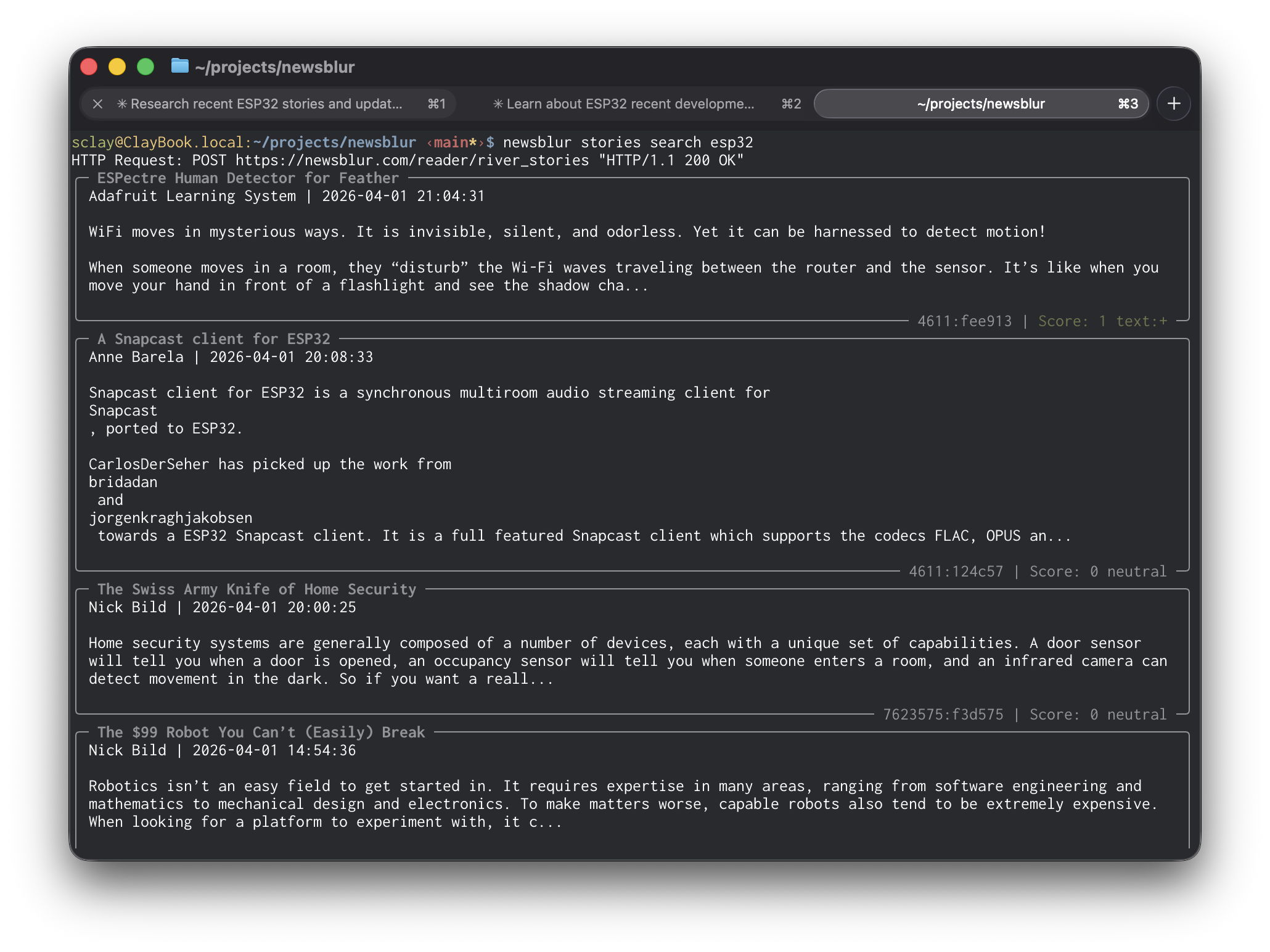
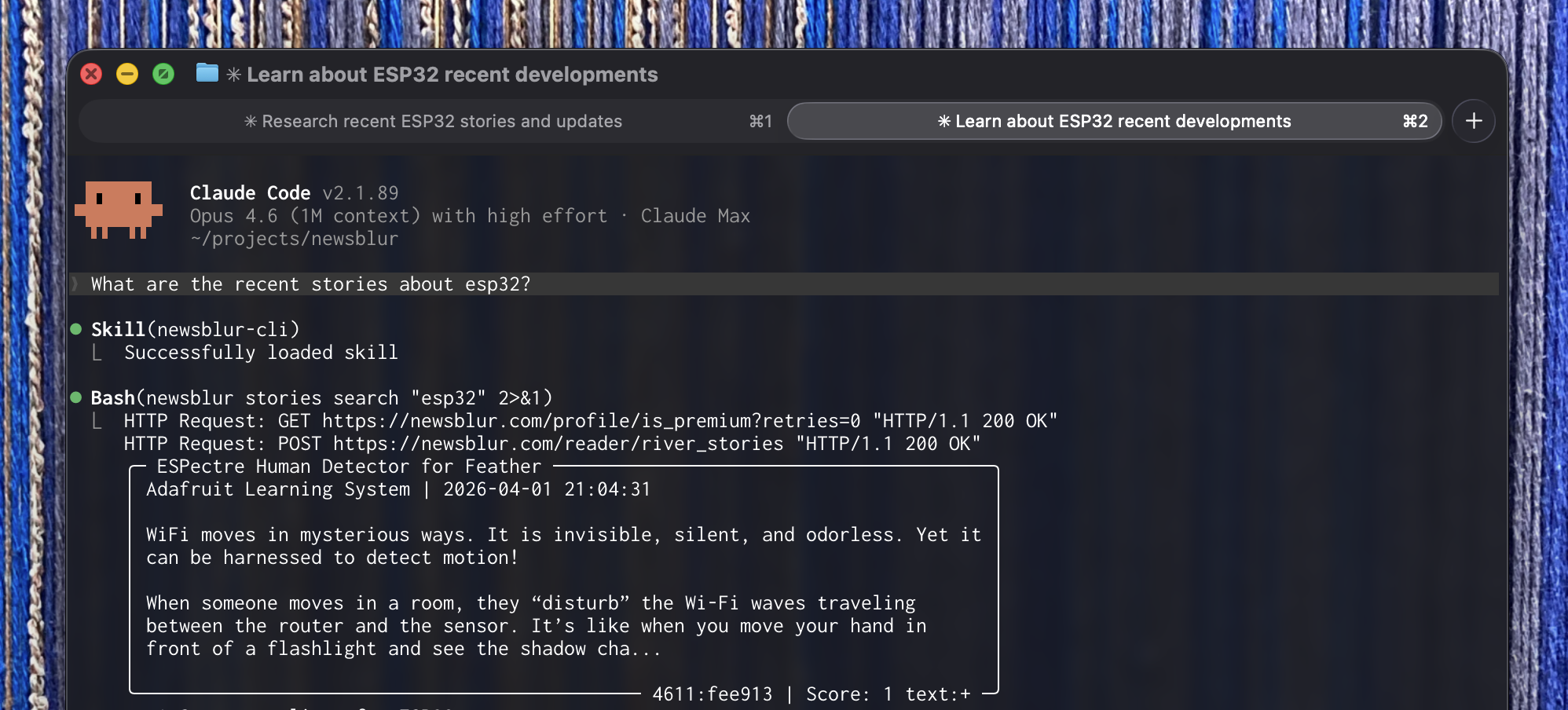
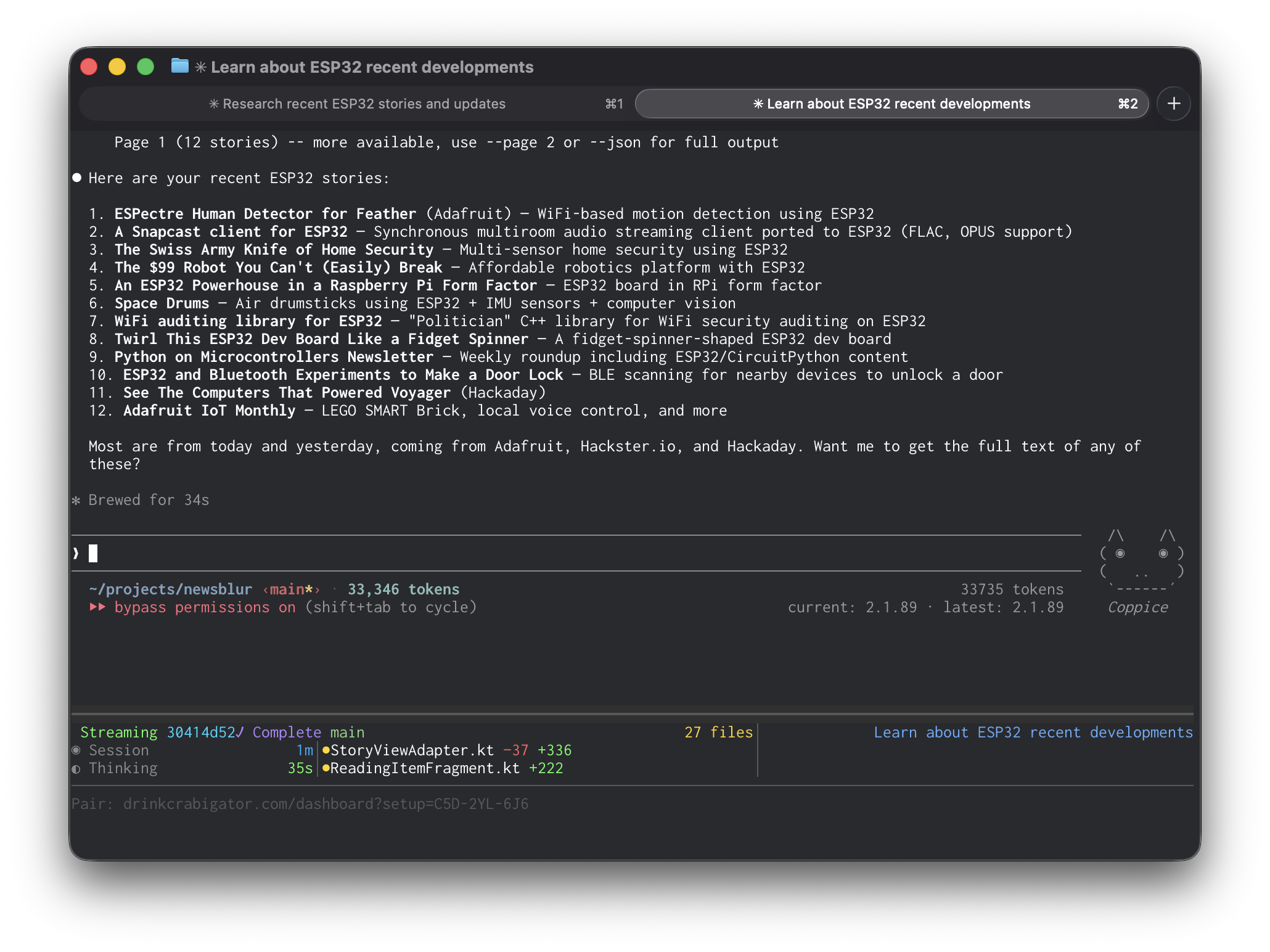
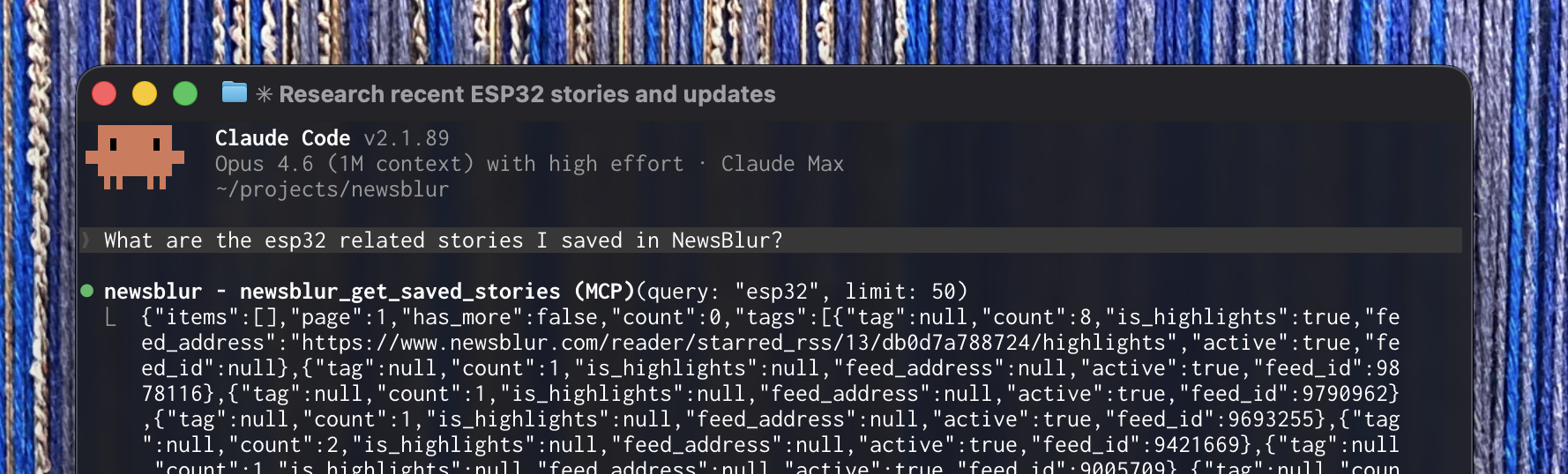
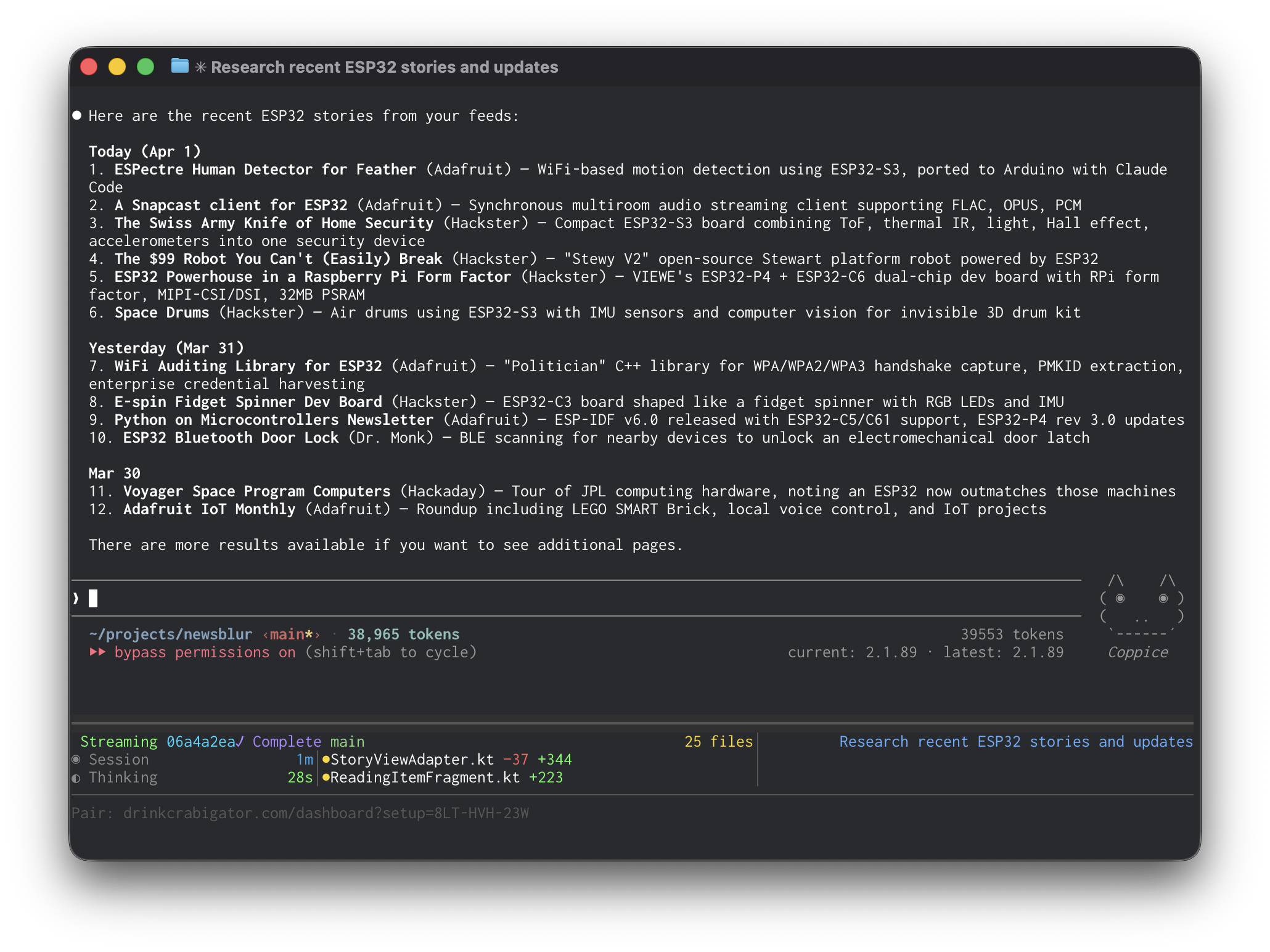
<p>The skill has a major advantage over the MCP server for agents that support it: context efficiency. The MCP server returns raw JSON that lands in your agent’s context window. Ask for your saved ESP32 stories and you’ll burn through nearly 40,000 tokens on a single response. The skill runs the CLI instead, which returns clean, formatted text. Same query, same results, about a third of the tokens. In testing, the MCP server used 39,553 tokens for a saved stories query. The same query through the skill used 11,735.</p>

<p>If your tool supports skills, use the skill. If it only supports MCP, use the MCP server. If you just want to script your NewsBlur from the terminal, use the CLI directly.</p>

<h3 id="mcp-server">MCP server</h3>

<p>MCP (Model Context Protocol) is an open standard that lets AI agents connect to external tools and data. With the NewsBlur MCP server, Claude, Codex, Cursor, Windsurf, and any other MCP-compatible agent can read your feeds, manage your stories, train your classifiers, and organize your subscriptions.</p>

<p><img src="/assets/mcp-stories-query.png" style="width: 100%;border: 1px solid rgba(0,0,0,0.1);margin: 0 auto;display: block;" />
<img src="/assets/mcp-stories-output.png" style="width: 100%;border: 1px solid rgba(0,0,0,0.1);margin: 0 auto 24px;display: block;" /></p>

<p>The server exposes 22 tools that cover everything you do in NewsBlur:</p>

<p><strong>Reading</strong> — List feeds and folders with unread counts. Load stories from any feed, folder, or all subscriptions at once. Filter by unread, focus, or starred. Search across your entire archive with full-text search. Pull the original article text from the source. Get your AI daily briefing. Browse stories from your rarely-publishing infrequent feeds.</p>

<p><strong>Actions</strong> — Mark stories as read by hash, by feed, or by folder. Save stories with tags, notes, and highlights. Subscribe and unsubscribe. Move feeds between folders. Rename feeds and folders. Share stories to your Blurblog.</p>

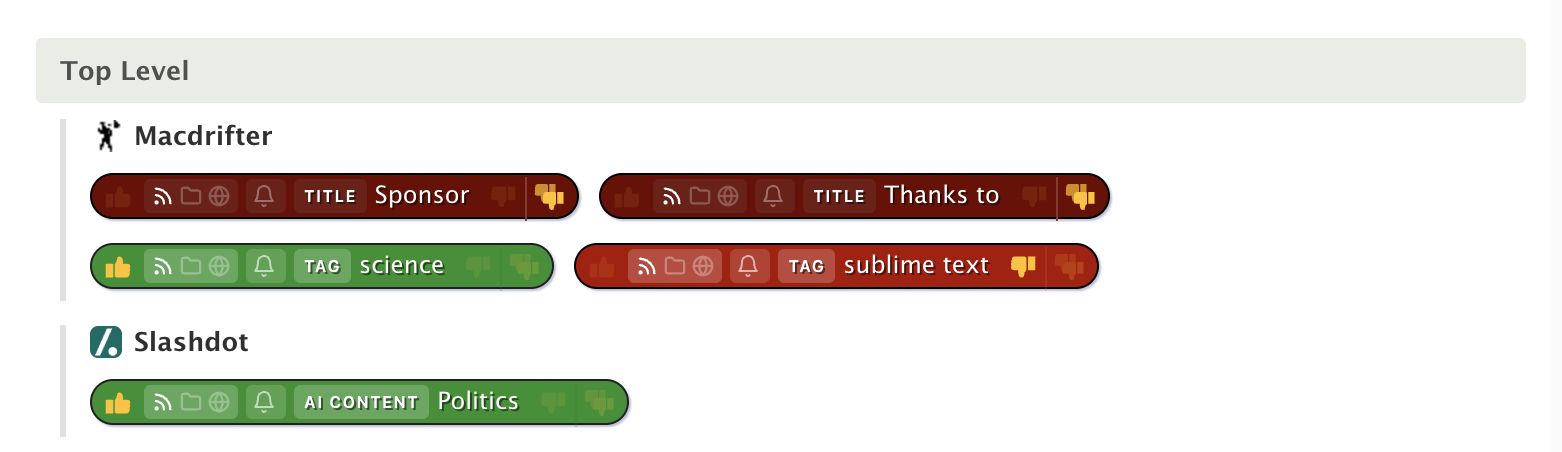
<p><strong>Intelligence</strong> — View your trained classifiers across all feeds. Train new likes and dislikes by author, tag, title, or text content. The full range of training levels is available, including the new super dislike that overrides all other positive scores.</p>

<p><strong>Discovery</strong> — Search for new feeds by topic. Find feeds similar to ones you already follow. Browse trending feeds.</p>

<p>For Claude Code:</p>

<div class="language-plaintext highlighter-rouge"><div class="highlight"><pre class="highlight"><code>claude mcp add --transport http newsblur https://newsblur.com/mcp/
</code></pre></div></div>

<p>For Claude Desktop, add this to your <code class="language-plaintext highlighter-rouge">claude_desktop_config.json</code>:</p>

<div class="language-json highlighter-rouge"><div class="highlight"><pre class="highlight"><code><span class="p">{</span><span class="w">
  </span><span class="nl">"newsblur"</span><span class="p">:</span><span class="w"> </span><span class="p">{</span><span class="w">
    </span><span class="nl">"type"</span><span class="p">:</span><span class="w"> </span><span class="s2">"http"</span><span class="p">,</span><span class="w">
    </span><span class="nl">"url"</span><span class="p">:</span><span class="w"> </span><span class="s2">"https://newsblur.com/mcp/"</span><span class="w">
  </span><span class="p">}</span><span class="w">
</span><span class="p">}</span><span class="w">
</span></code></pre></div></div>

<p>Codex, Cursor, and Windsurf each have their own config format. Setup instructions for all of them are on the <a href="https://newsblur.com/features/mcp">MCP Server feature page</a>.</p>

<h3 id="readonly-mode">Readonly mode</h3>

<p>Giving an AI agent access to your NewsBlur is powerful, but maybe you want to start with guardrails. The CLI has a readonly mode that blocks all write operations: no saving, no sharing, no training, no subscribing, no marking as read. Your agent can read your feeds and search your stories, but it cannot change anything.</p>

<div class="language-bash highlighter-rouge"><div class="highlight"><pre class="highlight"><code>newsblur auth <span class="nb">readonly</span> <span class="nt">--on</span>
</code></pre></div></div>

<p>With readonly on, any write command returns an error instead of executing. The agent sees your data but cannot touch it.</p>

<p>The important part is what happens when you turn it off. Disabling readonly mode logs you out and requires you to re-authenticate in the browser:</p>

<div class="language-bash highlighter-rouge"><div class="highlight"><pre class="highlight"><code>newsblur auth <span class="nb">readonly</span> <span class="nt">--off</span>
<span class="c"># "You have been logged out and must re-authenticate."</span>
newsblur auth login
</code></pre></div></div>

<p>This is deliberate. An AI agent cannot silently toggle readonly off and start making changes. Only a human sitting at a browser can re-authorize write access. If you hand the CLI to an agent and want to be sure it stays read-only, it will.</p>

<h3 id="availability">Availability</h3>

<p>The CLI, AI skill, and MCP server are available now for <a href="https://newsblur.com/?next=premium">Premium Archive</a> and Premium Pro subscribers. See the <a href="https://newsblur.com/features/mcp">MCP Server</a> and <a href="https://newsblur.com/features/cli">CLI Tool</a> feature pages for full documentation.</p>

<p>If you have ideas for new tools, workflows, or improvements, please share them on the <a href="https://forum.newsblur.com">NewsBlur forum</a>.</p>
]]>
    </content>


    <category term="web" />
    
    
    <summary type="html">
      <![CDATA[NewsBlur has always had an API. Every feature in the web app, the iOS app, and the Android app runs through it. But APIs are for developers. Today I’m shipping three new ways to interact with your NewsBlur: a command-line tool that puts your entire NewsBlur in your terminal, an...]]>
    </summary>
    
  </entry>
  
  <entry>
    <title type="html">NewsBlur v14 for Android: Redesigned reading experience, Ask AI, Discover, Daily Briefing, and more</title>
    <link href="https://blog.newsblur.com/2026/03/30/newsblur-v14-for-android/" rel="alternate" type="text/html" title="NewsBlur v14 for Android: Redesigned reading experience, Ask AI, Discover, Daily Briefing, and more" />
    <published>2026-03-30T00:00:00-04:00</published>
    <updated>2026-03-30T00:00:00-04:00</updated>
    <id>https://blog.newsblur.com/2026/03/30/newsblur-v14-for-android</id>
    <content type="html" xml:base="https://blog.newsblur.com/2026/03/30/newsblur-v14-for-android/">
      <![CDATA[<p>A few weeks ago I shipped <a href="/2026/03/05/newsblur-v14-for-ios-and-mac/">NewsBlur v14 for iOS and Mac</a>, a major redesign of the Apple apps. Today, Android gets the same treatment. Every screen has been reworked: the feed list, the story list, the reading view, preferences, and menus. Along with the visual overhaul, several features that were previously web-only are now on Android: Ask AI, Discover Related Sites, and the Daily Briefing.</p>

<p>Here’s what’s new.</p>

<h3 id="ask-ai">Ask AI</h3>

<p>Ask AI brings the same AI-powered Q&amp;A from the web and iOS to Android. Open any story, tap Ask AI, and ask questions about it. Summarize a long article, get background on a developing situation, or fact-check a claim. Pick your preferred AI model and keep the conversation going with follow-ups. The Ask AI sheet matches your current theme and slides up as a bottom sheet, consistent with the share and trainer dialogs.</p>

<p><img src="/assets/android-14-ask-ai.png" style="width: 50%;border: 1px solid rgba(0,0,0,0.1);margin: 24px auto;display: block;" /></p>

<h3 id="discover-related-sites">Discover related sites</h3>

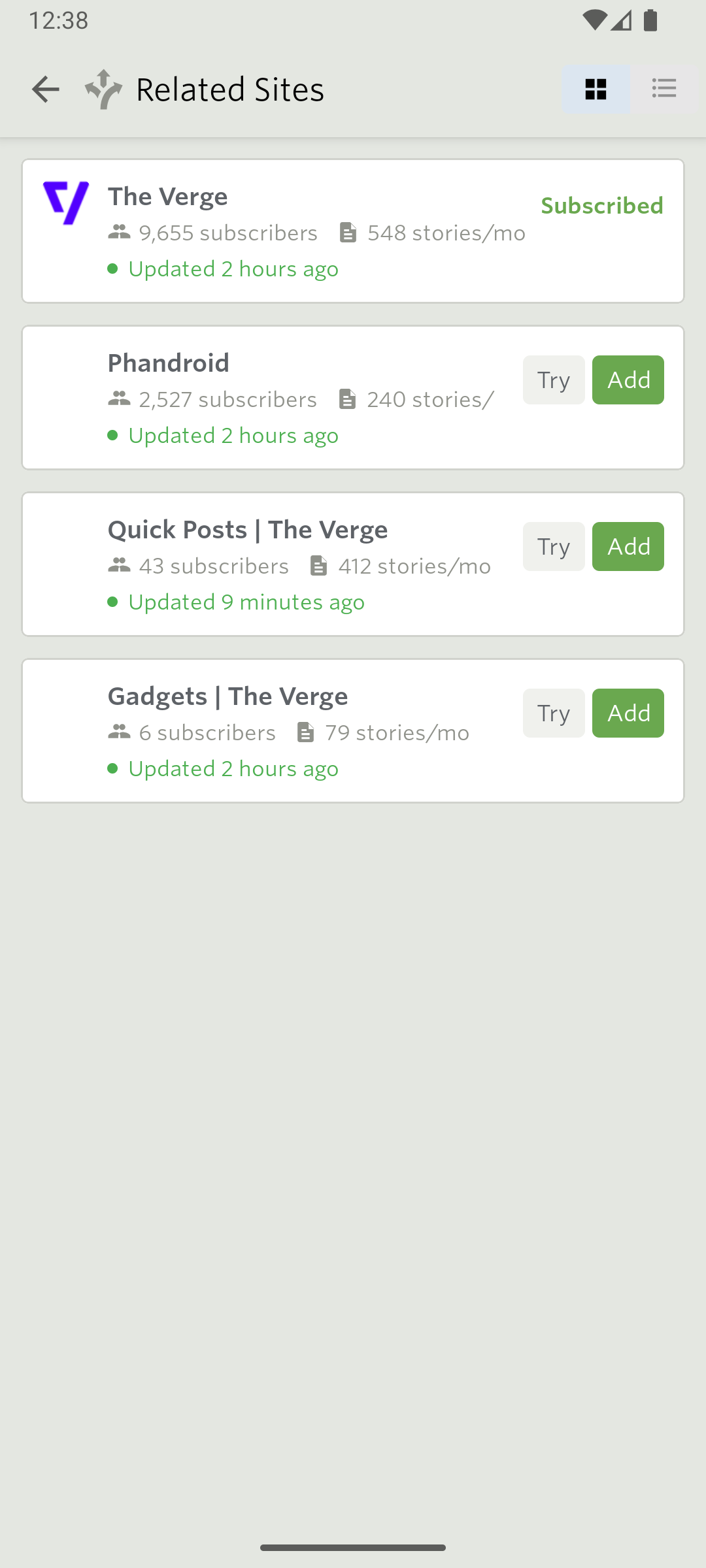
<p>Discover Related Sites lets you find new feeds related to any feed you’re already subscribed to. Tap the Discover button in the story list header bar, browse what’s available, and preview a feed before subscribing. Duplicate feeds are filtered out so you only see new options.</p>

<p><img src="/assets/android-14-discover.png" style="width: 50%;border: 1px solid rgba(0,0,0,0.1);margin: 24px auto;display: block;" /></p>

<h3 id="daily-briefing">Daily Briefing</h3>

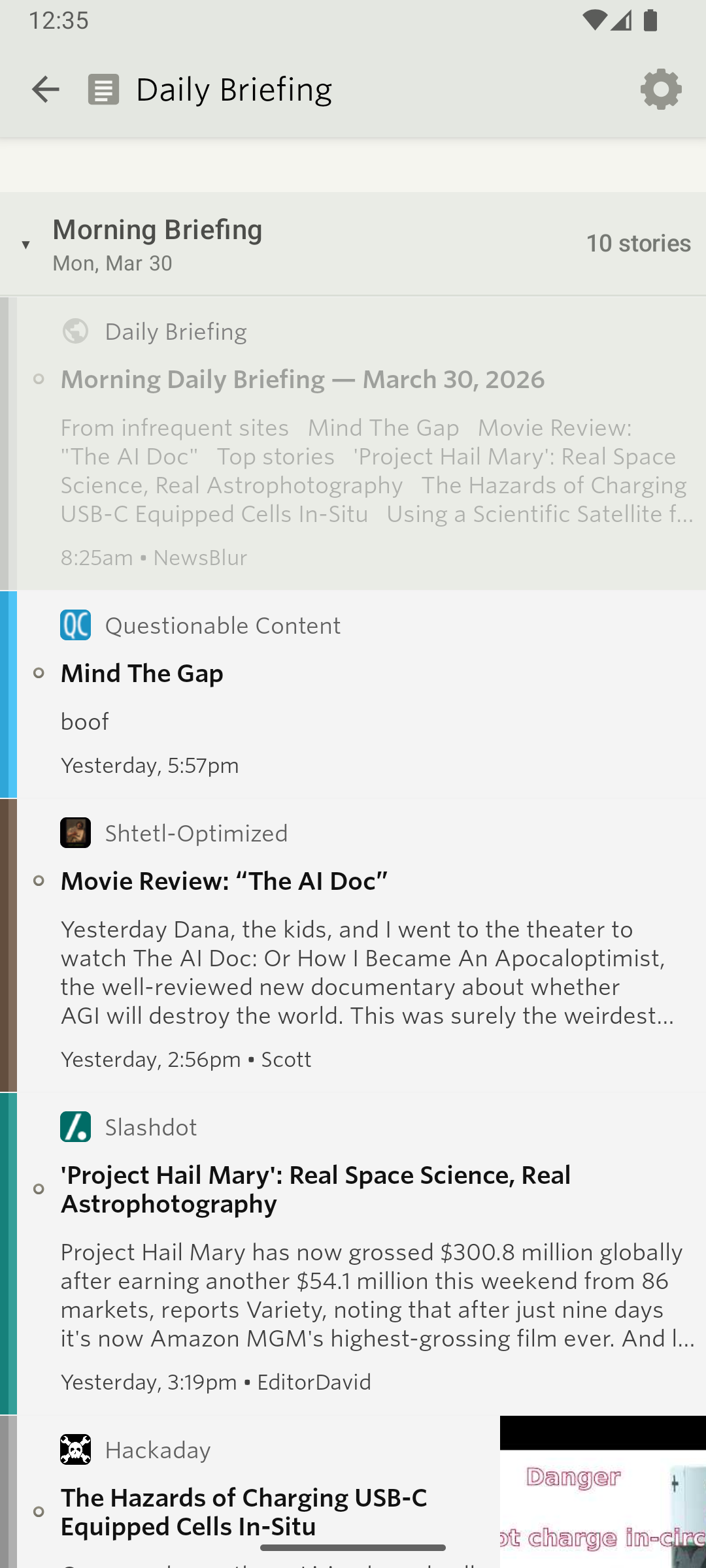
<p>The Daily Briefing generates a personalized summary of your news, organized into sections like Top Stories, Based on Your Interests, and Long Reads. It uses native Android story rows, so it feels like a regular feed rather than a bolted-on feature. Configure your briefing frequency, writing style, and sections from the briefing view in your sidebar.</p>

<p><img src="/assets/android-14-daily-briefing.png" style="width: 50%;border: 1px solid rgba(0,0,0,0.1);margin: 24px auto;display: block;" /></p>

<h3 id="sepia-theme-and-refined-dark-themes">Sepia theme and refined dark themes</h3>

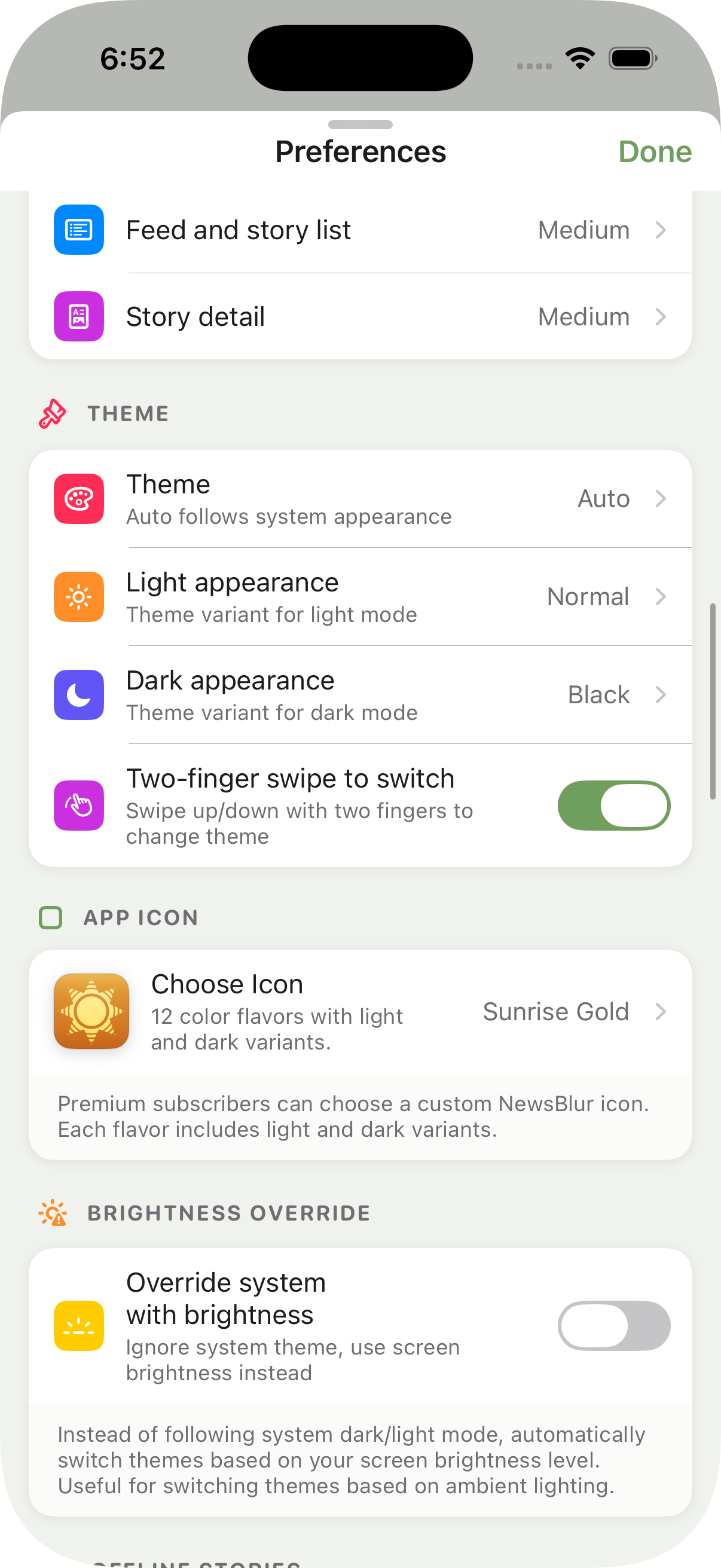
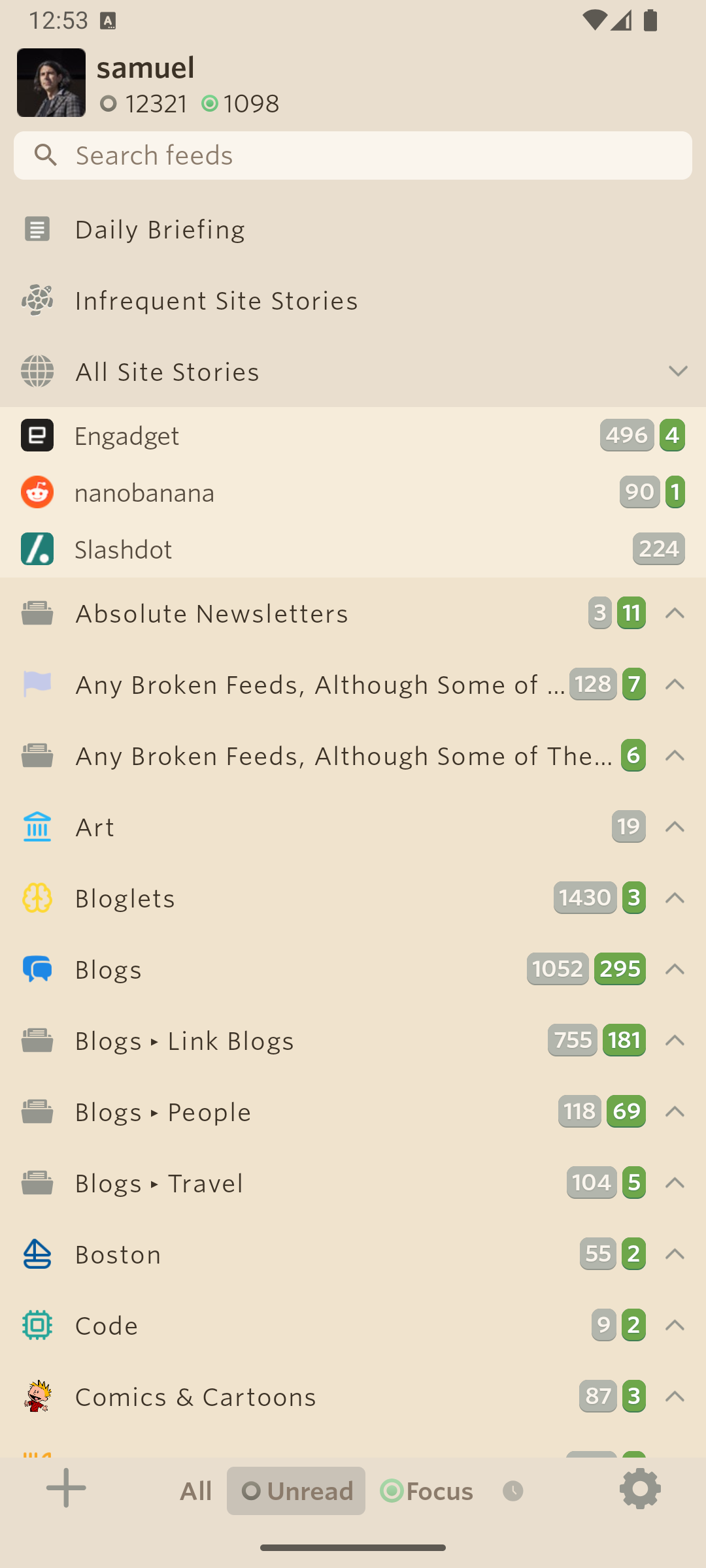
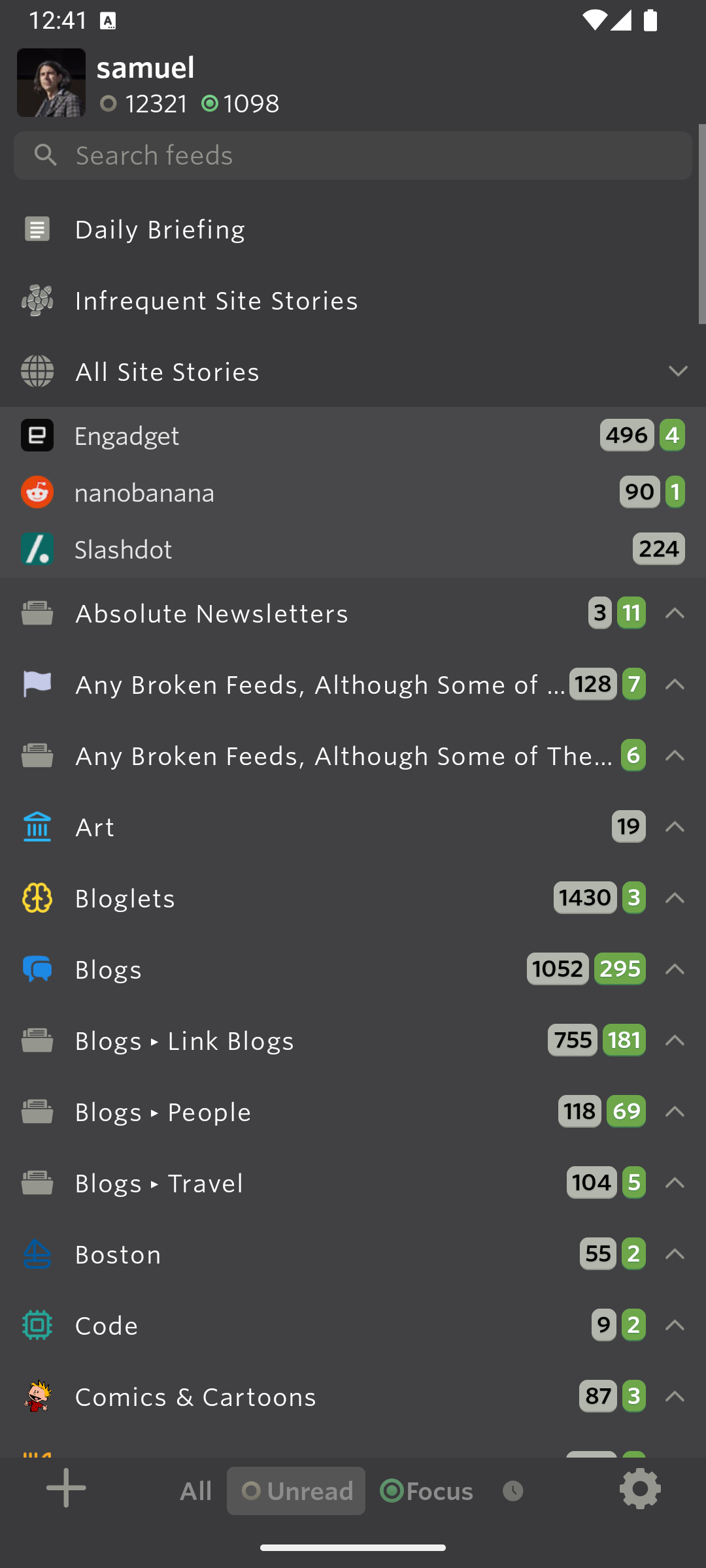
<p>A new Sepia theme brings warmer tones for comfortable long reading sessions. The Dark theme has been lightened to match the iOS gray/medium palette, and the Black theme now uses true absolute black backgrounds for feed and story cells, making it ideal for OLED screens.</p>

<div style="display: flex; gap: 12px; justify-content: center; margin: 24px auto;">
<img src="/assets/android-14-sepia.png" style="width: 30%;border: 1px solid rgba(0,0,0,0.1);" />
<img src="/assets/android-14-dark.png" style="width: 30%;border: 1px solid rgba(0,0,0,0.1);" />
<img src="/assets/android-14-black.png" style="width: 30%;border: 1px solid rgba(0,0,0,0.1);" />
</div>

<h3 id="story-list-header-bar">Story list header bar</h3>

<p>The top of the story list now has a header bar with quick access to Discover, search, display options, and settings. The display and settings controls are split into separate menus so you can change the view without wading through unrelated options.</p>

<p><img src="/assets/android-14-header-bar.png" style="width: 50%;border: 1px solid rgba(0,0,0,0.1);margin: 24px auto;display: block;" /></p>

<h3 id="redesigned-reading-experience">Redesigned reading experience</h3>

<p>The reading view has been rethought from top to bottom. Story traversal buttons are lifted above the bottom edge for easier thumb access. A new traverse bar with refined icons shows your position and unread count. Story actions are hidden until the story finishes rendering, so you never tap a button before the content is ready. Opening a story from the list now animates smoothly into the reader, and swiping back uses an interactive gesture that tracks your finger.</p>

<p><img src="/assets/android-14-reader.png" style="width: 50%;border: 1px solid rgba(0,0,0,0.1);margin: 24px auto;display: block;" /></p>

<h3 id="redesigned-preferences-and-menus">Redesigned preferences and menus</h3>

<p>Preferences have been rebuilt as a modern settings screen with inline segments instead of separate dialog pickers. The feed list menu, reading menu, and folder menus have all been redesigned with cleaner styling and better organization. Menus now scale with your device font size, so they stay readable at any accessibility setting.</p>

<p><img src="/assets/android-14-preferences.png" style="width: 50%;border: 1px solid rgba(0,0,0,0.1);margin: 24px auto;display: block;" /></p>

<h3 id="premium-archive-and-pro-subscriptions">Premium Archive and Pro subscriptions</h3>

<p>You can now subscribe to Premium Archive and Premium Pro directly from the Android app. An upgrade banner appears in the story list when you’re on a lower tier, showing what you’d unlock by upgrading.</p>

<h3 id="everything-else">Everything else</h3>

<p>Beyond the headline features, this release includes a long list of improvements and fixes.</p>

<h4 id="improvements">Improvements</h4>

<ul>
  <li>Interactive swipe-back gesture in both the story list and reading view with predictive back support on Android 14+.</li>
  <li>Feed list aligned with iOS styling, with new collapse-all and expand-all toggles.</li>
  <li>Story header pills with compact layout and title case formatting.</li>
  <li>Active reading time tracking per story, synced to your account.</li>
  <li>Full text and regex classifiers for the Intelligence Trainer.</li>
  <li>Feed search field themed to match your current theme with autofill disabled.</li>
  <li>Sync done pill delayed until feeds actually render, so you see the update happen.</li>
  <li>Story thumbnails enlarged for small sizes and cropping fixed.</li>
  <li>Status banners at the top of the story list for loading and error states.</li>
  <li>Mute Sites redesigned with upgrade card and progress bar.</li>
  <li>Custom folder and feed icon support.</li>
</ul>

<h4 id="fixes">Fixes</h4>

<ul>
  <li>Fixed TransactionTooLargeException crash in the reading pager.</li>
  <li>Fixed database version mismatch crash on launch.</li>
  <li>Fixed ItemListMenuPopup crash on small and split-screen displays.</li>
  <li>Fixed login autofill and app switching losing input.</li>
  <li>Fixed story row thumbnail cropping.</li>
  <li>Fixed search pill text vanishing.</li>
  <li>Fixed story list edge back gesture interference.</li>
  <li>Brightened story feed titles for better readability.</li>
</ul>

<p>Coming up next: v14.2 will bring story clustering to Android, so duplicate stories across your feeds get grouped together automatically, just like on the web.</p>

<p>NewsBlur v14 for Android is available now on the <a href="https://play.google.com/store/apps/details?id=com.newsblur">Google Play Store</a>. If you have feedback or run into issues, I’d love to hear about it on the <a href="https://forum.newsblur.com">NewsBlur forum</a>.</p>
]]>
    </content>


    <category term="android" />
    
    
    <summary type="html">
      <![CDATA[A few weeks ago I shipped NewsBlur v14 for iOS and Mac, a major redesign of the Apple apps. Today, Android gets the same treatment. Every screen has been reworked: the feed list, the story list, the reading view, preferences, and menus. Along with the visual overhaul, several features that...]]>
    </summary>
    
  </entry>
  
  <entry>
    <title type="html">Hide what you hate, track what you love: super dislikes and per-classifier notifications</title>
    <link href="https://blog.newsblur.com/2026/03/27/super-dislikes-and-classifier-notifications/" rel="alternate" type="text/html" title="Hide what you hate, track what you love: super dislikes and per-classifier notifications" />
    <published>2026-03-27T00:00:00-04:00</published>
    <updated>2026-03-27T00:00:00-04:00</updated>
    <id>https://blog.newsblur.com/2026/03/27/super-dislikes-and-classifier-notifications</id>
    <content type="html" xml:base="https://blog.newsblur.com/2026/03/27/super-dislikes-and-classifier-notifications/">
      <![CDATA[<p>NewsBlur’s Intelligence Trainer has always had a simple rule: thumbs up beats thumbs down. If a story matches both a liked and a disliked classifier, the story shows up in Focus. That works well most of the time. But sometimes you run into a topic, author, or tag that you absolutely never want to see, and a regular thumbs down isn’t enough because a single thumbs up from another classifier overrides it.</p>

<p>Today I’m shipping two features that give the Intelligence Trainer more teeth: super dislikes that override any number of likes, and per-classifier notifications that ping you only when specific classifiers match.</p>

<p>Super dislikes are available to all users – free, Premium, Premium Archive, and Premium Pro. Folder and global scoping requires Premium Archive. Per-classifier notifications are exclusive to Premium Archive and Premium Pro subscribers.</p>

<h3 id="super-dislikes">Super dislikes</h3>

<p>A super dislike is a new third state for classifiers. The regular thumbs down hides a story unless a thumbs up overrides it. The super dislike – shown as a double thumbs-down icon – overrides everything. If a story matches a super-disliked classifier, it’s hidden no matter how many positive classifiers it also matches.</p>

<!-- SCREENSHOT: Intelligence Trainer showing classifier pills with the regular thumbs-up, thumbs-down, and the new double-thumbs-down super dislike icon -->
<p><img src="/assets/super-dislike-trainer.png" style="width: 90%;border: 1px solid rgba(0,0,0,0.1);margin: 24px auto;display: block;" /></p>

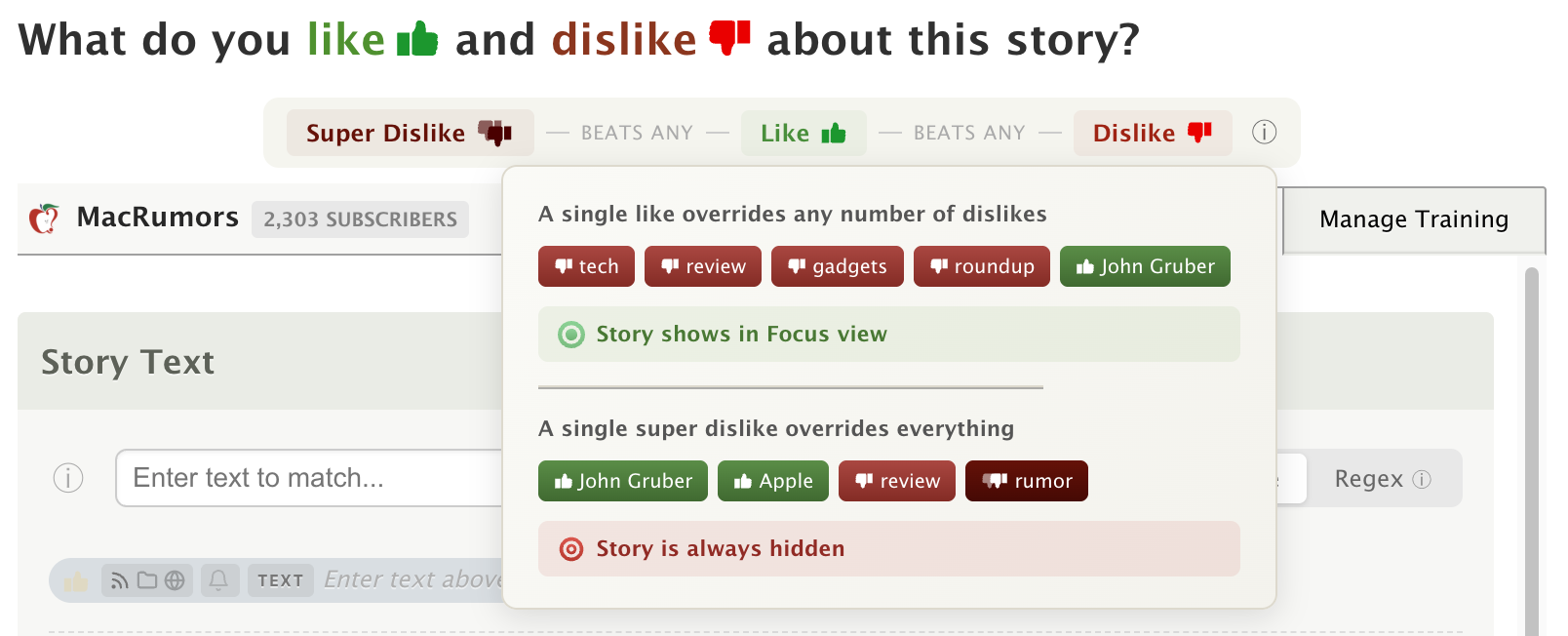
<p>The priority order is now: AI prompt classifiers &gt; super dislike &gt; thumbs up &gt; thumbs down &gt; feed score. This means super dislikes are the strongest manual signal you can set, second only to AI classifiers.</p>

<h4 id="how-to-use-it">How to use it</h4>

<p>In the Intelligence Trainer, every classifier pill now has three clickable icons on the right side: thumbs up, thumbs down, and the double thumbs-down for super dislike. Click the double thumbs-down to super-dislike a classifier. Click it again to remove the super dislike.</p>

<p>An explainer banner at the top of the trainer shows the priority chain so you always know how scoring works:</p>

<ul>
  <li><strong>Thumbs up</strong> beats any number of thumbs down</li>
  <li><strong>Super thumbs down</strong> beats any number of thumbs up</li>
</ul>

<!-- SCREENSHOT: Explainer banner at top of trainer showing the priority chain with icons -->
<p><img src="/assets/super-dislike-explainer.png" style="width: 80%;border: 1px solid rgba(0,0,0,0.1);margin: 24px auto;display: block;" /></p>

<h4 id="visual-highlighting">Visual highlighting</h4>

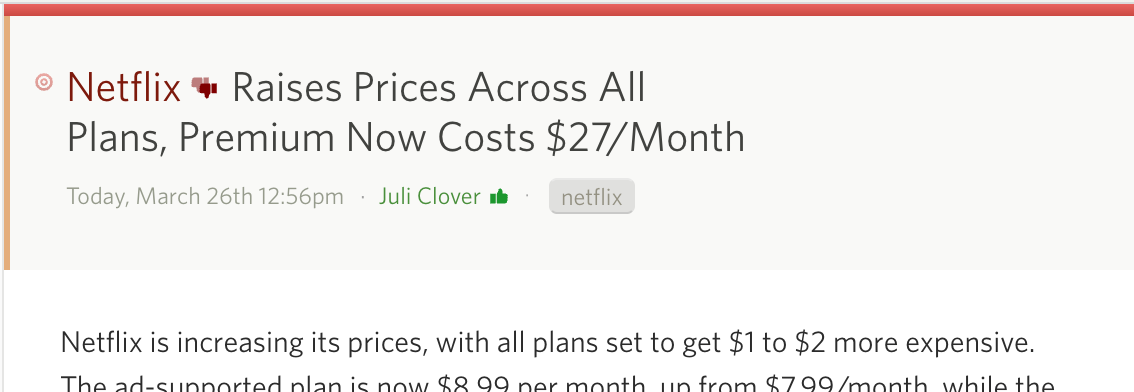
<p>Super-disliked classifiers are highlighted in a deeper crimson color, distinct from the regular red of a normal dislike. When you’re reading stories, you’ll see the same color treatment on matched titles, authors, tags, and text, with a small double thumbs-down icon inline so you can tell at a glance why a story was scored the way it was.</p>

<!-- SCREENSHOT: Story detail view showing a super-disliked title or tag highlighted in deep crimson with the double thumbs-down icon -->
<p><img src="/assets/super-dislike-highlight.png" style="width: 90%;border: 1px solid rgba(0,0,0,0.1);margin: 24px auto;display: block;" /></p>

<h4 id="works-with-scopes">Works with scopes</h4>

<p>Super dislikes work with all scope levels. Set a global super dislike on a topic like “sponsored” and it’s hidden across every feed. Set a folder-scoped super dislike on an author and they’re hidden in that folder regardless of positive training elsewhere. The same scoping rules from regular classifiers apply.</p>

<h3 id="per-classifier-notifications">Per-classifier notifications</h3>

<p>NewsBlur’s notifications have always been per-feed: turn them on and you get pinged on every new story. That’s fine for low-volume feeds, but not great for a high-volume feed where you only care about specific topics or authors. You end up choosing between too many notifications or none at all.</p>

<p>Now you can set notifications on individual classifiers. Every classifier pill in the Intelligence Trainer has a small bell icon. Hover over it and a popover appears with four channel toggles: Email, Web, iOS, and Android. Choose any combination, and when a new story matches that specific classifier, you get notified. Everything else in the feed stays quiet.</p>

<!-- SCREENSHOT: Classifier pill with bell icon and notification popover showing Email/Web/iOS/Android toggles -->
<p><img src="/assets/classifier-notification-popover.png" style="width: 90%;border: 1px solid rgba(0,0,0,0.1);margin: 24px auto;display: block;" /></p>

<p>The bell icon lights up on classifiers with active notifications, so you can see at a glance which ones will ping you.</p>

<h4 id="works-with-scopes-and-regex">Works with scopes and regex</h4>

<p>Classifier notifications respect the scope system. A notification on a global “breaking news” classifier fires when any feed publishes a matching story. A notification on a folder-scoped “earnings” classifier fires only for feeds in that folder.</p>

<p>Regex classifiers work too. If you have a regex title or text classifier, the notification evaluates the pattern with timeout protection on every new story.</p>

<h4 id="smart-deduplication">Smart deduplication</h4>

<p>If a story already triggered a feed-level notification on a channel, the classifier notification won’t duplicate it. Each story is sent once per channel, regardless of how many classifiers or feed rules it matches. There’s also a cap of 3 stories per classifier per update cycle, so a burst of matching stories won’t flood you.</p>

<h4 id="real-world-examples">Real-world examples</h4>

<p><strong>Breaking news alerts.</strong> Train “breaking” as a global title classifier, set it to notify via iOS and Email. You get a push notification whenever any feed publishes a story with “breaking” in the title.</p>

<p><strong>Author tracking.</strong> Follow a journalist across multiple outlets. Train their name as a global author classifier with notifications, and you’ll know the moment they publish regardless of which feed it’s in.</p>

<p><strong>Keyword monitoring.</strong> Use a regex classifier for a product name or company, scoped to your industry folder. Get an email when a matching story appears, without turning on notifications for every feed in that folder.</p>

<h3 id="availability">Availability</h3>

<p>Super dislikes are available now on the web for all NewsBlur users. Per-classifier notifications are available on the web for <a href="https://newsblur.com/?next=premium">Premium Archive</a> and Premium Pro subscribers – all users can see the bell icon and popover, but toggling channels requires an Archive or Pro subscription.</p>

<p>If you have feedback or ideas for how to make these features better, please share them on the <a href="https://forum.newsblur.com">NewsBlur forum</a>.</p>
]]>
    </content>


    <category term="web" />
    
    
    <summary type="html">
      <![CDATA[NewsBlur’s Intelligence Trainer has always had a simple rule: thumbs up beats thumbs down. If a story matches both a liked and a disliked classifier, the story shows up in Focus. That works well most of the time. But sometimes you run into a topic, author, or tag that you...]]>
    </summary>
    
  </entry>
  
  <entry>
    <title type="html">Refer friends, gift subscriptions, and never pay for NewsBlur premium again</title>
    <link href="https://blog.newsblur.com/2026/03/26/refer-and-gift/" rel="alternate" type="text/html" title="Refer friends, gift subscriptions, and never pay for NewsBlur premium again" />
    <published>2026-03-26T00:00:00-04:00</published>
    <updated>2026-03-26T00:00:00-04:00</updated>
    <id>https://blog.newsblur.com/2026/03/26/refer-and-gift</id>
    <content type="html" xml:base="https://blog.newsblur.com/2026/03/26/refer-and-gift/">
      <![CDATA[<p>If you’ve been following along lately, you know NewsBlur has been shipping feature after feature: story clustering, timed feed muting, the new site discovery panel, Ask AI, and more. I’m not slowing down, and I want people to know about it. If you’ve been using NewsBlur for years and still love it, tell people. Post about it on LinkedIn, on X, on Facebook, on Instagram, on TikTok, wherever you hang out online. Word of mouth is still king, and it’s how NewsBlur has always grown.</p>

<p>To make that more rewarding, I’m launching two new features today: referrals and gift subscriptions.</p>

<h3 id="earn-free-premium-by-referring-friends">Earn free premium by referring friends</h3>

<p>Every NewsBlur user now has a personal referral link. Share it with someone, and if they sign up and subscribe, you earn free time on your current tier. There’s no cap. Your next billing date gets pushed forward automatically, so you won’t be charged while you have referral credit.</p>

<!-- SCREENSHOT: Refer tab of the Refer & Gift modal showing the hero banner, referral URL with copy button, and referral stats -->
<p><img src="/assets/refer-and-gift-refer-tab.png" style="width: 90%;border: 1px solid rgba(0,0,0,0.1);margin: 24px auto;display: block;" /></p>

<p>Open the Refer &amp; Gift modal from the Manage menu to find your link. Copy it and share it however you’d like. The modal also shows your referral stats: how many people have signed up through your link, how many have subscribed, and how many years of premium you’ve earned.</p>

<p>The credit scales proportionally based on your tier and what your referral subscribes to. If they subscribe to your tier or higher, you get a full free year. If they subscribe to a lower tier, you get proportional credit:</p>

<ul>
  <li><strong>Premium subscribers</strong> earn a full free year for every referral, regardless of what tier the referred person picks</li>
  <li><strong>Premium Archive subscribers</strong> earn a free year when the referral subscribes to Archive or Pro, or 4 free months for a Premium referral</li>
  <li><strong>Premium Pro subscribers</strong> earn 4 free months for an Archive referral, 2 free months for Premium, or 1 free month for Pro</li>
</ul>

<p>The higher your tier, the more it pays to refer people to higher tiers. When a referral converts, you’ll get an email confirming your credit, and your subscription renewal date adjusts automatically. No action needed on your part.</p>

<h3 id="gift-a-subscription-to-anyone">Gift a subscription to anyone</h3>

<p>The Gift tab lets you buy a NewsBlur subscription for someone else. Pick a tier, check out through Stripe, and you’ll get a shareable gift link. The recipient clicks the link, signs up or logs in, and their premium activates instantly.</p>

<!-- SCREENSHOT: Gift tab showing the hero banner with how-it-works steps, tier selector (Premium/Archive/Pro), and Create Gift Link button -->
<p><img src="/assets/refer-and-gift-gift-tab.png" style="width: 90%;border: 1px solid rgba(0,0,0,0.1);margin: 24px auto;display: block;" /></p>

<p>Three tiers are available as gifts:</p>

<ul>
  <li><strong>Premium</strong> at $36/year</li>
  <li><strong>Premium Archive</strong> at $99/year</li>
  <li><strong>Premium Pro</strong> at $29/month</li>
</ul>

<p>If the gift isn’t redeemed within 90 days, you get a full refund automatically. No need to contact support or remember to follow up.</p>

<h3 id="how-to-access-it">How to access it</h3>

<p>Open the Manage menu (the gear icon at the bottom of the feed list) and choose <strong>Refer &amp; Gift</strong>. The modal has two tabs: Refer for your referral link and stats, and Gift for purchasing gift subscriptions.</p>

<!-- SCREENSHOT: Manage menu showing the new Refer & Gift option -->
<p><img src="/assets/refer-and-gift-menu.png" style="width: 50%;border: 1px solid rgba(0,0,0,0.1);margin: 24px auto;display: block;" /></p>

<p>Referrals and gift subscriptions are available now on the web for all NewsBlur users. If you have feedback or ideas for improvements, please share them on the <a href="https://forum.newsblur.com">NewsBlur forum</a>.</p>
]]>
    </content>


    <category term="web" />
    
    
    <summary type="html">
      <![CDATA[If you’ve been following along lately, you know NewsBlur has been shipping feature after feature: story clustering, timed feed muting, the new site discovery panel, Ask AI, and more. I’m not slowing down, and I want people to know about it. If you’ve been using NewsBlur for years and still...]]>
    </summary>
    
  </entry>
  
  <entry>
    <title type="html">Daily Briefing: A personalized summary of your news, delivered on your schedule</title>
    <link href="https://blog.newsblur.com/2026/03/25/daily-briefing/" rel="alternate" type="text/html" title="Daily Briefing: A personalized summary of your news, delivered on your schedule" />
    <published>2026-03-25T00:00:00-04:00</published>
    <updated>2026-03-25T00:00:00-04:00</updated>
    <id>https://blog.newsblur.com/2026/03/25/daily-briefing</id>
    <content type="html" xml:base="https://blog.newsblur.com/2026/03/25/daily-briefing/">
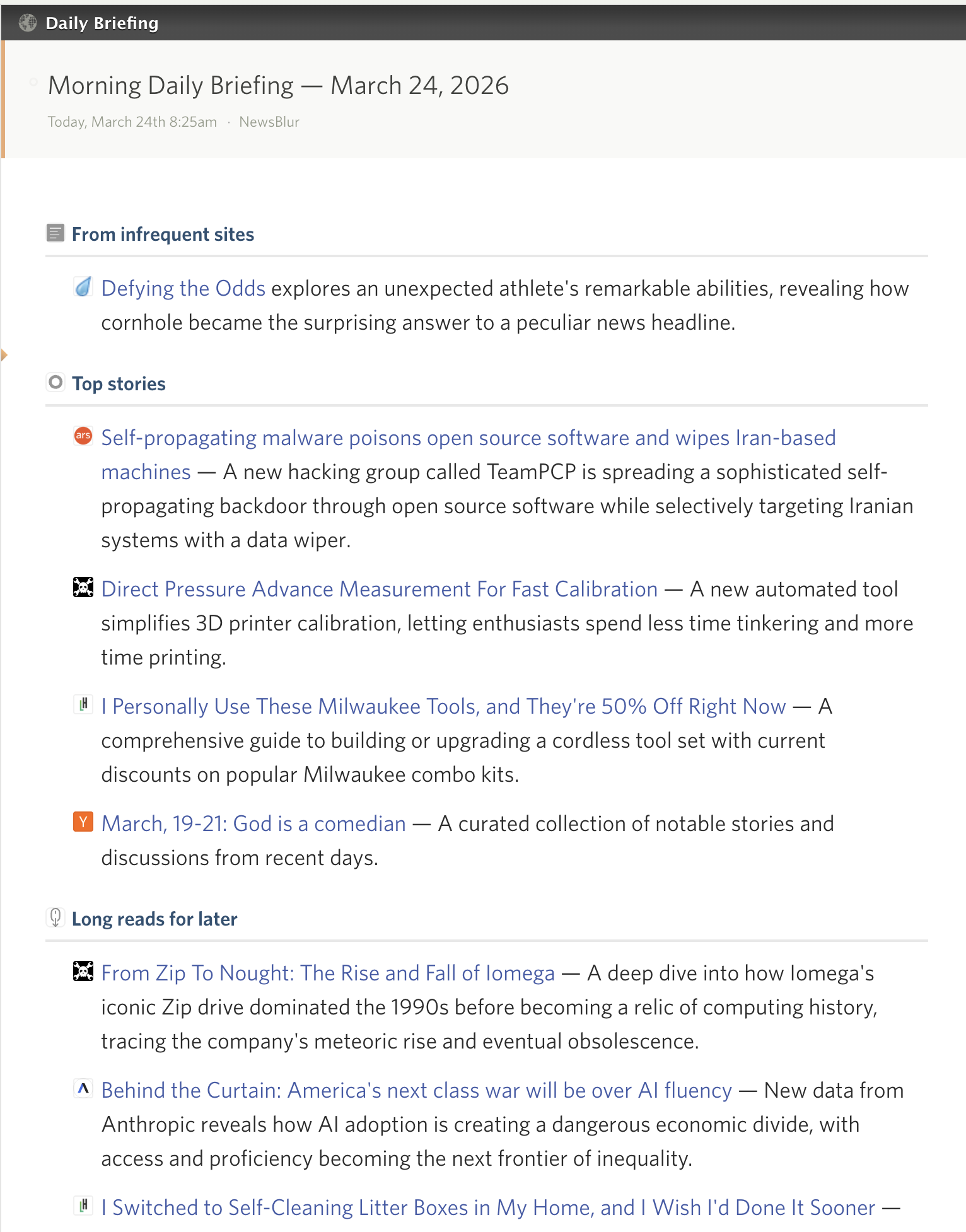
      <![CDATA[<p>Every morning I open NewsBlur and scroll through hundreds of unread stories. Most days I can keep up. But some days I just want someone to tell me what matters. What’s the big story across my feeds? What are the long reads I should save for later? What matches the topics I’ve trained as interesting?</p>

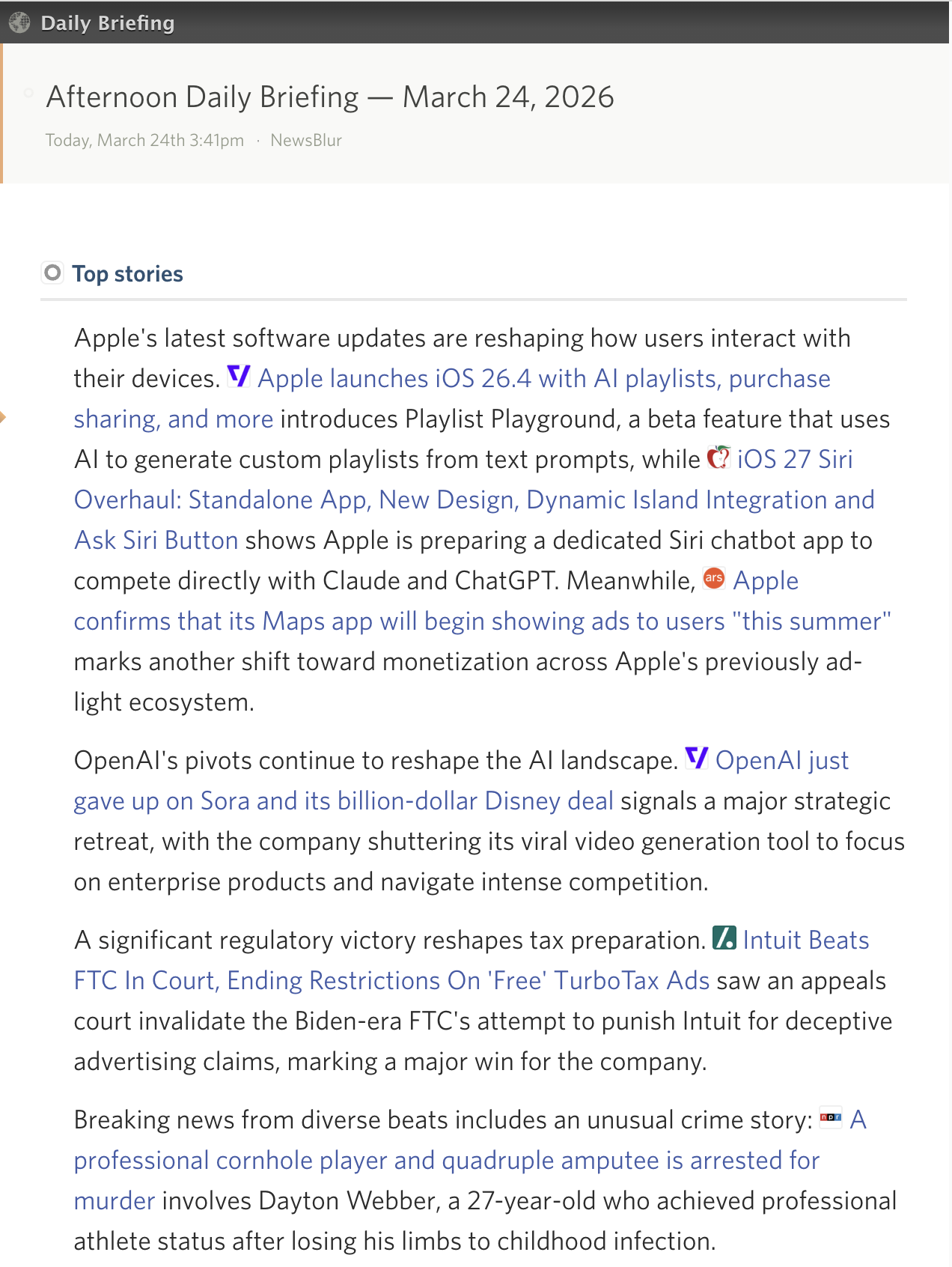
<p>That’s the Daily Briefing. It reads your feeds, scores every story, and writes a personalized summary organized into sections that make sense for the way you read. It shows up as a feed in your sidebar, and you can have it emailed to you on a schedule you control.</p>

<!-- SCREENSHOT: Daily Briefing summary view showing a full briefing with sections like Top Stories, Based on your interests, and Long reads for later, with feed favicons next to each story -->
<p><img src="/assets/daily-briefing-summary.png" style="width: 100%;border: 1px solid rgba(0,0,0,0.1);margin: 24px auto;display: block;" /></p>

<h3 id="how-it-works">How it works</h3>

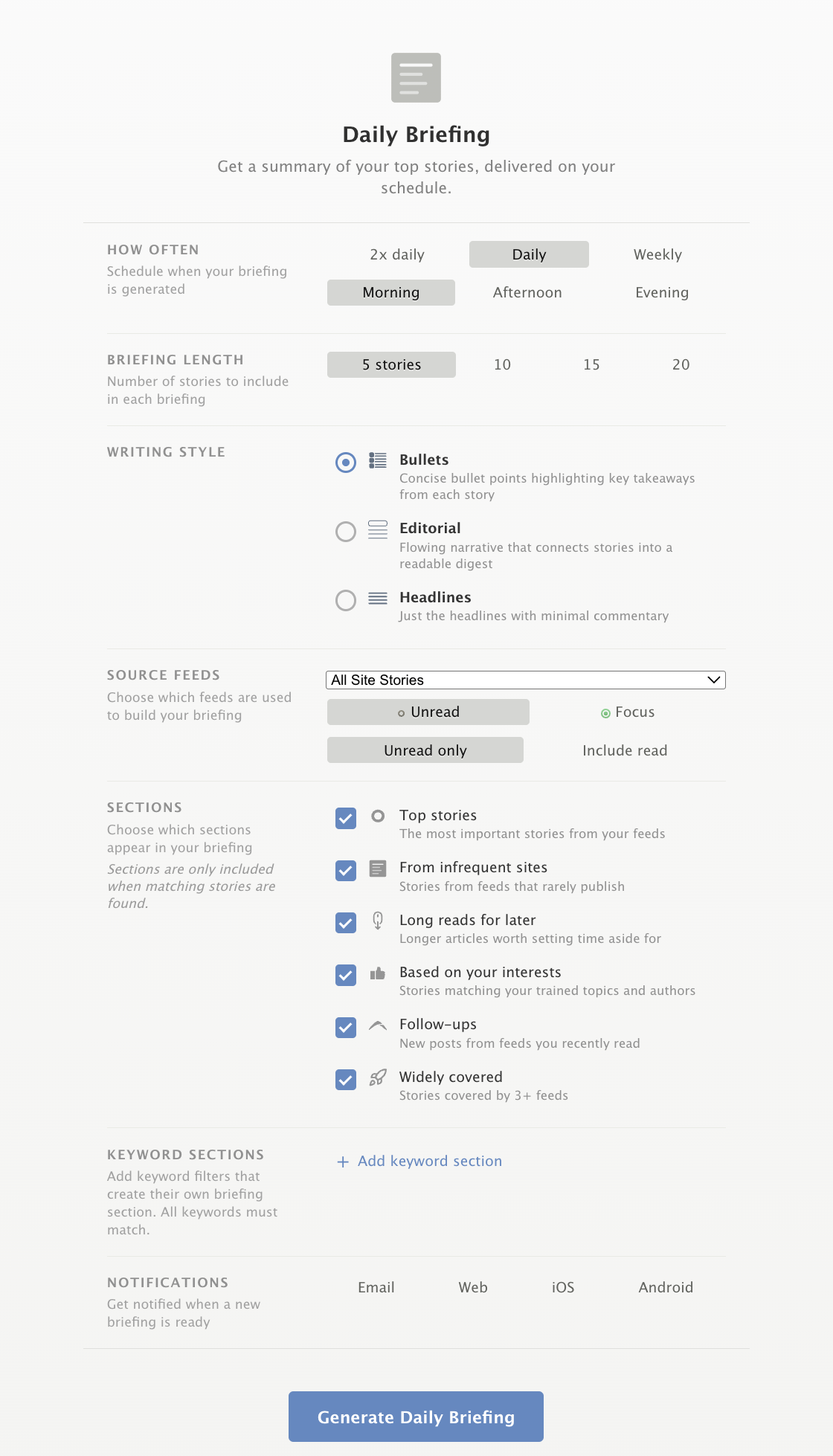
<p>Click “Daily Briefing” in your sidebar to open the briefing view. The first time, you’ll see an onboarding screen where you configure your preferences. Hit generate and NewsBlur does the rest: it scores your stories using a mix of trending read time, feed engagement, how often you read each feed, your classifier training, and recency, then generates a written summary of the top stories.</p>

<!-- SCREENSHOT: Briefing onboarding/settings view showing frequency, time, style, and section options -->
<p><img src="/assets/daily-briefing-onboarding.png" style="width: 80%;border: 1px solid rgba(0,0,0,0.1);margin: 24px auto;display: block;" /></p>

<p>Each briefing is organized into sections:</p>

<ul>
  <li><strong>Top stories</strong> — The most important stories from your feeds, ranked by a weighted score of trending engagement, how often you read each feed, your classifier training, and recency</li>
  <li><strong>From infrequent sites</strong> — Stories from feeds that rarely publish, so they don’t get buried under higher-volume feeds</li>
  <li><strong>Long reads for later</strong> — Longer articles worth setting time aside for, detected by word count</li>
  <li><strong>Based on your interests</strong> — Stories matching your trained topics, authors, and tags, with green classifier pills showing exactly why each story was selected</li>
  <li><strong>Follow-ups</strong> — New posts from feeds where you recently read other stories</li>
  <li><strong>Widely covered</strong> — Stories that appear across 3 or more of your feeds, using NewsBlur’s story clustering to group duplicates</li>
</ul>

<p>You can enable or disable any of these sections, and drag to reorder them so your briefing is organized the way you want. If you only care about top stories and classifier matches, turn off the rest.</p>

<h3 id="custom-keyword-sections">Custom keyword sections</h3>

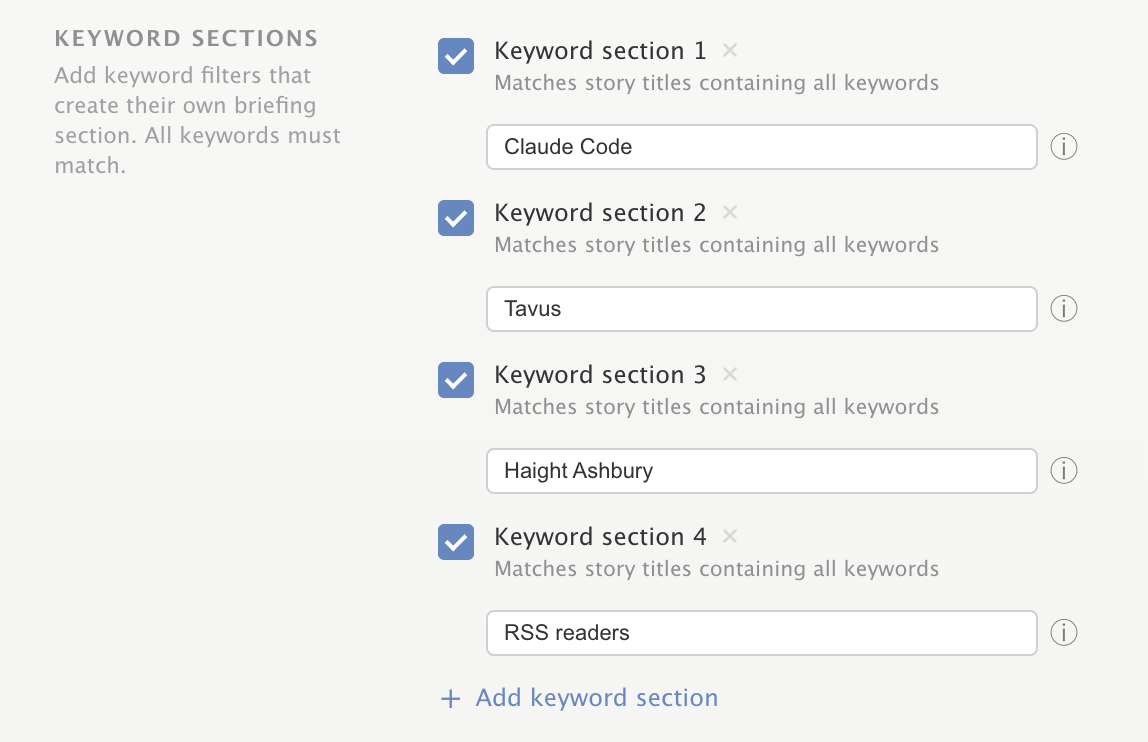
<p>On top of the built-in sections, you can add up to five custom keyword sections. Type a keyword or phrase and NewsBlur uses Elasticsearch to find matching stories across your feeds, then a dedicated section is written for them. If you always want a section about “climate change” or “Apple earnings,” just add the keyword and it appears in every briefing when there’s stories that match.</p>

<p><img src="/assets/daily-briefing-custom-keywords.png" style="width: 80%;border: 1px solid rgba(0,0,0,0.1);margin: 24px auto;display: block;" /></p>

<h3 id="three-writing-styles">Three writing styles</h3>

<p>Choose how you want your briefing written:</p>

<ul>
  <li><strong>Bullets</strong> — One-sentence summaries for each story, grouped by section. Quick to scan.</li>
  <li><strong>Editorial</strong> — Narrative prose that explains why each story matters and connects them thematically. Each story’s feed favicon appears as an inline bullet.</li>
  <li><strong>Headlines</strong> — Just the linked story titles, nothing else. The fastest way to scan.</li>
</ul>

<!-- SCREENSHOT: Side-by-side comparison or single example of the editorial writing style with favicons as bullets -->
<p><img src="/assets/daily-briefing-editorial-style.png" style="width: 90%;border: 1px solid rgba(0,0,0,0.1);margin: 24px auto;display: block;" /></p>

<h3 id="delivery-schedule">Delivery schedule</h3>

<p>Set the briefing to generate once, twice, or three times a day, or weekly. Each frequency has its own delivery slots:</p>

<ul>
  <li><strong>Daily</strong>: Pick morning, afternoon, or evening</li>
  <li><strong>Twice daily</strong>: Morning plus your choice of afternoon or evening</li>
  <li><strong>Three times daily</strong>: Morning, afternoon, and evening</li>
  <li><strong>Weekly</strong>: Pick the day of the week</li>
</ul>

<p>Briefings are delivered at fixed times in your local timezone: 8:30 AM, 12:30 PM, and 5:00 PM. Each briefing only includes stories from its lookback window, and stories never repeat across same-day briefings.</p>

<h3 id="notifications">Notifications</h3>

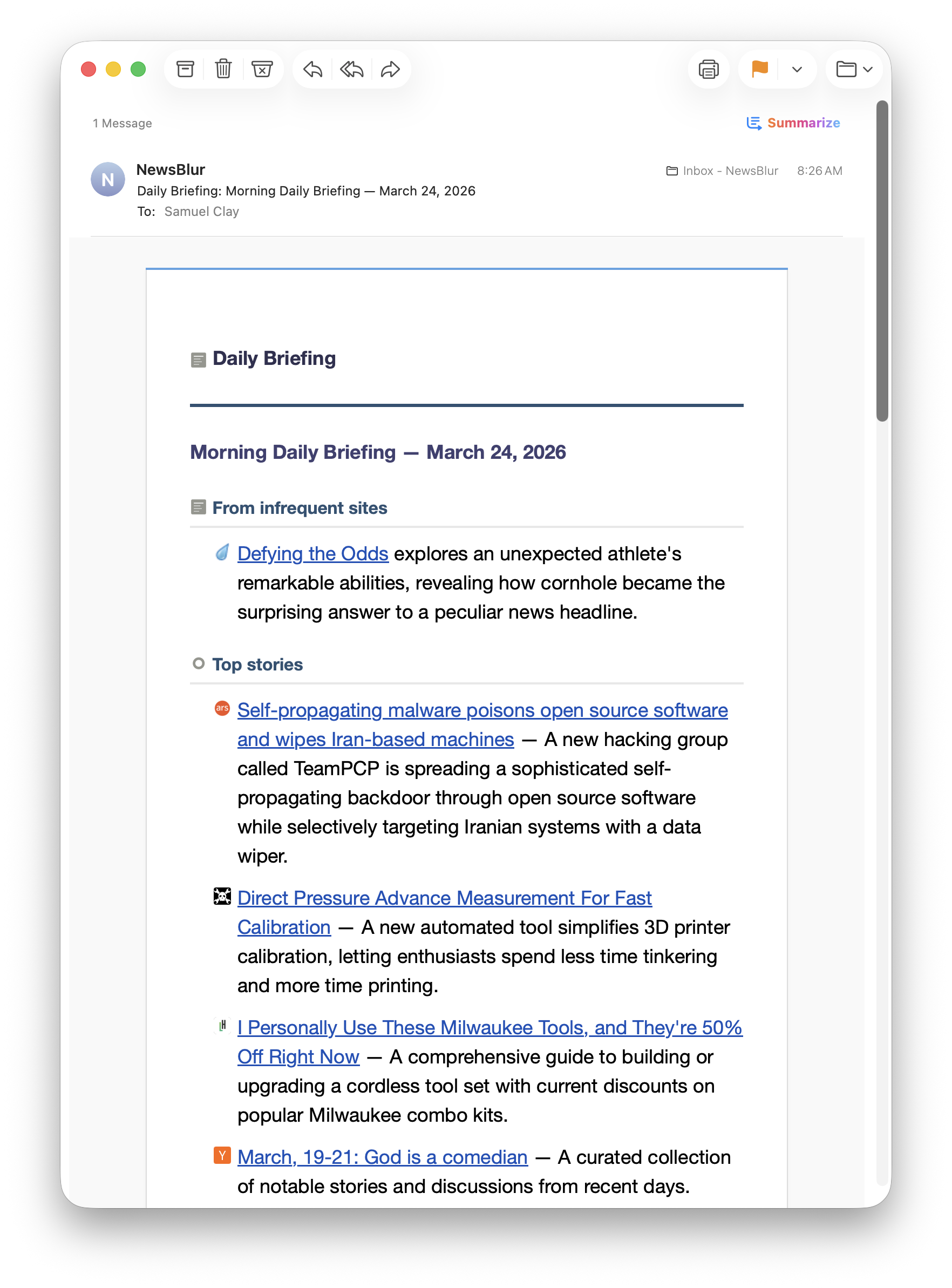
<p>Turn on email notifications for your briefing feed and the full summary lands in your inbox, complete with feed favicons, section icons, and classifier pills. The HTML is fully inlined for email clients, so it looks right in Gmail, Apple Mail, Outlook, and everywhere else.</p>

<!-- SCREENSHOT: Daily Briefing email in an email client showing the full formatted summary -->
<p><img src="/assets/daily-briefing-email.png" style="width: 80%;border: 1px solid rgba(0,0,0,0.1);margin: 24px auto;display: block;" /></p>

<p>You can also enable web, iOS, and Android push notifications if you’d rather get a ping than an email.</p>

<h3 id="choose-your-model">Choose your model</h3>

<p>The briefing summary is written by a language model, and you can pick which one. The same model selector from Ask AI is available here, so you can use whichever model you prefer for writing style and quality.</p>

<h3 id="your-data-stays-yours">Your data stays yours</h3>

<p>The briefing uses your feed stories and classifier training to generate the summary. Story content is sent to the model provider you choose, but NewsBlur doesn’t use your data to train models or for any purpose beyond generating your briefing. The same privacy principles from Ask AI apply here.</p>

<h3 id="availability">Availability</h3>

<p>The Daily Briefing is available now on the web for <a href="https://newsblur.com/?next=premium">Premium Archive</a> and Premium Pro subscribers. You can configure everything from the briefing view in the sidebar.</p>

<p>All users can open the Daily Briefing to see a preview with a handful of top stories. To unlock full briefings with all sections, custom keywords, and scheduled delivery, upgrade to Premium Archive.</p>

<p>If you have feedback or ideas for how to make the Daily Briefing better, please share them on the <a href="https://forum.newsblur.com">NewsBlur forum</a>.</p>
]]>
    </content>


    <category term="web" />
    
    
    <summary type="html">
      <![CDATA[Every morning I open NewsBlur and scroll through hundreds of unread stories. Most days I can keep up. But some days I just want someone to tell me what matters. What’s the big story across my feeds? What are the long reads I should save for later? What matches the...]]>
    </summary>
    
  </entry>
  
  <entry>
    <title type="html">Story clustering: automatically group duplicate stories across your feeds</title>
    <link href="https://blog.newsblur.com/2026/03/18/story-clustering/" rel="alternate" type="text/html" title="Story clustering: automatically group duplicate stories across your feeds" />
    <published>2026-03-18T00:00:00-04:00</published>
    <updated>2026-03-18T00:00:00-04:00</updated>
    <id>https://blog.newsblur.com/2026/03/18/story-clustering</id>
    <content type="html" xml:base="https://blog.newsblur.com/2026/03/18/story-clustering/">
      <![CDATA[<p>If you subscribe to more than a handful of news feeds, you’ve hit this problem: a story breaks, and suddenly the same headline appears across five, ten, twenty of your subscriptions. You’re reading the same article over and over, just published by different outlets. Your river view fills up with duplicates, and the stories you haven’t read yet get buried.</p>

<p>Story clustering solves this. When NewsBlur detects that multiple feeds are covering the same story, it groups them together and shows you the highest-scoring version. The duplicates don’t disappear – they fold neatly underneath, so you can still see who else reported it and jump to their version if you want a different perspective.</p>

<h3 id="how-it-works">How it works</h3>

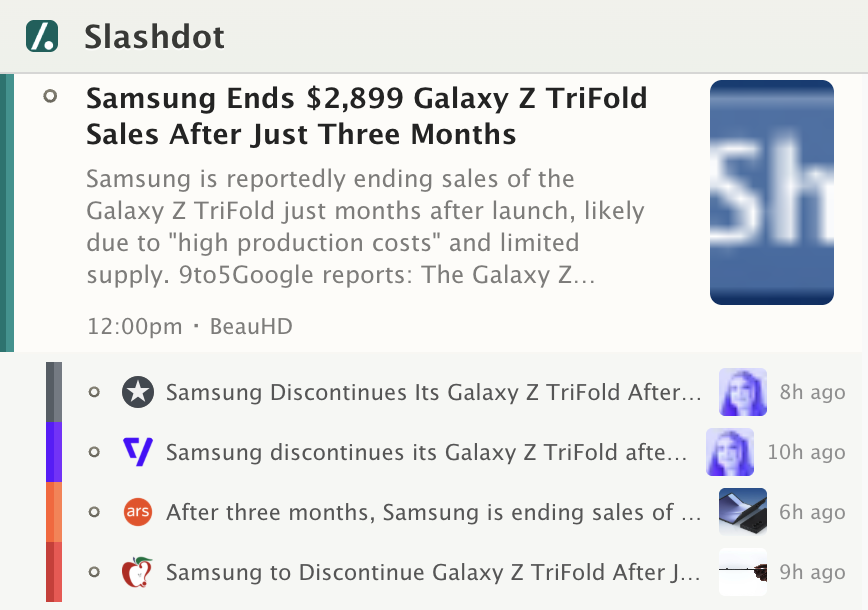
<p>In the story titles list, clustered stories show their sources directly below the representative story. Each source shows the feed’s favicon, feed name, story title, and how long ago it was published. Click any source to read that version instead.</p>

<!-- SCREENSHOT: Story titles view showing a clustered story with 2-3 sources listed underneath it -->
<p><img src="/assets/story-clustering-titles.png" style="width: 90%;border: 1px solid rgba(0,0,0,0.1);margin: 24px auto;display: block;" /></p>

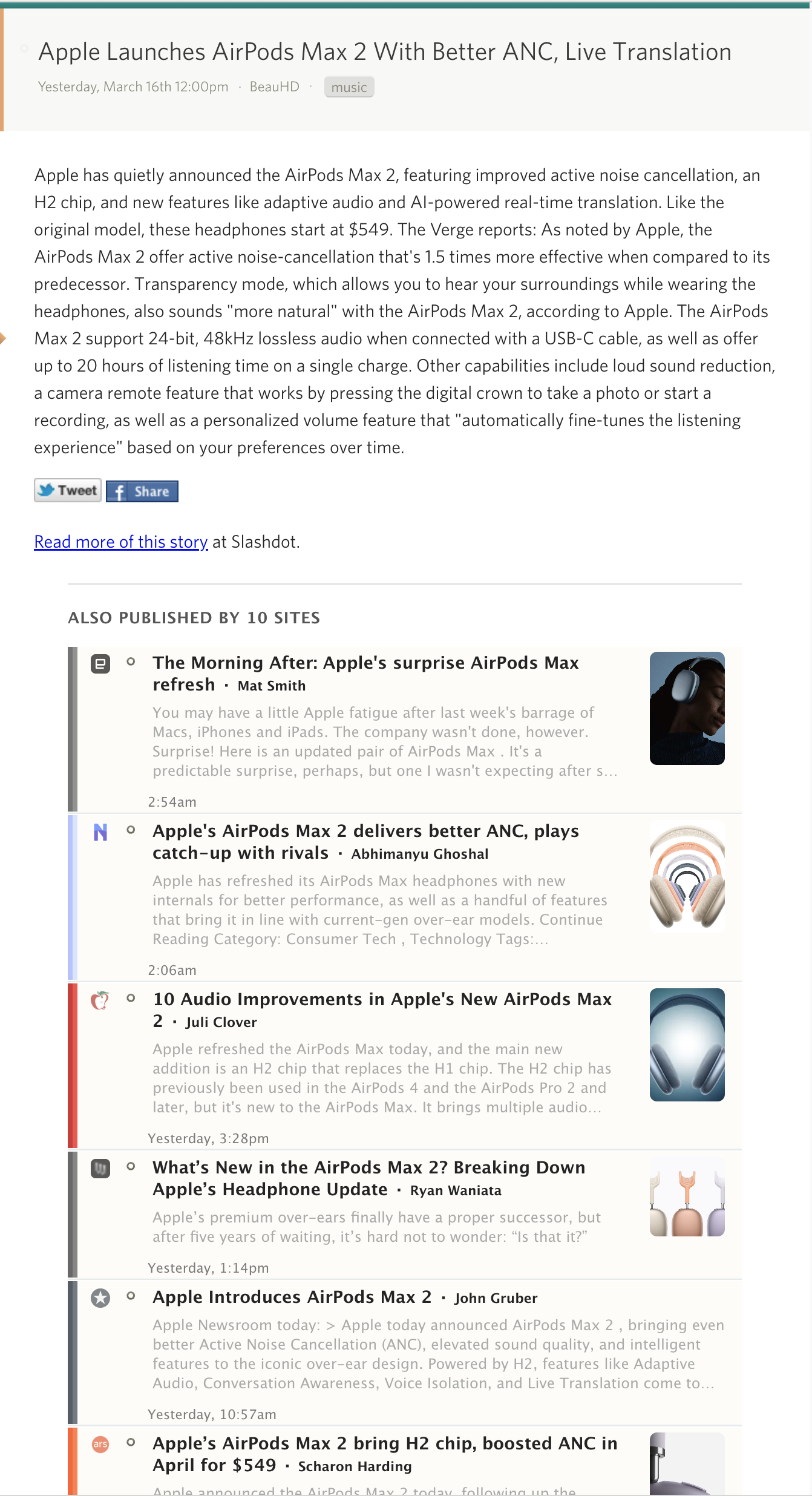
<p>When you open a clustered story, the detail view shows rich cards for each alternative source at the bottom. These cards include the feed icon, story title, a content preview, the article’s thumbnail image, author, and date. Click any card to jump to that version of the story.</p>

<!-- SCREENSHOT: Story detail view showing the cluster cards section at the bottom with "Also reported by N sources" header and rich cards -->
<p><img src="/assets/story-clustering-detail.png" style="width: 90%;border: 1px solid rgba(0,0,0,0.1);margin: 24px auto;display: block;" /></p>

<h3 id="two-layers-of-detection">Two layers of detection</h3>

<p>Clustering uses two complementary approaches to catch duplicates:</p>

<p><strong>Title matching</strong> is the fast, obvious check. NewsBlur normalizes story titles (lowercasing, stripping punctuation) and groups exact matches. But it also does fuzzy matching using significant-word overlap – so “Apple Announces New iPhone” and “Apple Reveals the New iPhone at WWDC” will still cluster together, even though the titles aren’t identical.</p>

<p><strong>Semantic matching</strong> goes deeper. NewsBlur sends each story’s title to Elasticsearch’s more_like_this query, searching across all your subscribed feeds for articles covering the same topic. This catches stories that are about the same event but written with completely different headlines. The two layers are merged, so title matches and semantic matches combine into a single cluster.</p>

<p>Clustering runs automatically in the background every time a feed updates. Results are cached for 14 days, so clusters are ready instantly when you load your river.</p>

<h3 id="mark-duplicates-as-read">Mark duplicates as read</h3>

<p>When you read a clustered story, you can optionally have NewsBlur mark all the duplicates as read too. This is off by default – enable it in the feed options popover under “Story Clustering” or in Manage &gt; Preferences &gt; Stories.</p>

<!-- SCREENSHOT: Feed options popover showing the Story Clustering section with the "Cluster related stories" / "Keep stories separate" toggle and the mark-read option -->
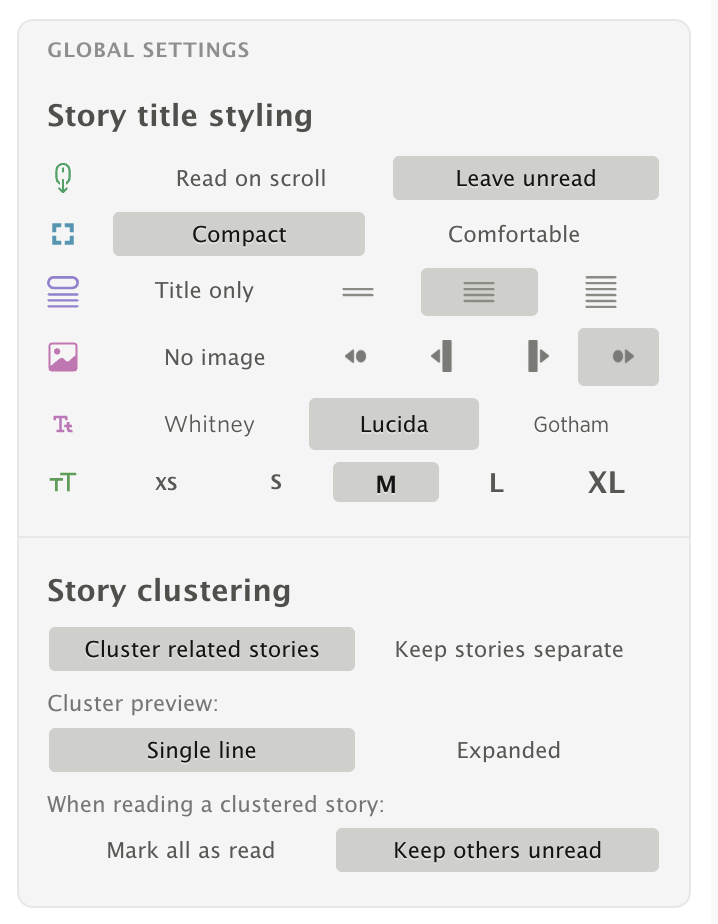
<p><img src="/assets/story-clustering-popover.png" style="width: 80%;border: 1px solid rgba(0,0,0,0.1);margin: 24px auto;display: block;" /></p>

<p>There are two controls:</p>

<ul>
  <li><strong>Cluster related stories / Keep stories separate</strong> – Toggles clustering on or off. When enabled, duplicate stories are grouped in your river view. When disabled, every story appears individually as before.</li>
  <li><strong>Mark all as read / Keep others unread</strong> – When you read the representative story, this controls whether the other stories in the cluster are automatically marked as read.</li>
</ul>

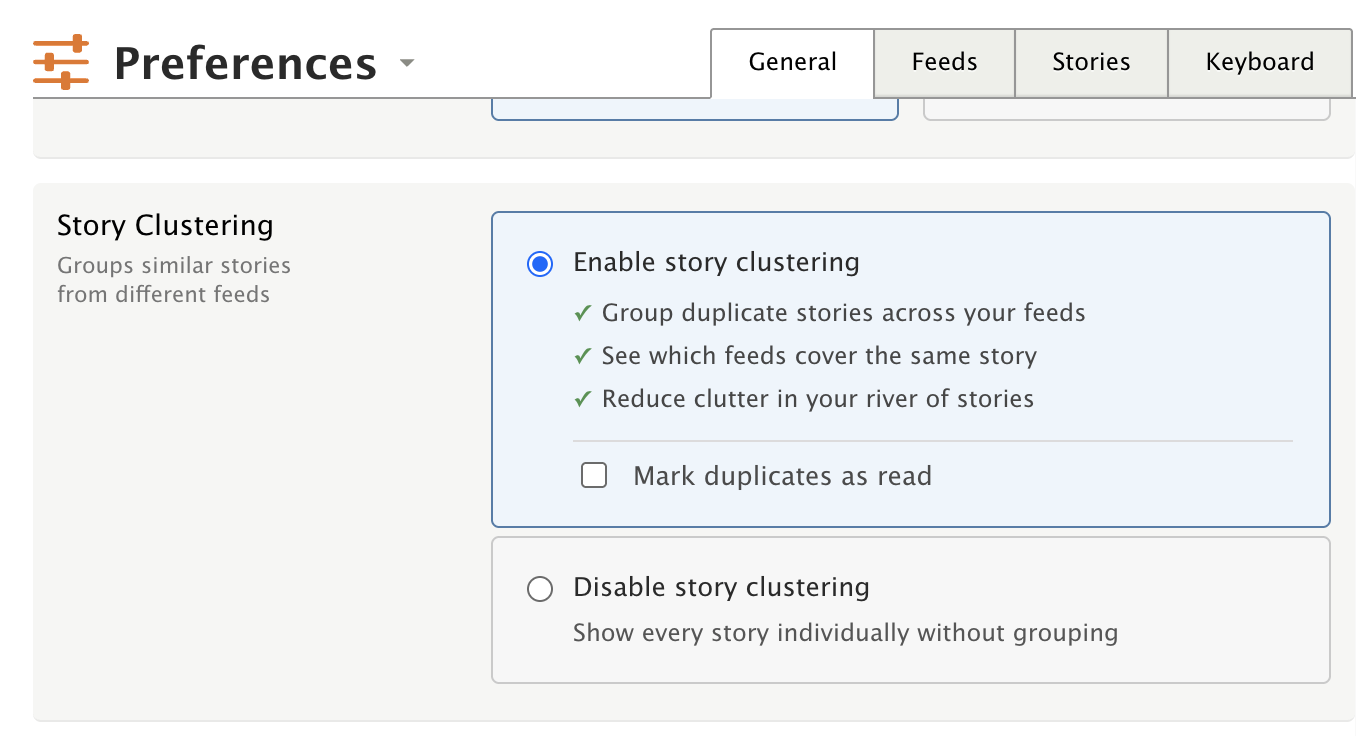
<p>The same options are available in the global Preferences dialog under the Stories tab.</p>

<!-- SCREENSHOT: Preferences modal, Stories tab, showing the story clustering radio buttons and mark-read checkbox -->
<p><img src="/assets/story-clustering-preferences.png" style="width: 80%;border: 1px solid rgba(0,0,0,0.1);margin: 24px auto;display: block;" /></p>

<h3 id="availability">Availability</h3>

<p>Story clustering is available to all NewsBlur users on the web. If a feed you subscribe to has cluster data, you’ll see grouped stories automatically – no configuration needed. Clustering is now enabled by default for all users, and can be toggled off or back on in your account Preferences.</p>

<p><strong>Premium Archive subscribers</strong> get full control over clustering: choose between single-line and expanded preview styles, and automatically mark duplicate stories as read when you read the representative story.</p>

<p><strong>Premium and free users</strong> see clustered stories on popular feeds where cluster data already exists. You’ll see clusters most often on widely-subscribed news feeds. To unlock clustering settings and get clustering across all your feeds, <a href="https://newsblur.com/?next=premium">upgrade to Premium Archive</a>.</p>

<p>If you have feedback or ideas for improvements, please share them on the <a href="https://forum.newsblur.com">NewsBlur forum</a>.</p>
]]>
    </content>


    <category term="web" />
    
    
    <summary type="html">
      <![CDATA[If you subscribe to more than a handful of news feeds, you’ve hit this problem: a story breaks, and suddenly the same headline appears across five, ten, twenty of your subscriptions. You’re reading the same article over and over, just published by different outlets. Your river view fills up with...]]>
    </summary>
    
  </entry>
  
  <entry>
    <title type="html">Mute feeds for a set amount of time</title>
    <link href="https://blog.newsblur.com/2026/03/16/mute-feeds-for-a-set-amount-of-time/" rel="alternate" type="text/html" title="Mute feeds for a set amount of time" />
    <published>2026-03-16T00:00:00-04:00</published>
    <updated>2026-03-16T00:00:00-04:00</updated>
    <id>https://blog.newsblur.com/2026/03/16/mute-feeds-for-a-set-amount-of-time</id>
    <content type="html" xml:base="https://blog.newsblur.com/2026/03/16/mute-feeds-for-a-set-amount-of-time/">
      <![CDATA[<p>Sometimes a feed gets noisy for a while. An election cycle, a product launch, a conference week. You don’t want to unsubscribe because you’ll want it back eventually, but you also don’t want 200 unread stories piling up every day. Until now, muting was all or nothing: mute a feed and it stays muted until you remember to unmute it. Usually you forget.</p>

<p>Now you can mute a feed for a specific duration. Pick anywhere from 1 day to 1 year using the slider, or mute indefinitely the old-fashioned way. When the time’s up, NewsBlur automatically unmutes the feed the next time you load your feeds. No reminders to set, no manual cleanup.</p>

<h3 id="two-ways-to-mute">Two ways to mute</h3>

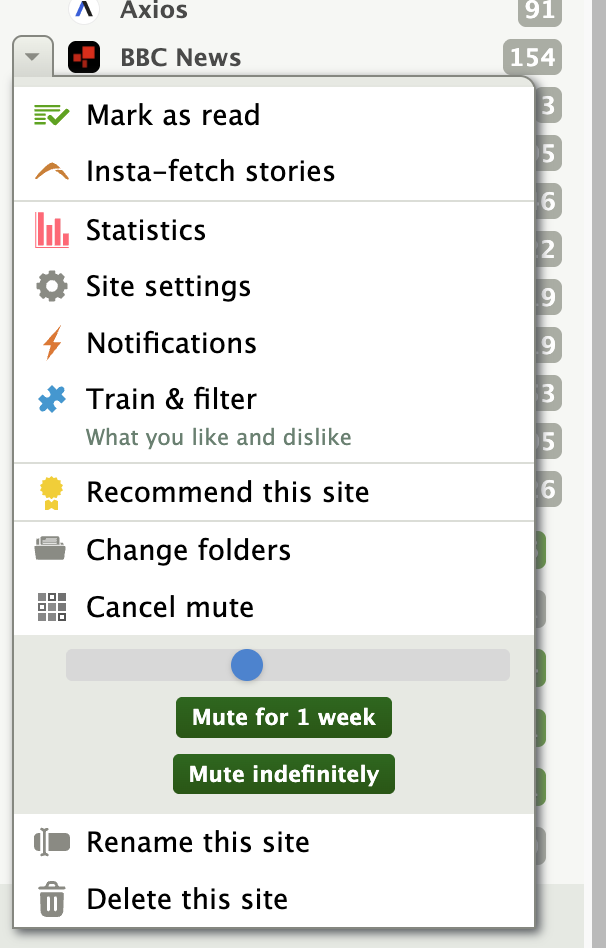
<p>Right-click any feed and choose “Mute this site.” Instead of muting immediately, a slider appears with two buttons: one to mute for a set duration, and one to mute indefinitely. Drag the slider to pick your duration, from 1 day all the way to 1 year with natural stops at 1 week, 2 weeks, 1 month, 3 months, and so on.</p>

<p><img src="/assets/mute-feed-set-time-menu.png" style="width: 50%;border: 1px solid rgba(0,0,0,0.1);margin: 24px auto;display: block;" /></p>

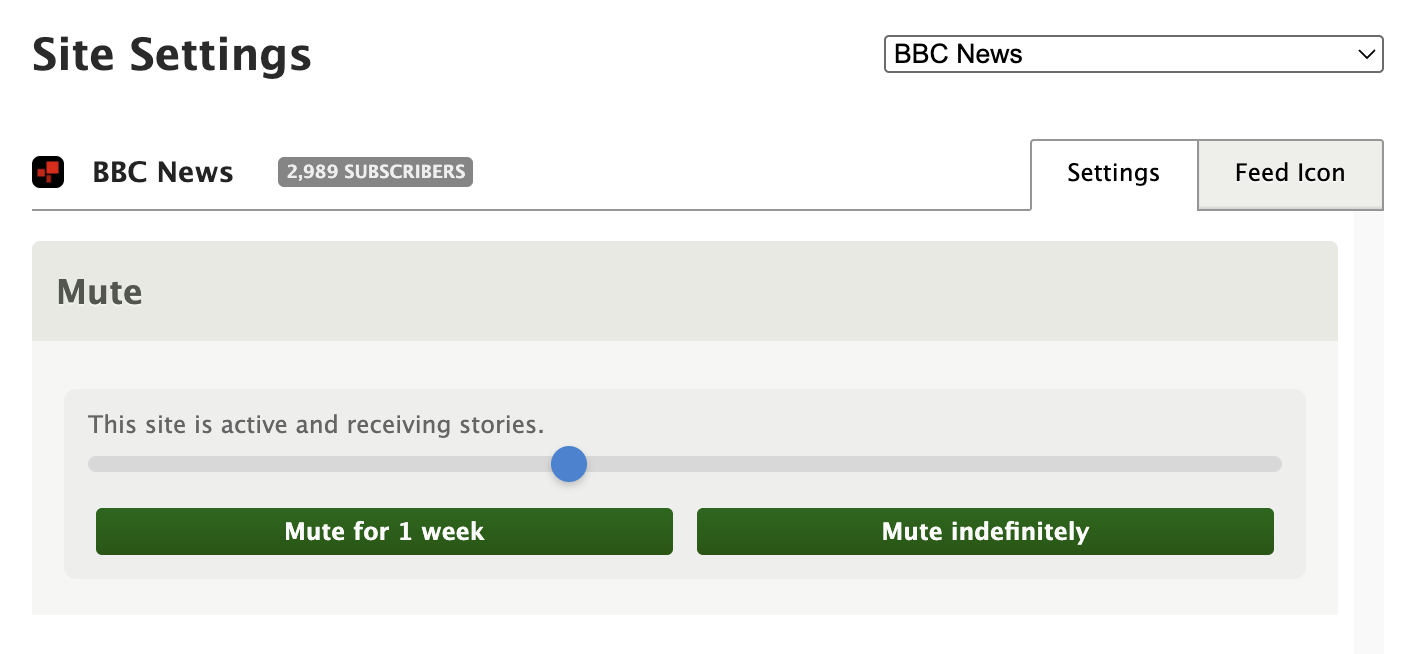
<p>The same controls are available in Site Settings. Open any feed’s settings and you’ll see a Mute section with a status message showing whether the feed is active, muted with a countdown, or muted indefinitely. The slider and buttons work the same way, and you can unmute at any time.</p>

<p><img src="/assets/mute-feed-set-time-settings.png" style="width: 80%;border: 1px solid rgba(0,0,0,0.1);margin: 24px auto;display: block;" /></p>

<p>If a feed is on a timed mute, the right-click menu shows how much time is left next to the “Un-mute this site” option, so you always know when it’s coming back.</p>

<h3 id="auto-unmute">Auto-unmute</h3>

<p>When a timed mute expires, NewsBlur unmutes the feed automatically the next time you open NewsBlur or refresh your feeds. There’s nothing to configure and no background job to wait for. Free accounts respect the 64-feed limit, so if you’re at the cap, the feed stays muted until you have room.</p>

<p>Timed muting is available now on the web for all NewsBlur users. If you have feedback or ideas, please share them on the <a href="https://forum.newsblur.com">NewsBlur forum</a>.</p>
]]>
    </content>


    <category term="web" />
    
    
    <summary type="html">
      <![CDATA[Sometimes a feed gets noisy for a while. An election cycle, a product launch, a conference week. You don’t want to unsubscribe because you’ll want it back eventually, but you also don’t want 200 unread stories piling up every day. Until now, muting was all or nothing: mute a feed...]]>
    </summary>
    
  </entry>
  
  <entry>
    <title type="html">Web Feeds: Turn any website into an RSS feed</title>
    <link href="https://blog.newsblur.com/2026/03/13/web-feeds/" rel="alternate" type="text/html" title="Web Feeds: Turn any website into an RSS feed" />
    <published>2026-03-13T00:00:00-04:00</published>
    <updated>2026-03-13T00:00:00-04:00</updated>
    <id>https://blog.newsblur.com/2026/03/13/web-feeds</id>
    <content type="html" xml:base="https://blog.newsblur.com/2026/03/13/web-feeds/">
      <![CDATA[<p>Not every website has an RSS feed. Some never did. Some had one years ago and quietly removed it. And some sites have content that updates regularly but was never structured as a feed in the first place: job boards, product listings, event calendars, changelog pages. Until now, if a site didn’t offer RSS, you were out of luck.</p>

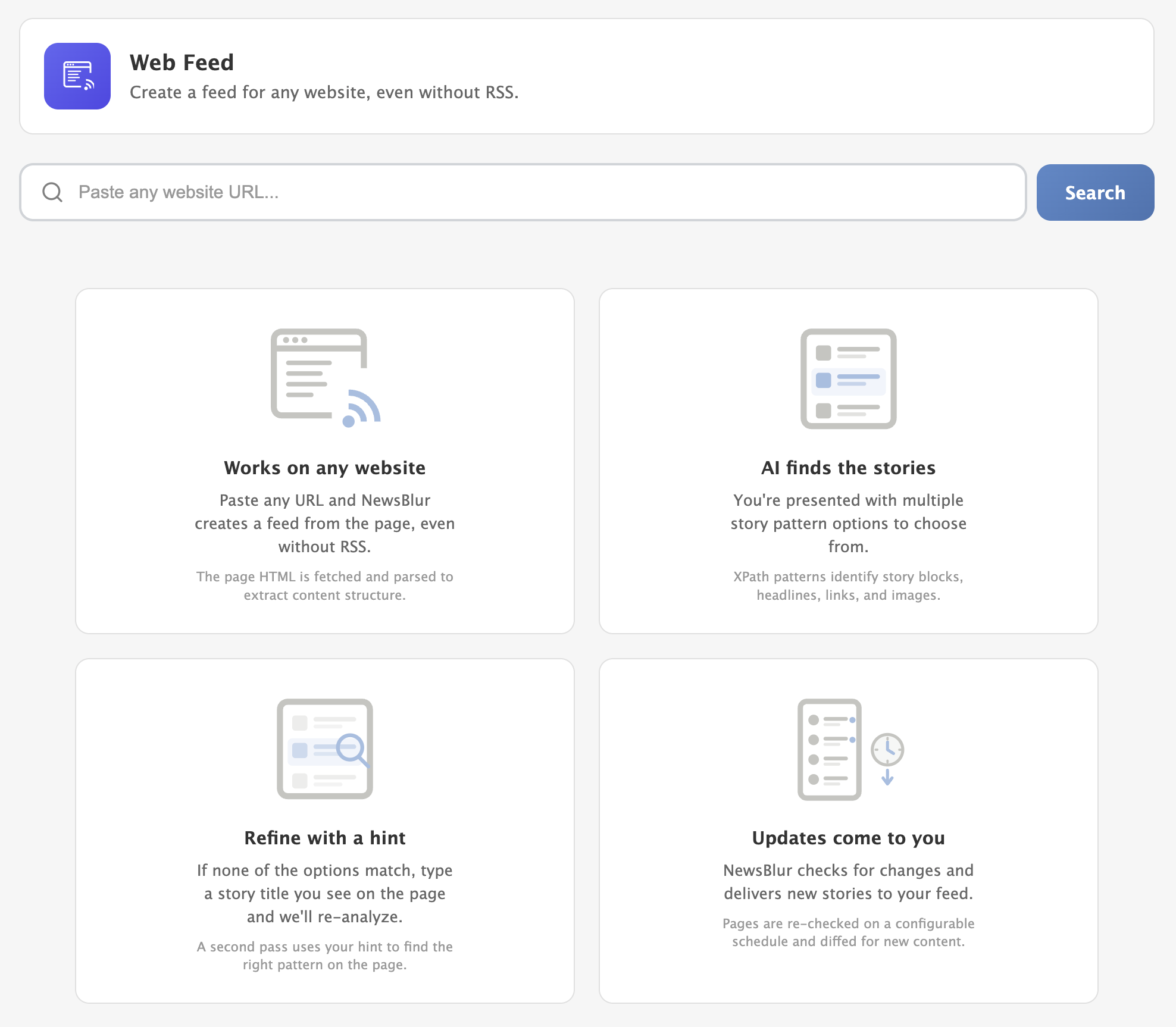
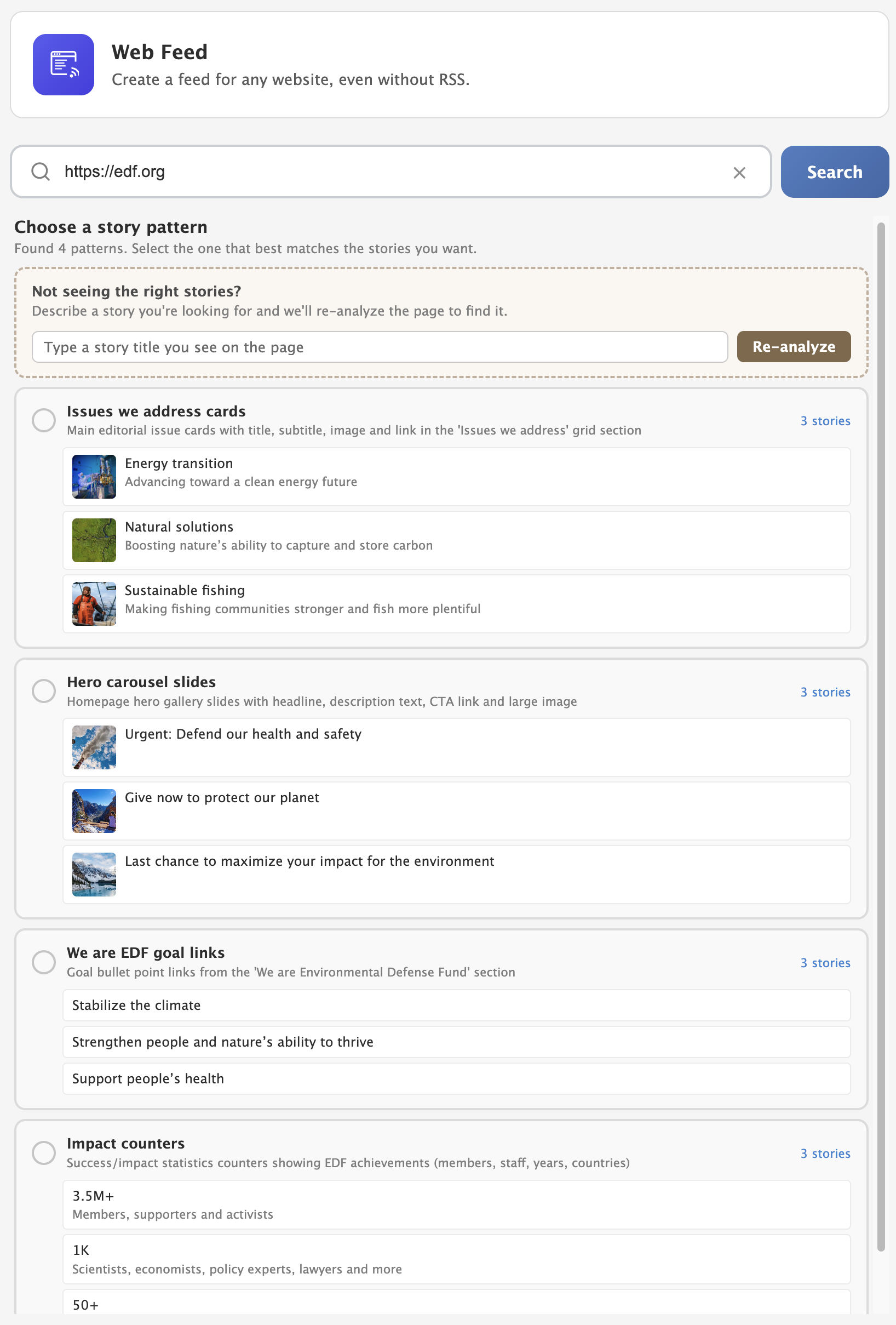
<p><strong>Web Feeds</strong> is a new feature that creates RSS feeds from any website. Point it at a URL, and NewsBlur analyzes the page structure, identifies the repeating content patterns, and generates extraction rules that turn the page into a live feed. It works on news sites, blogs, job boards, product pages, or really anything with a list of items that changes over time.</p>

<p>This is a huge feature and has been requested for years. I’m so thrilled to finally be able to offer it in a way that I feel comfortable with. Other solutions including having you select story titles on a re-hosted version of the page, but it was clumsy and error-prone. This way, we use LLMs to figure out what the story titles are likely to be, present the variations to you, and then let you decide what’s right. So much better!</p>

<!-- SCREENSHOT: Web Feed tab showing URL input, story hint field, and Analyze button -->
<p><img src="/assets/web-feed-input.png" style="width: 90%;border: 1px solid rgba(0,0,0,0.1);margin: 24px auto;display: block;" /></p>

<h3 id="how-it-works">How it works</h3>

<p>Open the Add + Discover Sites page and click the <strong>Web Feed</strong> tab. Paste a URL and click Analyze. NewsBlur fetches the page, strips out navigation and boilerplate, and analyzes the HTML structure. Within a few seconds, you’ll see multiple extraction variants, each representing a different content pattern found on the page.</p>

<p>Progress updates stream in real-time while the analysis runs. NewsBlur typically finds 3-5 different extraction patterns on a page. The first variant is usually the main content (article list, blog posts, product grid), but sometimes the page has multiple distinct sections worth subscribing to. Each variant shows a label, a description of what it captures, and a preview of 3 extracted stories so you can see exactly what you’d get.</p>

<!-- SCREENSHOT: Real-time progress updates showing "Fetching page...", "Finding story patterns...", etc. -->
<p><img src="/assets/web-feed-progress.png" style="width: 80%;border: 1px solid rgba(0,0,0,0.1);margin: 24px auto;display: block;" /></p>

<p>Select the variant that matches what you want to follow, pick a folder, and subscribe. NewsBlur will re-fetch and re-extract the page on a regular schedule, just like any other feed.</p>

<h3 id="story-hints">Story hints</h3>

<p>Sometimes the initial best guess isn’t what you’re looking for. Maybe the page has a blog section and a job listings section, and you want the jobs. Click the Refine button and type a hint like “I’m looking for the job postings.” NewsBlur re-analyzes the page with your hint in mind and reorders the variants to prioritize what you described.</p>

<h3 id="what-gets-extracted">What gets extracted</h3>

<p>For each story, NewsBlur extracts whatever it can find: title, link, content snippet, image, author, and date. Not every field will be available on every site, and that’s fine. At minimum you’ll get titles and links. The extraction uses XPath expressions, which means it’s precise and consistent across page refreshes as long as the site’s HTML structure stays the same.</p>

<h3 id="when-things-change">When things change</h3>

<p>Websites redesign. HTML structures shift. When NewsBlur detects that the extraction rules have stopped working (after 3 consecutive failures), the feed is flagged as needing re-analysis. You’ll see a feed exception indicator, and you can re-analyze the page with one click to generate updated extraction rules.</p>

<h3 id="use-cases">Use cases</h3>

<p>Some examples of sites that work well with Web Feeds:</p>

<ul>
  <li><strong>Company blogs without RSS</strong> — Many corporate blogs dropped their RSS feeds years ago. Web Feeds brings them back.</li>
  <li><strong>Job boards</strong> — Track new postings on a company’s careers page.</li>
  <li><strong>Government sites</strong> — Follow press releases, meeting agendas, or public notices.</li>
  <li><strong>Changelog pages</strong> — Monitor when a tool or service ships updates.</li>
  <li><strong>Event listings</strong> — Keep tabs on upcoming concerts, conferences, or local events.</li>
  <li><strong>Product pages</strong> — Watch for new arrivals or restocks on stores that don’t offer feeds.</li>
</ul>

<h3 id="availability">Availability</h3>

<p>Web Feeds are available to <a href="https://newsblur.com/?next=premium">Premium Archive</a> and Premium Pro subscribers. The ongoing feed fetching and extraction runs on NewsBlur’s servers like any other feed.</p>

<p>If you have feedback or ideas for improvements, please share them on the <a href="https://forum.newsblur.com">NewsBlur forum</a>.</p>
]]>
    </content>


    <category term="web" />
    
    
    <summary type="html">
      <![CDATA[Not every website has an RSS feed. Some never did. Some had one years ago and quietly removed it. And some sites have content that updates regularly but was never structured as a feed in the first place: job boards, product listings, event calendars, changelog pages. Until now, if a...]]>
    </summary>
    
  </entry>
  
  <entry>
    <title type="html">NewsBlur iOS 26 and macOS Tahoe updates: Major redesign, discover related sites, new story toolbar, and much, much more</title>
    <link href="https://blog.newsblur.com/2026/03/05/newsblur-v14-for-ios-and-mac/" rel="alternate" type="text/html" title="NewsBlur iOS 26 and macOS Tahoe updates: Major redesign, discover related sites, new story toolbar, and much, much more" />
    <published>2026-03-05T00:00:00-05:00</published>
    <updated>2026-03-05T00:00:00-05:00</updated>
    <id>https://blog.newsblur.com/2026/03/05/newsblur-v14-for-ios-and-mac</id>
    <content type="html" xml:base="https://blog.newsblur.com/2026/03/05/newsblur-v14-for-ios-and-mac/">
      <![CDATA[<p>This is a hefty redesign and rethinking of the NewsBlur iOS and Mac app. Every screen has been rethought, from the login page to the story detail to the intelligence trainer. This release adds full support for iOS 26, iPadOS 26, and macOS Tahoe, along with several features that were previously web-only: Discover Related Sites, Ask AI, the Dashboard, and Premium Pro.</p>

<p>Here’s what’s new:</p>

<h3 id="ios-26-and-macos-tahoe">iOS 26 and macOS Tahoe</h3>

<p>NewsBlur is built for the latest Apple platforms. The toolbar is transparent and fades as you scroll. The column layout has been simplified to “feeds beside” or “feeds over” the story detail. On iPad, a new draggable divider lets you resize the feeds and stories columns, and the sidebar auto-collapses when space gets tight. On Mac, the sidebar auto-hides and trackpad swipe gestures work throughout the app.</p>

<p>The default theme is now Auto, so NewsBlur follows your system appearance out of the box. Dark mode correctly overrides the window style to stay consistent with whatever NewsBlur theme you’ve chosen.</p>

<p><img src="/assets/ios-14-ipad-sepia.png" style="width: 100%;border: 1px solid rgba(0,0,0,0.1);margin: 24px auto;display: block;" /></p>

<h3 id="a-warmer-sepia-theme">A warmer sepia theme</h3>

<p>The Sepia theme has been completely reworked with warmer tones that are easier on the eyes for long reading sessions. The theme selector itself has been rewritten across all menus, with improved contrast on the pill buttons so you can clearly see which theme is active.</p>

<p><img src="/assets/ios-14-sepia-theme.png" style="width: 50%;border: 1px solid rgba(0,0,0,0.1);margin: 24px auto;display: block;" /></p>

<h3 id="story-titles-pill-bar">Story titles pill bar</h3>

<p>The top of the story list now has a pill bar with quick access to Discover, Options, Search, and Mark Read. The search bar slides in and out instead of fading, and the mark-read button has a wider tap target with an optional confirmation step.</p>

<p><img src="/assets/ios-14-pill-bar.png" style="width: 50%;border: 1px solid rgba(0,0,0,0.1);margin: 24px auto;display: block;" /></p>

<h3 id="discover-related-sites">Discover related sites</h3>

<p>Discover Related Sites lets you find related feeds from any feed or folder. Tap the Discover button in the new story titles pill bar, browse what’s available, and try a feed before subscribing with a preview banner.</p>

<p><img src="/assets/ios-14-discover-sites.png" style="width: 50%;border: 1px solid rgba(0,0,0,0.1);margin: 24px auto;display: block;" /></p>

<h3 id="list-and-magazine-views">List and magazine views</h3>

<p>Two new story layout options join the existing Grid view. List shows compact rows for scanning headlines quickly. Magazine shows taller rows with larger thumbnails, giving you a richer preview of each story without opening it. Switch between them from the story titles pill bar.</p>

<div style="display: flex; gap: 12px; justify-content: center; margin: 24px auto;">
<img src="/assets/ios-14-ipad-magazine.png" style="width: 48%;border: 1px solid rgba(0,0,0,0.1);" />
<img src="/assets/ios-14-ipad-grid.png" style="width: 48%;border: 1px solid rgba(0,0,0,0.1);" />
</div>

<h3 id="dashboard">Dashboard</h3>

<p>The Dashboard sits at the top of your feed list and shows stories from your favorite feeds, updated every five minutes. Add, remove, and rearrange feeds to build a personal front page that keeps you current throughout the day. It’s the first thing you see when you open the app, and it updates in the background so fresh stories are always waiting.</p>

<p><img src="/assets/ios-14-ipad-dashboard.png" style="width: 100%;border: 1px solid rgba(0,0,0,0.1);margin: 24px auto;display: block;" /></p>

<h3 id="redesigned-login-preferences-and-upgrade">Redesigned login, preferences, and upgrade</h3>

<p>The login screen now features animated Metal shader waves with a frosted glass card. Preferences have moved from the old InAppSettingsKit to a new native SwiftUI PreferencesView. The Premium upgrade screen has been redesigned to include Ask AI integration and the new Premium Pro tier.</p>

<p>Share, Trainer, and Ask AI dialogs are presented as swipeable sheets on iPhone with grabber handles, replacing the old full-screen modals. The sync indicator has moved from a large HUD to a subtle top-right nav bar dot.</p>

<div style="display: flex; gap: 12px; justify-content: center; margin: 24px auto;">
<img src="/assets/ios-14-login.png" style="width: 30%;border: 1px solid rgba(0,0,0,0.1);" />
<img src="/assets/ios-14-upgrade.png" style="width: 30%;border: 1px solid rgba(0,0,0,0.1);" />
<img src="/assets/ios-14-prefs.png" style="width: 30%;border: 1px solid rgba(0,0,0,0.1);" />
</div>

<h3 id="ask-ai">Ask AI</h3>

<p>Ask AI brings the same AI-powered Q&amp;A from the web to your phone and Mac. Select a story, tap Ask AI, and ask questions about it. Summarize a long article in one sentence, get the backstory on a developing situation, or fact-check a claim. Pick from multiple AI models and keep the conversation going with follow-ups.</p>

<p><img src="/assets/ios-14-ask-ai.png" style="width: 50%;border: 1px solid rgba(0,0,0,0.1);margin: 24px auto;display: block;" /></p>

<h3 id="push-notifications-with-feed-favicons">Push notifications with feed favicons</h3>

<p>Push notifications now show your feed’s favicon alongside the notification using Communication Notifications. At a glance, you can tell which feed a story came from before you even open it.</p>

<p><img src="/assets/ios-14-push-notifications.png" style="width: 50%;border: 1px solid rgba(0,0,0,0.1);margin: 24px auto;display: block;" /></p>

<h3 id="everything-else">Everything else</h3>

<p>Beyond the headline features, this release includes a long list of improvements and fixes across iPhone, iPad, and Mac.</p>

<h4 id="improvements">Improvements</h4>

<ul>
  <li>Pinch-to-zoom images to full-sized Quick Look preview in any story.</li>
  <li>Mark Story Read options: mark read on scroll, on selection, after an interval, or manually.</li>
  <li>Premium Pro tier added to the iOS upgrade dialog with higher limits.</li>
  <li>Custom feed and folder icons now supported on iOS.</li>
  <li>Unmute support for individual feeds.</li>
  <li>Collapse-all and expand-all button on All Site Stories.</li>
  <li>Modernized menu bar on Mac and iPad with keyboard shortcuts.</li>
  <li>Icons added to context menus on Mac and iPad.</li>
  <li>Redesigned story action buttons with modern styling.</li>
  <li>Text, URL, and regex classifiers added to the iOS Intelligence Trainer.</li>
  <li>Compact story title cells with equalized vertical spacing in list view.</li>
  <li>Fetching/offline banner moved from bottom overlay to top of story titles.</li>
  <li>Feed list search bar replaced with a compact text field.</li>
  <li>Scroll-to-hide toolbar synced with swipe-back gestures.</li>
  <li>Sidebar toggle buttons for showing and hiding the feed list.</li>
  <li>Redesigned Add Site as a SwiftUI half-height sheet with autocomplete.</li>
  <li>Story traverse bar and feed bar fade gradually as you scroll.</li>
  <li>Mac Catalyst: dismiss modals via overlay tap or Escape key.</li>
  <li>Mac Catalyst: trackpad swipe gesture support.</li>
  <li>Improved theme selector pill contrast for medium and light themes.</li>
  <li>Show toolbar when tapping status bar to scroll to top.</li>
</ul>

<h4 id="fixes">Fixes</h4>

<ul>
  <li>Fixed WebSocket disconnects from EIO4 protocol and session lifecycle issues.</li>
  <li>Fixed story width rendering wider than viewport on first load on iPhone.</li>
  <li>Fixed memory issues with PINCache cost limits.</li>
  <li>Fixed offline queue priority inversion.</li>
  <li>Fixed saved stories showing incorrect read/unread status.</li>
  <li>Fixed YouTube Error 153 with HTTPS and inlined resources.</li>
  <li>Fixed trainer popover showing empty content on first open.</li>
  <li>Fixed crashes with custom feed icons in story detail.</li>
  <li>Fixed blank statistics modal by adding missing JS globals.</li>
  <li>Fixed white flash and navbar color mismatch when opening stories in dark themes.</li>
  <li>Fixed sepia theme yellow tint on Mac Catalyst.</li>
  <li>Fixed (null) username and missing avatar when sharing on Mac Catalyst.</li>
  <li>Fixed Catalyst pill bar AppKit chrome artifacts.</li>
  <li>Fixed Mac traverse bar layout, highlights, and previous button state.</li>
  <li>Fixed Discover popover placement on Mac and iPad.</li>
  <li>Fixed mark-read pill confirmation.</li>
  <li>Fixed status bar color and liquid glass gradient boundary.</li>
  <li>Fixed stale collapsed folder unread counts on iPad.</li>
  <li>Fixed stale story responses when switching folders quickly on iPad.</li>
  <li>Fixed Mac Catalyst split divider limited to grab handle area.</li>
</ul>

<p>NewsBlur for iOS 26, iPadOS 26, and macOS Tahoe is available now on the <a href="https://apps.apple.com/app/newsblur/id463981119">App Store</a> for iPhone, iPad, and Mac. If you have feedback or run into issues, I’d love to hear about it on the <a href="https://forum.newsblur.com">NewsBlur forum</a>.</p>
]]>
    </content>


    <category term="ios" />
    
    
    <summary type="html">
      <![CDATA[This is a hefty redesign and rethinking of the NewsBlur iOS and Mac app. Every screen has been rethought, from the login page to the story detail to the intelligence trainer. This release adds full support for iOS 26, iPadOS 26, and macOS Tahoe, along with several features that were...]]>
    </summary>
    
  </entry>
  
  <entry>
    <title type="html">Add + Discover Sites: YouTube, Reddit, podcasts, newsletters, and thousands of feeds to explore</title>
    <link href="https://blog.newsblur.com/2026/03/04/add-and-discover-sites/" rel="alternate" type="text/html" title="Add + Discover Sites: YouTube, Reddit, podcasts, newsletters, and thousands of feeds to explore" />
    <published>2026-03-04T00:00:00-05:00</published>
    <updated>2026-03-04T00:00:00-05:00</updated>
    <id>https://blog.newsblur.com/2026/03/04/add-and-discover-sites</id>
    <content type="html" xml:base="https://blog.newsblur.com/2026/03/04/add-and-discover-sites/">
      <![CDATA[<p>NewsBlur has always been great at reading feeds. But finding new ones? That was mostly on you. The old “Add Site” dialog was a search box and not much else. If you already had a feed URL, it worked fine. If you were looking for something new to read, you were on your own.</p>

<p>The new <strong>Add + Discover Sites</strong> page changes that. It’s a full-page discovery experience with eight tabs covering YouTube channels, Reddit communities, podcasts, newsletters, Google News topics, trending sites, popular feeds, and of course the classic search-and-subscribe workflow. There are over 50,000 curated feeds to browse, all organized into dozens of categories and subcategories.</p>

<p><img src="/assets/add-site-full-page.png" style="width: 100%;border: 1px solid rgba(0,0,0,0.1);margin: 24px auto;display: block;" /></p>

<h3 id="eight-ways-to-find-feeds">Eight ways to find feeds</h3>

<p>The tab bar across the top gives you eight different lenses into the world of RSS:</p>

<!-- SCREENSHOT: Tab bar showing all eight tabs with icons -->
<p><img src="/assets/add-site-tabs.png" style="width: 90%;border: 1px solid rgba(0,0,0,0.1);margin: 24px auto;display: block;" /></p>

<ul>
  <li>
    <p><strong>Search</strong> — The classic search bar, now with semantic search and autocomplete. Type a topic or URL and get instant suggestions. Below the search results you’ll find trending feeds ranked by a hybrid algorithm that combines subscription velocity, read engagement, and subscriber counts.</p>
  </li>
  <li>
    <p><strong>Web Feed</strong> — Create RSS feeds from any website. This one gets its own blog post.</p>
  </li>
  <li>
    <p><strong>Popular Sites</strong> — Thousands of curated RSS feeds organized into categories like Technology, Science, News, and Business. Each category has subcategories for drilling down further.</p>
  </li>
  <li>
    <p><strong>YouTube</strong> — Over 2,000 verified YouTube channels converted to RSS feeds. Browse by category or search for specific channels. Subscribe and read YouTube in your feed reader the way it should be.</p>
  </li>
  <li>
    <p><strong>Reddit</strong> — Nearly 6,000 real subreddits across 47 categories. From r/programming to r/sourdough, you can subscribe to any subreddit as an RSS feed.</p>
  </li>
  <li>
    <p><strong>Newsletters</strong> — Newsletters from Substack, Medium, Ghost, Beehiiv, and other platforms. Platform pills let you filter by newsletter provider if you have a preference.</p>
  </li>
  <li>
    <p><strong>Podcasts</strong> — Popular podcasts organized by genre. Search for shows or browse the curated collection.</p>
  </li>
  <li>
    <p><strong>Google News</strong> — Eight preset topics (World, Business, Technology, Sports, and more) that create feeds from Google News. One click to subscribe.</p>
  </li>
</ul>

<h3 id="categories-and-subcategories">Categories and subcategories</h3>

<p>Most tabs are organized with a two-level taxonomy. Click a category pill at the top to filter, then drill into subcategories for more specific browsing. YouTube’s Technology category, for example, breaks down into Programming, AI &amp; Machine Learning, Gadgets, and more.</p>

<!-- SCREENSHOT: Category pills and subcategory rows showing two-level taxonomy -->
<p><img src="/assets/add-site-categories.png" style="width: 90%;border: 1px solid rgba(0,0,0,0.1);margin: 24px auto;display: block;" /></p>

<p>The categories are consistent across tabs where it makes sense, so you can explore Technology feeds across YouTube, Reddit, Popular Sites, and Podcasts without having to rethink the navigation each time.</p>

<h3 id="grid-view-and-list-view">Grid view and list view</h3>

<p>Every tab supports two viewing modes. Grid view shows feed cards with thumbnails, descriptions, subscriber counts, and freshness indicators. List view compresses things into a denser layout when you want to scan quickly.</p>

<!-- SCREENSHOT: Side by side of grid view and list view showing the same feeds -->
<p><img src="/assets/add-site-grid-list.png" style="width: 100%;border: 1px solid rgba(0,0,0,0.1);margin: 24px auto;display: block;" /></p>

<p>A style popover in the top right lets you toggle between views. Your preference is saved per tab.</p>

<h3 id="try-before-you-subscribe">Try before you subscribe</h3>

<p>Every feed card has a <strong>Try</strong> button that instantly fetches the feed and shows you the actual stories. No commitment, no subscribing. Just a quick look at what you’d get. If you like what you see, the subscribe button is right there with a folder picker.</p>

<!-- SCREENSHOT: Try feed preview showing story cards from a YouTube channel or popular site -->
<p><img src="/assets/add-site-try-feed.png" style="width: 90%;border: 1px solid rgba(0,0,0,0.1);margin: 24px auto;display: block;" /></p>

<p>A breadcrumb link at the top takes you back to where you were browsing when you’re done previewing.</p>

<h3 id="the-new-add-site-popover">The new Add Site popover</h3>

<p>If you don’t need the full discovery page, the popover that appears when you click “+” in the sidebar has been redesigned too. It still has the quick URL input for when you have a feed address handy, but now it also shows freshness indicators and has buttons to jump into any of the discovery tabs.</p>

<!-- SCREENSHOT: Redesigned Add Site popover showing quick add input and discovery buttons -->
<p><img src="/assets/add-site-popover.png" style="width: 60%;border: 1px solid rgba(0,0,0,0.1);margin: 24px auto;display: block;" /></p>

<h3 id="semantic-search">Semantic search</h3>

<p>The search tab uses Elasticsearch to find feeds by name with fuzzy matching. Type “cooking” and you’ll get cooking blogs, YouTube cooking channels, cooking subreddits, and cooking podcasts. It searches across all feed types, not just traditional RSS. If Elasticsearch doesn’t find anything, the search falls back to a database query so you’ll always get results.</p>

<h3 id="where-all-these-feeds-came-from">Where all these feeds came from</h3>

<p>Building the discovery page meant curating a lot of feeds. I wrote management commands to discover and verify channels, subreddits, podcasts, and newsletters from real sources. The collection includes over 2,000 YouTube channels, 6,600 subreddits, 7,300 newsletters, 32,000 podcasts, and 14,000 RSS feeds. Over 63,000 feeds in total, all real, verified, and categorized.</p>

<p>The Add + Discover Sites page is available now on the web for all users. If you have feedback or ideas for new categories, platforms, or features, please share them on the <a href="https://forum.newsblur.com">NewsBlur forum</a>.</p>
]]>
    </content>


    <category term="web" />
    
    
    <summary type="html">
      <![CDATA[NewsBlur has always been great at reading feeds. But finding new ones? That was mostly on you. The old “Add Site” dialog was a search box and not much else. If you already had a feed URL, it worked fine. If you were looking for something new to read, you...]]>
    </summary>
    
  </entry>
  
  <entry>
    <title type="html">A mini media player for podcasts, audio, and video</title>
    <link href="https://blog.newsblur.com/2026/03/02/mini-media-player/" rel="alternate" type="text/html" title="A mini media player for podcasts, audio, and video" />
    <published>2026-03-02T00:00:00-05:00</published>
    <updated>2026-03-02T00:00:00-05:00</updated>
    <id>https://blog.newsblur.com/2026/03/02/mini-media-player</id>
    <content type="html" xml:base="https://blog.newsblur.com/2026/03/02/mini-media-player/">
      <![CDATA[<p>A lot of the sites I subscribe to have audio and video embedded directly in the stories. Podcasts, YouTube channels, news clips. But playing them in NewsBlur has always been a bit awkward: you hit play on the native browser control, then if you scroll to the next story or switch feeds, the audio just stops. I wanted something that keeps playing while you keep reading.</p>

<p>So I built a persistent mini media player. It sits at the bottom of your screen and handles audio, video, and YouTube from any story. Play something and it stays with you as you navigate feeds, open folders, or scroll through stories.</p>

<p><img src="/assets/mini-player-feed-list.png" style="width: 90%;border: 1px solid rgba(0,0,0,0.1);margin: 24px auto;display: block;" /></p>

<h3 id="how-it-works">How it works</h3>

<p>When you open a story that contains audio, video, or a YouTube embed, you’ll see overlay buttons right on the media element: <strong>Play in Mini Media Player</strong>, <strong>Play Next</strong>, and <strong>Play Last</strong>. Click any of them and the mini player appears at the bottom of the screen. If you click the native play button on an audio or video element, it hands off to the mini player automatically.</p>

<p><img src="/assets/mini-player-podcast.png" style="width: 90%;border: 1px solid rgba(0,0,0,0.1);margin: 24px auto;display: block;" /></p>

<p>The player has a three-row layout. The top row shows the feed favicon, feed name, and story title (click the title to scroll back to the story). The middle row is a full-width scrubber so you can seek precisely. The bottom row has playback controls: skip back, play/pause, skip forward, a time display, playback speed, and a volume slider that appears on hover.</p>

<h3 id="build-a-queue">Build a queue</h3>

<p>The real power is the queue. As you’re reading through stories, you can add media to your queue with “Play Next” (inserts at the top) or “Play Last” (appends to the end). The queue shows up right below the player with a count of upcoming items. Drag items to reorder them, or remove items you’ve changed your mind about. When the current item finishes, the next one starts automatically.</p>

<p><img src="/assets/mini-player-youtube.png" style="width: 90%;border: 1px solid rgba(0,0,0,0.1);margin: 24px auto;display: block;" /></p>

<h3 id="playback-history">Playback history</h3>

<p>Switch from the “Up Next” tab to the “History” tab to see your last 10 played items. Each entry shows where you left off, so you can pick up a podcast episode right where you stopped. Click any history item to resume it.</p>

<h3 id="settings">Settings</h3>

<p>Click the gear icon in the player to customize your experience:</p>

<p><img src="/assets/mini-player-settings.png" style="width: 90%;border: 1px solid rgba(0,0,0,0.1);margin: 24px auto;display: block;" /></p>

<ul>
  <li><strong>Skip back/forward</strong>: Choose how far to jump (5s, 10s, 15s, 30s, or 60s in each direction)</li>
  <li><strong>Auto-play</strong>: Automatically play the next queued item when the current one finishes (on by default)</li>
  <li><strong>Resume position</strong>: Remember where you left off in each episode (on by default)</li>
  <li><strong>Show on load</strong>: Restore the player when you reload NewsBlur, so you can pick up right where you left off (on by default)</li>
</ul>

<h3 id="synced-across-reloads">Synced across reloads</h3>

<p>Your playback state, queue, history, and settings are all saved to your NewsBlur account. Reload the page and the player comes back with your queue intact and the current episode paused where you left it. Position data syncs in real time via WebSocket so there’s no lag.</p>

<h3 id="playback-speed">Playback speed</h3>

<p>Click the speed indicator (next to the time display) to cycle through speeds: 0.5x, 0.75x, 1x, 1.25x, 1.5x, 2x, and 3x. Your speed preference is saved and applied to the next item in your queue automatically.</p>

<p>The mini media player is available now on the web for all NewsBlur users. If you have feedback or ideas for how to make it better, please share them on the <a href="https://forum.newsblur.com">NewsBlur forum</a>.</p>
]]>
    </content>


    <category term="web" />
    
    
    <summary type="html">
      <![CDATA[A lot of the sites I subscribe to have audio and video embedded directly in the stories. Podcasts, YouTube channels, news clips. But playing them in NewsBlur has always been a bit awkward: you hit play on the native browser control, then if you scroll to the next story or...]]>
    </summary>
    
  </entry>
  
  <entry>
    <title type="html">Global and folder-scoped intelligence training: Train once, apply everywhere</title>
    <link href="https://blog.newsblur.com/2026/02/02/global-and-folder-scoped-intelligence-training/" rel="alternate" type="text/html" title="Global and folder-scoped intelligence training: Train once, apply everywhere" />
    <published>2026-02-02T00:00:00-05:00</published>
    <updated>2026-02-02T00:00:00-05:00</updated>
    <id>https://blog.newsblur.com/2026/02/02/global-and-folder-scoped-intelligence-training</id>
    <content type="html" xml:base="https://blog.newsblur.com/2026/02/02/global-and-folder-scoped-intelligence-training/">
      <![CDATA[<p>Until now, the Intelligence Trainer was strictly per-feed. Train a title, author, or tag on one site and it only affected that site. If you wanted to hide a topic everywhere, you had to repeat that training on each feed. With a few feeds, that’s fine. With a hundred, it’s tedious. With five hundred, it’s a non-starter.</p>

<p>If you’re a <a href="https://newsblur.com/?next=premium">Premium Archive</a> subscriber, you can now set any classifier to apply globally across all your feeds, or scoped to a specific folder. Train “sponsored” as a dislike once, and it hides sponsored stories everywhere. Train “kubernetes” as a like in your Tech folder, and it highlights kubernetes stories across every feed in that folder without touching the rest of your subscriptions.</p>

<h3 id="three-scope-levels">Three scope levels</h3>

<p>Every classifier pill in the Intelligence Trainer now shows three small scope icons on the left: a feed icon, a folder icon, and a globe icon.</p>

<!-- SCREENSHOT: Intelligence trainer showing a classifier pill with the three scope toggle icons (feed, folder, globe) -->
<p><img src="/assets/scope-toggle-icons.png" style="width: 90%;border: 1px solid rgba(0,0,0,0.1);margin: 24px auto;display: block;" /></p>

<ul>
  <li><strong>Per Site</strong> (feed icon) — The default. The classifier only applies to the feed you’re training. This is how classifiers have always worked.</li>
  <li><strong>Per Folder</strong> (folder icon) — The classifier applies to every feed in the same folder. If you later move the feed to a different folder, the classifier stays tied to the original folder.</li>
  <li><strong>Global</strong> (globe icon) — The classifier applies to every feed you subscribe to.</li>
</ul>

<p>Click any scope icon to switch. The active scope is highlighted, and a tooltip explains each level. Your choice is saved with the classifier.</p>

<h3 id="real-world-examples">Real-world examples</h3>

<p><strong>Hide a topic everywhere.</strong> Subscribe to lots of news feeds but never want to read about a recurring topic? Open the trainer on any feed, add the topic as a text or title classifier, thumbs-down it, and click the globe icon. Done — it’s hidden across all your feeds.</p>

<p><strong>Focus on a topic within a folder.</strong> Have a “Tech” folder with 40 feeds? Train “machine learning” as a like with the folder scope, and every feed in that folder will surface machine learning stories in your Focus view. Your cooking and sports feeds stay untouched.</p>

<p><strong>Dislike a prolific author.</strong> Some authors are syndicated across multiple sites. Instead of training the same author name on each feed, set it to global and it applies everywhere at once.</p>

<h3 id="manage-training-scope-filter">Manage Training scope filter</h3>

<p>The Manage Training tab now includes a scope filter alongside the existing sentiment, type, and search filters. You can quickly see all your global classifiers, all your folder-scoped classifiers, or narrow down to just per-site training.</p>

<!-- SCREENSHOT: Manage Training tab showing the scope filter segmented control (All, Per Site, Per Folder, Global) -->
<p><img src="/assets/manage-training-scope-filter.png" style="width: 90%;border: 1px solid rgba(0,0,0,0.1);margin: 24px auto;display: block;" /></p>

<p>Each classifier pill in the Manage Training list also shows a small colored scope badge, so you can tell at a glance whether a classifier is site-level, folder-level, or global.</p>

<h3 id="how-scoping-works-under-the-hood">How scoping works under the hood</h3>

<p>When NewsBlur scores a story, it checks all classifiers that apply to that story’s feed — including any folder-scoped classifiers for the feed’s folder and any global classifiers. The same “green always wins” rule applies: if a story matches both a liked global classifier and a disliked per-site classifier, the story is marked as Focus.</p>

<p>Scope controls work with all classifier types: titles, authors, tags, text, and URLs. They also work with regex classifiers.</p>

<h3 id="subscription-tiers">Subscription tiers</h3>

<table>
  <thead>
    <tr>
      <th>Feature</th>
      <th>Tier Required</th>
    </tr>
  </thead>
  <tbody>
    <tr>
      <td>Per-site classifiers (default)</td>
      <td>Free</td>
    </tr>
    <tr>
      <td>Global and folder-scoped classifiers</td>
      <td>Premium Archive</td>
    </tr>
    <tr>
      <td>Manage Training scope filter</td>
      <td>Premium Archive</td>
    </tr>
  </tbody>
</table>

<p>Global and folder-scoped classifiers are available now on the web. If you have feedback or ideas for improvements, please share them on the <a href="https://forum.newsblur.com">NewsBlur forum</a>.</p>
]]>
    </content>


    <category term="web" />
    
    
    <summary type="html">
      <![CDATA[Until now, the Intelligence Trainer was strictly per-feed. Train a title, author, or tag on one site and it only affected that site. If you wanted to hide a topic everywhere, you had to repeat that training on each feed. With a few feeds, that’s fine. With a hundred, it’s...]]>
    </summary>
    
  </entry>
  
  <entry>
    <title type="html">Premium Archive: Per-feed and per-folder auto-mark-as-read settings</title>
    <link href="https://blog.newsblur.com/2026/01/23/per-feed-auto-mark-read/" rel="alternate" type="text/html" title="Premium Archive: Per-feed and per-folder auto-mark-as-read settings" />
    <published>2026-01-23T00:00:00-05:00</published>
    <updated>2026-01-23T00:00:00-05:00</updated>
    <id>https://blog.newsblur.com/2026/01/23/per-feed-auto-mark-read</id>
    <content type="html" xml:base="https://blog.newsblur.com/2026/01/23/per-feed-auto-mark-read/">
      <![CDATA[<p>Some feeds I want to read every single story. Others I’m happy to skim once a week. And a few high-volume feeds I only check occasionally, so stories older than a day or two aren’t worth catching up on. <a href="https://newsblur.com/?next=premium">Premium Archive</a> subscribers get the site-wide “days of unread” setting, but it was too blunt, applying the same rule to everything. Now you can set how long stories stay unread on a per-feed and per-folder basis.</p>

<h3 id="how-it-works">How it works</h3>

<p>Open the feed options popover (click the gear icon in the feed header) and you’ll see a new “Auto Mark as Read” section. Choose how many days stories should remain unread before NewsBlur automatically marks them as read:</p>

<!-- SCREENSHOT: Feed options popover showing Auto Mark as Read section with slider -->
<p><img src="/assets/auto-mark-read-popover.png" style="width: 100%;border: 1px solid rgba(0,0,0,0.1);margin: 24px auto;display: block;" /></p>

<p>The slider goes from 1 day to 365 days, with a “never” zone at the far right for feeds where you truly want to read every story regardless of age. Choose “Default” to inherit from the parent folder or site-wide setting, “Days” to set a specific duration, or “Never” to disable auto-marking entirely.</p>

<h3 id="folder-inheritance">Folder inheritance</h3>

<p>Settings cascade down from folders to feeds. Set a folder to 7 days, and all feeds inside inherit that setting unless they have their own override. This is perfect for organizing feeds by how aggressively you want to age them out:</p>

<ul>
  <li><strong>Must Read</strong> folder: Set to “Never” so nothing ages out</li>
  <li><strong>News</strong> folder: Set to 2 days since news gets stale fast</li>
  <li><strong>Blogs</strong> folder: Set to 30 days for long-form content worth revisiting</li>
  <li>Individual feeds can still override their folder’s setting</li>
</ul>

<!-- SCREENSHOT: Folder settings dialog showing Auto Mark as Read with inheritance text -->
<p><img src="/assets/auto-mark-read-folder-settings.png" style="width: 80%;border: 1px solid rgba(0,0,0,0.1);margin: 24px auto;display: block;" /></p>

<p>The status text below the slider shows where the current setting comes from: the site-wide preference, a parent folder, or an explicit setting on this feed.</p>

<h3 id="site-settings-dialog">Site settings dialog</h3>

<p>You can also configure auto-mark-read from the site settings dialog (right-click a feed and choose “Site settings”). The same controls are available there, redesigned to match the popover style.</p>

<!-- SCREENSHOT: Site settings dialog showing Auto Mark as Read section -->
<p><img src="/assets/auto-mark-read-site-settings.png" style="width: 80%;border: 1px solid rgba(0,0,0,0.1);margin: 24px auto;display: block;" /></p>

<h3 id="availability">Availability</h3>

<p>Per-feed and per-folder auto-mark-as-read settings are a <a href="https://newsblur.com/?next=premium">Premium Archive</a> feature, available now on the web. They work alongside the existing site-wide “days of unread” preference in Manage → Preferences → General → Days of unreads, which is also a Premium Archive feature.</p>

<p>If you have feedback or ideas for improvements, please share them on the <a href="https://forum.newsblur.com">NewsBlur forum</a>.</p>
]]>
    </content>


    <category term="web" />
    
    
    <summary type="html">
      <![CDATA[Some feeds I want to read every single story. Others I’m happy to skim once a week. And a few high-volume feeds I only check occasionally, so stories older than a day or two aren’t worth catching up on. Premium Archive subscribers get the site-wide “days of unread” setting, but...]]>
    </summary>
    
  </entry>
  
  <entry>
    <title type="html">Intelligence Trainer Overhaul: URL classifiers, regex mode, and manage all training in one place</title>
    <link href="https://blog.newsblur.com/2026/01/22/intelligence-trainer-overhaul/" rel="alternate" type="text/html" title="Intelligence Trainer Overhaul: URL classifiers, regex mode, and manage all training in one place" />
    <published>2026-01-22T00:00:00-05:00</published>
    <updated>2026-01-22T00:00:00-05:00</updated>
    <id>https://blog.newsblur.com/2026/01/22/intelligence-trainer-overhaul</id>
    <content type="html" xml:base="https://blog.newsblur.com/2026/01/22/intelligence-trainer-overhaul/">
      <![CDATA[<p>The Intelligence Trainer is one of NewsBlur’s most powerful features. It lets you train on authors, tags, titles, and text to automatically sort stories into Focus, Unread, or Hidden. But until now, there were limits—you couldn’t train on URLs, regex support was something power users had been requesting for years, and managing hundreds of classifiers meant clicking through feeds one by one.</p>

<p>Today I’m launching three major improvements: URL classifiers, regex mode for power users, and a completely redesigned Manage Training tab.</p>

<h3 id="train-on-urls">Train on URLs</h3>

<p>You can now train on story permalink URLs, not just titles and content. This opens up new filtering possibilities based on URL patterns.</p>

<p><img src="/assets/url-classifier-section.png" style="width: 90%;border: 1px solid rgba(0,0,0,0.1);margin: 24px auto;display: block;" /></p>

<p>The URL classifier matches against the full story permalink. Some use cases:</p>

<ul>
  <li><strong>Filter by URL path</strong>: Like or dislike stories that contain <code class="language-plaintext highlighter-rouge">/sponsored/</code> or <code class="language-plaintext highlighter-rouge">/opinion/</code> in their URL</li>
  <li><strong>Domain sections</strong>: Match specific subdomains or URL segments that indicate content types</li>
  <li><strong>Landing pages vs articles</strong>: Some feeds include both—filter by URL structure to show only what you want</li>
</ul>

<p>URL classifiers support both exact phrase matching and regex mode. The exact phrase match is available to Premium subscribers, while regex mode requires <a href="https://newsblur.com/?next=premium">Premium Pro</a>.</p>

<p>When a URL classifier matches, you’ll see the matched portion highlighted directly in the story header, so you always know why a story was filtered.</p>

<h3 id="regex-matching-for-power-users">Regex matching for power users</h3>

<p>For years, the text classifier only supported exact phrase matching. If you wanted to match “iPhone” and “iPad” you needed two separate classifiers. Now you can use regex patterns in the Title, Text, and URL classifiers.</p>

<p><img src="/assets/regex-mode-toggle.png" style="width: 90%;border: 1px solid rgba(0,0,0,0.1);margin: 24px auto;display: block;" /></p>

<p>A segmented control lets you switch between “Exact phrase” and “Regex” mode. In regex mode, you get access to the full power of regular expressions:</p>

<ul>
  <li><strong>Word boundaries</strong> (<code class="language-plaintext highlighter-rouge">\b</code>): Match <code class="language-plaintext highlighter-rouge">\bapple\b</code> to find “apple” but not “pineapple”</li>
  <li><strong>Alternation</strong> (<code class="language-plaintext highlighter-rouge">|</code>): Match <code class="language-plaintext highlighter-rouge">iPhone|iPad|Mac</code> in a single classifier</li>
  <li><strong>Optional characters</strong> (<code class="language-plaintext highlighter-rouge">?</code>): Match <code class="language-plaintext highlighter-rouge">colou?r</code> to find both “color” and “colour”</li>
  <li><strong>Anchors</strong> (<code class="language-plaintext highlighter-rouge">^</code> and <code class="language-plaintext highlighter-rouge">$</code>): Match patterns at the start or end of text</li>
  <li><strong>Character classes</strong>: Match <code class="language-plaintext highlighter-rouge">[0-9]+</code> for any number sequence</li>
</ul>

<p><img src="/assets/regex-help-popover.png" style="width: 90%;border: 1px solid rgba(0,0,0,0.1);margin: 24px auto;display: block;" /></p>

<p>A built-in help popover explains regex syntax with practical examples. The trainer validates your regex in real-time and shows helpful error messages if the pattern is invalid.</p>

<p>Regex matching is case-insensitive, so <code class="language-plaintext highlighter-rouge">apple</code> matches “Apple”, “APPLE”, and “apple”. This mode is available to Premium Pro subscribers.</p>

<h3 id="manage-all-your-training-in-one-place">Manage all your training in one place</h3>

<p>Over the years you may have trained NewsBlur on hundreds of authors, tags, and titles across dozens of feeds. But when you wanted to review what you’d trained, you had to open each feed’s trainer individually and click through them one by one.</p>

<p>The new Manage Training tab provides a consolidated view of every classifier you’ve ever trained, organized by folder. You can see everything at a glance, edit inline, and save changes across multiple feeds in a single click.</p>

<p><img src="/assets/manage-training-overview.png" style="width: 90%;border: 1px solid rgba(0,0,0,0.1);margin: 24px auto;display: block;" /></p>

<p>Open the Intelligence Trainer from the sidebar menu (or press the <code class="language-plaintext highlighter-rouge">t</code> key). You’ll now see two tabs at the top: “Site by Site” and “Manage Training”. The Manage Training tab is available everywhere you train—from the story trainer, feed trainer, or the main Intelligence Trainer dialog.</p>

<p>The Site by Site tab is the existing trainer you know—it walks you through each feed showing authors, tags, and titles you can train. That’s still the best way to train new feeds with lots of suggestions.</p>

<p>The Manage Training tab shows only what you’ve already trained. Every thumbs up and thumbs down you’ve ever given, organized by folder just like your feed list. Each feed shows its trained classifiers as pills you can click to toggle.</p>

<h4 id="filtering-made-easy">Filtering made easy</h4>

<p>The real power comes from the filtering options. At the top of the tab you’ll find several ways to narrow down your training:</p>

<p><strong>Folder/Site dropdown</strong> — Only folders and sites with training appear in this dropdown. Select a folder to see all training within it, or select a specific site to focus on just that feed’s classifiers. This is especially useful when you have hundreds of trained items and want to review just one area.</p>

<p><img src="/assets/manage-training-site-filter.png" style="width: 90%;border: 1px solid rgba(0,0,0,0.1);margin: 24px auto;display: block;" /></p>

<p><strong>Instant search</strong> — Type in the search box and results filter as you type. Search matches against classifier names, feed titles, and folder names. Looking for everything you’ve trained about “apple”? Just type it and see all matches instantly.</p>

<p><img src="/assets/manage-training-search.png" style="width: 90%;border: 1px solid rgba(0,0,0,0.1);margin: 24px auto;display: block;" /></p>

<p><strong>Likes and Dislikes</strong> — Toggle between All, Likes only, or Dislikes only. Want to see everything you’ve marked as disliked? One click shows you all the red thumbs-down items across your entire training history.</p>

<p><img src="/assets/manage-training-dislikes.png" style="width: 90%;border: 1px solid rgba(0,0,0,0.1);margin: 24px auto;display: block;" /></p>

<p><strong>Type filters</strong> — Filter by classifier type: Title, Author, Tag, Text, URL, or Site. These are multi-select, so you can show just Authors and Tags while hiding everything else. Perfect for when you want to audit just the authors you’ve trained across all your feeds.</p>

<h4 id="edit-inline-and-save-in-bulk">Edit inline and save in bulk</h4>

<p>Click any classifier pill to toggle it between like, dislike, and neutral. The Save button shows exactly how many changes you’ve made, so you always know what’s pending. Made a mistake? Just click again to undo—the count updates automatically.</p>

<p>When you click Save, all your changes across all feeds are saved in a single request. No more clicking through feeds one at a time to clean up old training.</p>

<h3 id="subscription-tiers">Subscription tiers</h3>

<table>
  <thead>
    <tr>
      <th>Feature</th>
      <th>Tier Required</th>
    </tr>
  </thead>
  <tbody>
    <tr>
      <td>Title/Author/Tag/Feed classifiers</td>
      <td>Free</td>
    </tr>
    <tr>
      <td>Manage Training tab</td>
      <td>Free</td>
    </tr>
    <tr>
      <td>URL classifiers (exact phrase)</td>
      <td>Premium</td>
    </tr>
    <tr>
      <td>Text classifiers (exact phrase)</td>
      <td>Premium Archive</td>
    </tr>
    <tr>
      <td>Regex mode (Title, Text, URL)</td>
      <td>Premium Pro</td>
    </tr>
  </tbody>
</table>

<p>All three features are available now on the web. If you have feedback or ideas for improvements, please share them on the <a href="https://forum.newsblur.com">NewsBlur forum</a>.</p>
]]>
    </content>


    <category term="web" />
    
    
    <summary type="html">
      <![CDATA[The Intelligence Trainer is one of NewsBlur’s most powerful features. It lets you train on authors, tags, titles, and text to automatically sort stories into Focus, Unread, or Hidden. But until now, there were limits—you couldn’t train on URLs, regex support was something power users had been requesting for years,...]]>
    </summary>
    
  </entry>
  
  <entry>
    <title type="html">Ask AI to make sense of the news</title>
    <link href="https://blog.newsblur.com/2026/01/16/ask-ai/" rel="alternate" type="text/html" title="Ask AI to make sense of the news" />
    <published>2026-01-16T00:00:00-05:00</published>
    <updated>2026-01-16T00:00:00-05:00</updated>
    <id>https://blog.newsblur.com/2026/01/16/ask-ai</id>
    <content type="html" xml:base="https://blog.newsblur.com/2026/01/16/ask-ai/">
      <![CDATA[<p>Sometimes I open a story and realize I’m late to the party. Maybe it’s the fourth article in a saga I haven’t followed, maybe it name-drops people I should know, or maybe it’s dense and I just want the gist. Ask AI fills in those gaps. You can ask about any story in NewsBlur and get quick answers from the model you prefer.</p>

<h3 id="how-it-works">How it works</h3>

<p>Select a story and click Ask AI in the story toolbar. You’ll see quick options for getting information about the story.</p>

<p><img src="/assets/ask-ai-selector.png" style="width: 100%;border: 1px solid #A6A6A6;margin: 24px auto;display: block;" /></p>

<h3 id="not-interested-turn-it-off">Not interested? Turn it off</h3>

<p>I know AI features aren’t for everyone. If you’d rather not see Ask AI at all, you can hide it completely. Go to <strong>Manage → Preferences → Stories</strong> and toggle off “Show Ask AI button.” The button disappears from your toolbar and you’ll never be bothered by it again. NewsBlur has always been about giving you control over your reading experience, and this is no different.</p>

<h3 id="presets-for-common-questions">Presets for common questions</h3>

<p>At the top of the menu, you can summarize the story in three flavors: a single sentence, bullet points, or a full paragraph. Below that are presets I use most often:</p>

<ul>
  <li><strong>What’s the context and background?</strong> — Fills in backstory you might have missed</li>
  <li><strong>Identify key people and relationships</strong> — Who are all these names and how do they connect?</li>
  <li><strong>What are the main arguments?</strong> — For opinion pieces or debates, cuts to what each side is saying</li>
  <li><strong>Fact check this story</strong> — Flags claims that look worth verifying</li>
</ul>

<p>Or just type whatever you’re curious about.</p>

<h3 id="speak-your-question">Speak your question</h3>

<p>See that microphone button? Click it and say your question out loud. NewsBlur uses OpenAI’s Whisper to transcribe your voice, so you can keep reading without typing. Handy when you’re on the couch and don’t want to pull out the keyboard.</p>

<h3 id="pick-your-model">Pick your model</h3>

<p>Different models have different strengths. NewsBlur lets you pick from:</p>

<ul>
  <li><strong>Claude Opus 4.5</strong> — The default, most capable model from Anthropic</li>
  <li><strong>GPT 5.2</strong> — OpenAI’s latest</li>
  <li><strong>Gemini 3 Pro</strong> — Google’s offering</li>
  <li><strong>Grok 4.1 Fast</strong> — xAI’s speedy option</li>
</ul>

<p><img src="/assets/ask-ai-one-sentence.png" style="width: 100%;border: 1px solid #A6A6A6;margin: 24px auto;display: block;" /></p>

<p>NewsBlur remembers your choice across sessions and devices. If a reply feels off, re-ask with a different model — they each have their own style.</p>

<h3 id="keep-the-conversation-going">Keep the conversation going</h3>

<p>After the first answer, ask follow-ups. NewsBlur keeps the conversation context so you can dig deeper or ask for a clarification. It’s meant to be a back-and-forth, not a one-shot.</p>

<p><img src="/assets/ask-ai-followup.png" style="width: 100%;border: 1px solid #A6A6A6;margin: 24px auto;display: block;" /></p>

<h3 id="your-data-stays-yours">Your data stays yours</h3>

<p>Your stories and questions are sent to the AI provider you choose to generate a response, but that’s it. NewsBlur doesn’t use your reading data or questions to train models or for any other purpose. The AI providers’ standard privacy policies apply, but NewsBlur itself treats your Ask AI usage the same as any other part of your reading experience — it’s your data, not ours.</p>

<h3 id="availability">Availability</h3>

<p>Ask AI is live on the web. Here’s how many questions you get:</p>

<ul>
  <li><strong>Premium Archive</strong>: 100 questions per day</li>
  <li><strong>Premium + Free</strong>: 1 question per week</li>
</ul>

<p>Premium Archive limits reset daily at midnight in your local timezone. Premium and free limits reset weekly on Sunday.</p>

<p>If you’re not yet a Premium Archive subscriber, you can <a href="https://www.newsblur.com/?next=premium">upgrade on the web</a> to get the full Ask AI experience along with unlimited story archiving and full-text search.</p>

<p>As always, I’d love to hear what you think on the <a href="https://forum.newsblur.com">NewsBlur forum</a>. If you have ideas for new preset questions or ways to make Ask AI more useful, let me know.</p>
]]>
    </content>


    <category term="web" />
    
    
    <summary type="html">
      <![CDATA[Sometimes I open a story and realize I’m late to the party. Maybe it’s the fourth article in a saga I haven’t followed, maybe it name-drops people I should know, or maybe it’s dense and I just want the gist. Ask AI fills in those gaps. You can ask about...]]>
    </summary>
    
  </entry>
  
  <entry>
    <title type="html">Disable social features for a distraction-free reading experience</title>
    <link href="https://blog.newsblur.com/2026/01/09/disable-social-features/" rel="alternate" type="text/html" title="Disable social features for a distraction-free reading experience" />
    <published>2026-01-09T00:00:00-05:00</published>
    <updated>2026-01-09T00:00:00-05:00</updated>
    <id>https://blog.newsblur.com/2026/01/09/disable-social-features</id>
    <content type="html" xml:base="https://blog.newsblur.com/2026/01/09/disable-social-features/">
      <![CDATA[<p>A common feature request over the years has been the ability to turn off NewsBlur’s social features entirely. For readers who just want to focus on their feeds without blurblogs, shared stories, or public comments, this is now possible with a single preference.</p>

<p><img src="/assets/disable-social-preference.png" style="width: 100%; border: 1px solid #A0A0A0; margin: 24px auto; display: block;" /></p>

<p>Head to Preferences &gt; Feeds and look for the new “Sharing” option at the bottom. Choose “Disable social features” and all sharing, comments, and blurblog features will be hidden from your NewsBlur interface. The Global Shared Stories folder disappears, share buttons are removed from stories, and the sidebar is cleaned up. If you ever want to re-enable social features, just flip the preference back.</p>
]]>
    </content>


    <category term="web" />
    
    
    <summary type="html">
      <![CDATA[A common feature request over the years has been the ability to turn off NewsBlur’s social features entirely. For readers who just want to focus on their feeds without blurblogs, shared stories, or public comments, this is now possible with a single preference.
]]>
    </summary>
    
  </entry>
  
  <entry>
    <title type="html">Custom icons for folders and feeds</title>
    <link href="https://blog.newsblur.com/2026/01/07/custom-icons/" rel="alternate" type="text/html" title="Custom icons for folders and feeds" />
    <published>2026-01-07T00:00:00-05:00</published>
    <updated>2026-01-07T00:00:00-05:00</updated>
    <id>https://blog.newsblur.com/2026/01/07/custom-icons</id>
    <content type="html" xml:base="https://blog.newsblur.com/2026/01/07/custom-icons/">
      <![CDATA[<p>I have a lot of folders. Over the years I’ve organized my feeds into categories like News, Tech, Cooking, and Comics. But when I’m scanning my feed list, they all look the same—just folder icons with text. I wanted a way to make certain folders stand out at a glance, especially the ones I check most often.</p>

<p>That’s why I built custom icons for both folders and feeds. You can now personalize any folder or feed with an emoji, a preset icon in any color, or even upload your own image.</p>

<p><img src="/assets/custom-icons-folder-list.png" style="width: 50%;border: 1px solid rgba(0,0,0,0.1);margin: 24px auto;display: block;" /></p>

<h3 id="how-it-works">How it works</h3>

<p>Right-click on any folder or feed in your feed list and select “Folder settings” or “Site settings”. You’ll see a new “Folder Icon” or “Feed Icon” tab where you can customize the icon.</p>

<p><img src="/assets/custom-icons-colors.png" style="width: 90%;border: 1px solid rgba(0,0,0,0.1);margin: 24px auto;display: block;" /></p>

<p>There are three ways to set a custom icon:</p>

<p><strong>Preset icons</strong>: Pick from over 240 icons (a mix of outline and filled styles) and colorize them with any of 84 colors organized by hue. Want a red heart for your favorites folder? A blue code bracket for programming feeds? It’s all there.</p>

<p><img src="/assets/custom-icons-preset.png" style="width: 60%;border: 1px solid rgba(0,0,0,0.1);margin: 24px auto;display: block;" />
<img src="/assets/custom-icons-preset2.png" style="width: 60%;border: 1px solid rgba(0,0,0,0.1);margin: 24px auto;display: block;" /></p>

<p><strong>Emoji</strong>: Choose from 180 emojis organized by category. A basketball for sports feeds, a fork and knife for cooking, a newspaper for news—you get the idea.</p>

<p><img src="/assets/custom-icons-emoji.png" style="width: 60%;border: 1px solid rgba(0,0,0,0.1);margin: 24px auto;display: block;" /></p>

<p><strong>Upload your own</strong>: Have a specific image in mind? Upload any image and it will be automatically resized to fit perfectly in your feed list.</p>

<p><img src="/assets/custom-icons-upload.png" style="width: 60%;border: 1px solid rgba(0,0,0,0.1);margin: 24px auto;display: block;" /></p>

<h3 id="great-for-feeds-without-icons">Great for feeds without icons</h3>

<p>Many feeds don’t have favicons, or they have generic RSS icons that all look the same. Custom feed icons let you give these feeds distinctive icons so you can spot them instantly. I’ve been using this to add icons to older blogs and newsletters that never bothered setting up a proper favicon.</p>

<p>Custom icons are available now on the web for all NewsBlur users. Folders and feeds both support the same icon options of emoji, preset icons with colors, or uploaded images.</p>

<p>If you have feedback or ideas for additional icon options, please share them on the <a href="https://forum.newsblur.com">NewsBlur forum</a>.</p>
]]>
    </content>


    <category term="web" />
    
    
    <summary type="html">
      <![CDATA[I have a lot of folders. Over the years I’ve organized my feeds into categories like News, Tech, Cooking, and Comics. But when I’m scanning my feed list, they all look the same—just folder icons with text. I wanted a way to make certain folders stand out at a glance,...]]>
    </summary>
    
  </entry>
  
  <entry>
    <title type="html">Auto-enable captions on YouTube videos</title>
    <link href="https://blog.newsblur.com/2025/12/22/youtube-captions/" rel="alternate" type="text/html" title="Auto-enable captions on YouTube videos" />
    <published>2025-12-22T00:00:00-05:00</published>
    <updated>2025-12-22T00:00:00-05:00</updated>
    <id>https://blog.newsblur.com/2025/12/22/youtube-captions</id>
    <content type="html" xml:base="https://blog.newsblur.com/2025/12/22/youtube-captions/">
      <![CDATA[<p>You can now automatically enable captions on YouTube videos embedded in your feeds. Head to Preferences &gt; Stories and check the new “YouTube Captions” option.</p>

<p><img src="/assets/youtube-captions-preference.png" style="border: 1px solid rgba(0,0,0,0.1);" /></p>

<p>When enabled, any YouTube video in any story will automatically show captions when you start playing it (assuming the video has captions available). This is great for watching videos in noisy environments, for accessibility, or for following along in a language you’re learning.</p>

<p><img src="/assets/youtube-captions-video.png" style="border: 1px solid rgba(0,0,0,0.1);" /></p>

<p>This works by adding the <code class="language-plaintext highlighter-rouge">cc_load_policy=1</code> parameter to YouTube embed URLs on-the-fly, so it applies to all your feeds without modifying the original content. The preference is off by default, so existing behavior is unchanged unless you opt in.</p>
]]>
    </content>


    <category term="web" />
    
    
    <summary type="html">
      <![CDATA[You can now automatically enable captions on YouTube videos embedded in your feeds. Head to Preferences &gt; Stories and check the new “YouTube Captions” option.
]]>
    </summary>
    
  </entry>
  
  <entry>
    <title type="html">Full-text filtering lets you train on any phrase</title>
    <link href="https://blog.newsblur.com/2025/11/03/text-based-intelligence-classifiers/" rel="alternate" type="text/html" title="Full-text filtering lets you train on any phrase" />
    <published>2025-11-03T00:00:00-05:00</published>
    <updated>2025-11-03T00:00:00-05:00</updated>
    <id>https://blog.newsblur.com/2025/11/03/text-based-intelligence-classifiers</id>
    <content type="html" xml:base="https://blog.newsblur.com/2025/11/03/text-based-intelligence-classifiers/">
      <![CDATA[<p>Today we’re launching text-based intelligence classifiers, a powerful new way to train NewsBlur to show you exactly what you want to read. You’ve always been able to train NewsBlur’s intelligence using story titles, authors, tags, and publishers. Now you can train on any phrase that appears in the full text of a story. This feature is available exclusively to NewsBlur Premium Archive subscribers.</p>

<p>Text-based classifiers work just like the intelligence training you’re already familiar with. Find a phrase you care about, mark it as something you like or dislike, and NewsBlur will automatically highlight or hide future stories containing that phrase. Stories with phrases you like are marked with a green focus indicator, while stories with phrases you dislike are hidden unless you choose to view them.</p>

<h3 id="how-to-use-text-based-classifiers">How to use text-based classifiers</h3>

<p>Reading a story and spot a phrase you want to see more of? Simply select the text with your mouse or trackpad, then click the “Train” button that appears.</p>

<p><img src="/assets/text-classifier-vegan.png" style="width: 90%;border: 1px solid #A6A6A6;margin: 24px auto;display: block;" /></p>

<p>This opens the intelligence trainer where you can mark the selected text as something you like (thumbs up) or dislike (thumbs down). The text classifier appears at the top of the trainer dialog, ready for you to train.</p>

<p><img src="/assets/text-classifier-dialog.png" style="width: 90%;border: 1px solid #A6A6A6;margin: 24px auto;display: block;" /></p>

<p>Once you’ve trained a text phrase, NewsBlur will automatically scan the full text of every story from that feed. Stories containing your phrase will be highlighted with a green focus indicator in your story list, making them easy to spot. You can also see the phrase highlighted throughout the story content itself.</p>

<p><img src="/assets/text-classifier-gaussian.png" style="width: 90%;border: 1px solid #A6A6A6;margin: 24px auto;display: block;" /></p>

<h3 id="real-world-examples">Real-world examples</h3>

<p>Text-based classifiers shine when you subscribe to broad-interest feeds but only care about specific topics. Here are some examples:</p>

<ul>
  <li>Subscribe to a food blog that covers everything, but only want to read about vegan recipes? Train on “vegan” and similar terms.</li>
  <li>Reading a tech blog that writes about many frameworks, but you only want stories about your favorite language? Train on that language name.</li>
  <li>Following a news site with mixed content, but only interested in stories about a specific region or topic? Train on location names or topic keywords.</li>
</ul>

<p>Since text classifiers work on the full article text and not just titles, they catch stories that might not mention your interest in the headline but discuss it in depth within the article.</p>

<h3 id="green-always-wins">Green always wins</h3>

<p>Just like with other intelligence classifiers, green (focus) always wins. If a story matches both a phrase you like and a phrase you dislike, NewsBlur will mark it as focus and show it in your unread count. This ensures you never miss a story about something you care about, even if it also contains topics you’re less interested in.</p>

<p>You can view your focus stories by choosing between Unread and Focus at the bottom of the feed list. Set it to Focus to show only green stories and see everything NewsBlur knows you want to read.</p>

<h3 id="why-premium-archive-only">Why Premium Archive only?</h3>

<p>Text-based classifiers require scanning the full article content of every story, not just the RSS feed excerpt. The Premium Archive subscription ensures every story is fetched, archived, and available for full-text search and classification. This means your text classifiers work on every story from every feed you subscribe to, with no gaps in coverage.</p>

<p>The Premium Archive subscription also includes unlimited story archiving, the ability to mark any story as unread forever, full-text search across your entire archive, and the discover stories feature for finding related content across all your feeds.</p>

<h3 id="available-now-on-the-web">Available now on the web</h3>

<p>Text-based classifiers are available now to all Premium Archive subscribers on the web. Simply highlight any phrase in a story, click the “Train” button, and start training. iOS and Android support is coming soon.</p>

<p>If you’re not yet a Premium Archive subscriber and want to unlock text-based intelligence training along with unlimited archiving and advanced search, you can <a href="https://www.newsblur.com/?next=premium">upgrade directly on the web</a>.</p>

<p>As always, we’d love to hear your feedback on the <a href="https://forum.newsblur.com">NewsBlur forum</a>. For every person who shares their thoughts, there are a dozen others thinking the same thing, so your input helps shape where NewsBlur goes next.</p>
]]>
    </content>


    <category term="web" />
    
    
    <summary type="html">
      <![CDATA[Today we’re launching text-based intelligence classifiers, a powerful new way to train NewsBlur to show you exactly what you want to read. You’ve always been able to train NewsBlur’s intelligence using story titles, authors, tags, and publishers. Now you can train on any phrase that appears in the full text...]]>
    </summary>
    
  </entry>
  
  <entry>
    <title type="html">Filter stories by date range</title>
    <link href="https://blog.newsblur.com/2025/10/15/filter-stories-by-date/" rel="alternate" type="text/html" title="Filter stories by date range" />
    <published>2025-10-15T00:00:00-04:00</published>
    <updated>2025-10-15T00:00:00-04:00</updated>
    <id>https://blog.newsblur.com/2025/10/15/filter-stories-by-date</id>
    <content type="html" xml:base="https://blog.newsblur.com/2025/10/15/filter-stories-by-date/">
      <![CDATA[<p>A few days ago was my five year wedding anniversary. I wanted to see the news from exactly five years ago, which I had clearly missed because I was not checking my phone that day. That’s where the new date filter feature comes in handy.</p>

<p>You can now filter stories by date range, filtering stories down to only those newer or older than some date or between some timespan. This works on individual feeds and as well as on folders, saved stories, and read stories.</p>

<p><img src="/assets/date-filter-popover.png" style="width: 100%;border: 1px solid rgba(0,0,0,0.1);margin: 24px auto;display: block;" /></p>

<p>The date filter lives in the feed options popover, right where you’d expect it next to other feed filtering and ordering options. You’ll see the new “Filter by date range” section with two sections: “Newer” and “Older”.</p>

<p>Each column has a date input field where you can manually enter a date, or use the quick duration buttons for common time ranges. Want to see the past week? Click “1w” under “Newer”. Want to see stories from a specific month? Set the “Newer” and “Older” dates to bracket that month.</p>

<p>This feature is particularly useful when you’re catching up after being away, or when you want to research how some event in the past was covered. Combined with NewsBlur’s full-text search, you can now both search for topics and filter by when they were published. And of course the <a href="/2025/02/02/discover-related-stories-and-sites/">recently launched Discover feature</a> lets you see related stories and related feeds to follow interesting bunny trails.</p>

<p>The date filters work across all of NewsBlur’s views - individual feeds, folders, saved stories, and the river of news. The filters don’t persist between feeds, so you can set different date ranges for different feeds without the settings interfering with each other.</p>

<p>If you have any feedback or ideas for improvements, please share them on the <a href="https://forum.newsblur.com">NewsBlur forum</a>.</p>
]]>
    </content>


    <category term="web" />
    
    
    <summary type="html">
      <![CDATA[A few days ago was my five year wedding anniversary. I wanted to see the news from exactly five years ago, which I had clearly missed because I was not checking my phone that day. That’s where the new date filter feature comes in handy.
]]>
    </summary>
    
  </entry>
  
  <entry>
    <title type="html">Discover related stories and sites</title>
    <link href="https://blog.newsblur.com/2025/02/02/discover-related-stories-and-sites/" rel="alternate" type="text/html" title="Discover related stories and sites" />
    <published>2025-02-02T00:00:00-05:00</published>
    <updated>2025-02-02T00:00:00-05:00</updated>
    <id>https://blog.newsblur.com/2025/02/02/discover-related-stories-and-sites</id>
    <content type="html" xml:base="https://blog.newsblur.com/2025/02/02/discover-related-stories-and-sites/">
      <![CDATA[<p>I want to introduce you to the new Discover Stories and Discover Sites features. Sometimes you’re reading a story and want to know everything there is to know about that topic. You want other stories, but depending on the topic, you might want them from the same site, from similar sites, or from all of your subscriptions. That’s the new Discover Stories feature, and it’s only for NewsBlur Premium Archive subscribers. The Premium Archive subscription is meant for this use case of being able to peer deeply into your story archive and not just what’s been published in the last month.</p>

<p>Second I’m introducing Discover Sites, which is available at the top of every feed and folder to everybody, both free and premium users. Having tried all of the competing discover sites features, I built the popover dialog that has all the features I wanted. It’s an infinite scroll of related sites, showing the most recent five stories, formatted exactly as your story titles are personally styled. You can read stories from unsubscribed feeds and easily subscribe to them while scrolling through the discover stories dialog.</p>

<p><img src="/assets/discover-1.png" style="width: 100%;border: none;margin: 24px auto;display: block;" /></p>

<p>Here’s a set of features I’ve been wanting to build since the very first days of NewsBlur in 2009. I built prototypes of this feature using a few of the modern text tools at the time: nltk (the natural language toolkit), support vector machines, and LDA (Latent Dirichlet Allocation) to group stories by topic. It didn’t work, or it was too slow, and even then not accurate enough. I read the tea leaves and could tell a better tool would come out eventually that was basically a drop-in classifier and topic grouper. Out came word embeddings (word2vec initially, then <a href="https://huggingface.co/sentence-transformers/all-MiniLM-L6-v2">sentence transformers</a>). And now those transformers are available basically for free.</p>

<p><img src="/assets/discover-3.png" style="width: 100%;border: none;margin: 24px auto;display: block;" /></p>

<p>As you can see, this isn’t your normal related stories feature. It shows all of the related stories, segmented by the folders that a site is a part of. This folder control allows you to filter down to an individual site and up to every feed you subscribe to when finding related stories.</p>

<p>And it’s important to note that none of the data presented in the Discover Stories or Discover Sites dialog is trained on your personal data, like feeds that other people subscribe to in relation to any particular site. All of the data is extracted and grouped by the content of the RSS feed’s title, description, and the titles of the first few stories.</p>

<p><img src="/assets/discover-2.png" style="width: 100%;border: none;margin: 24px auto;display: block;" /></p>

<p>Above we see that Discover Sites is right on the money. An infinite scroll of related sites, showing story previews, and multiple interaction points that let you choose between trying out a site by reading one of the stories, adding it directly to a folder, or checking the statistics of the site. The stats dialog is great in this case because it gives you a feel for what other people like and dislike about the site.</p>

<p>I’m super proud of this release; it took years to build and a decade to plan. And while the Discover Stories feature is technically only available to Premium Archive subscribers, you can see related stories if another Premium Archive subscriber is subscribed to that site. I don’t think hiding those stories from free and premium users is worthwhile.</p>

<p>Please post your feedback on the <a href="https://forum.newsblur.com">NewsBlur forum</a>, ideally as an “idea,” but you know I love responding to all feedback. For every person who writes up their thoughts on the forum, there are ten people who are thinking the same thing, so it’s worthwhile to hear from you, knowing the multiplier it represents.</p>
]]>
    </content>


    <category term="web" />
    
    
    <summary type="html">
      <![CDATA[I want to introduce you to the new Discover Stories and Discover Sites features. Sometimes you’re reading a story and want to know everything there is to know about that topic. You want other stories, but depending on the topic, you might want them from the same site, from similar...]]>
    </summary>
    
  </entry>
  
</feed>