
Matching Stories: see every story behind a tag, author, or classifier
The Intelligence Trainer has always asked you to decide blind. You see a tag or an author on a story and you can train it up or down, but you can’t see what else that decision would touch. Is this author a regular on this site or a one-time guest? Does the “review” tag mean product reviews or book reviews? How many stories does “sponsored” actually hit? Until now the only way to find out was to train it and watch the scores change across the feed.
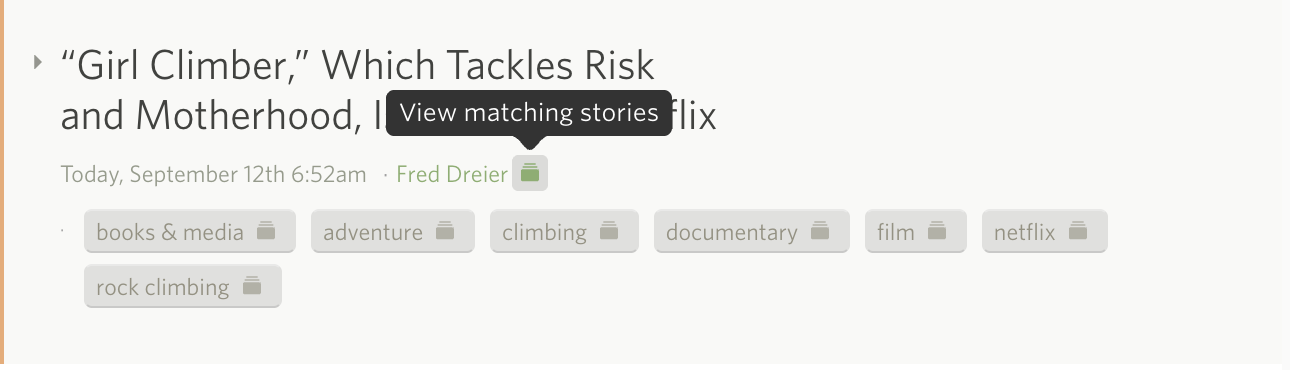
Now every tag, author, and URL on a story has a small button next to it: View matching stories. Click it and the story list turns into a view of every story on that site that carries that exact value. Not just unread stories, read ones too, so you get the whole picture. It’s the fastest way I’ve found to answer “what else is like this?”
From a story
Open any story and look at the author and tags under the title. Each one now has a small stories icon beside it. Click it and the list filters down to every story that matches that one author or tag. The URL line gets the same button, so you can pull up every story that shares a path segment, which turns out to be a great way to find a series or a podcast on a site that doesn’t tag its posts.
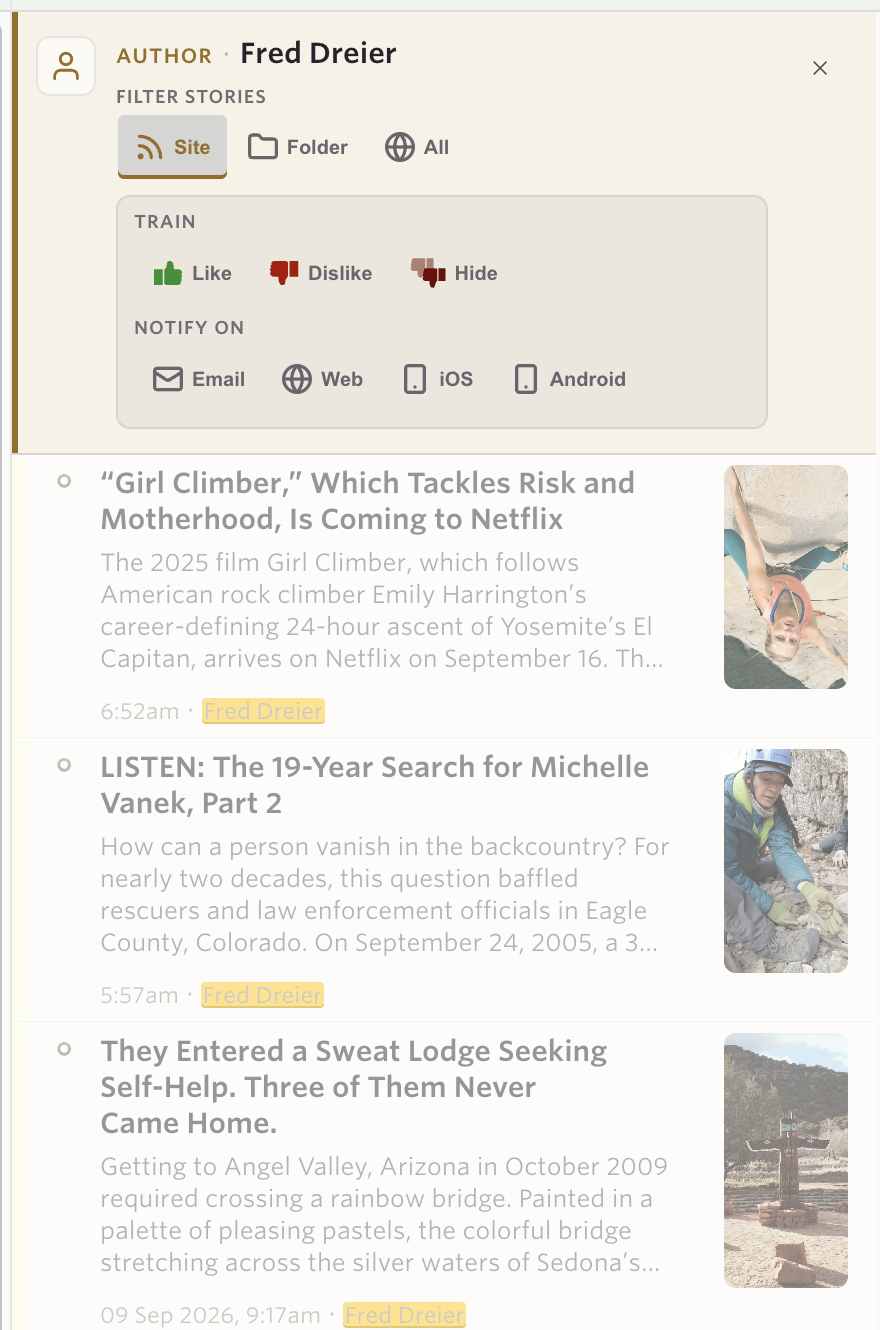
The matching text is highlighted on every row of the filtered list. An author filter marks the author on each story, a title filter marks the words it matched, and a text filter marks the phrase in the preview.
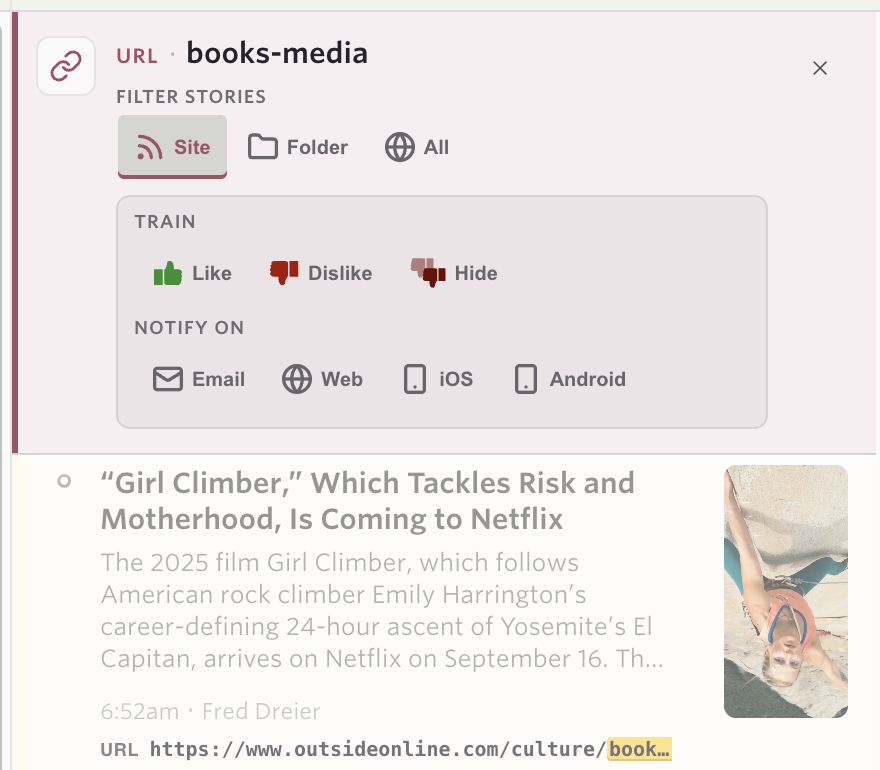
A URL filter is a little different, since the link isn’t normally part of the story list. When one is active, each row grows a URL line with the matched segment highlighted, so you can see exactly why the story is there.
The filter rides along in the URL, so reload, back and forward, and bookmarks all do what you’d expect. I have a few of these bookmarked now for authors I check in on every couple of weeks.
From the trainer
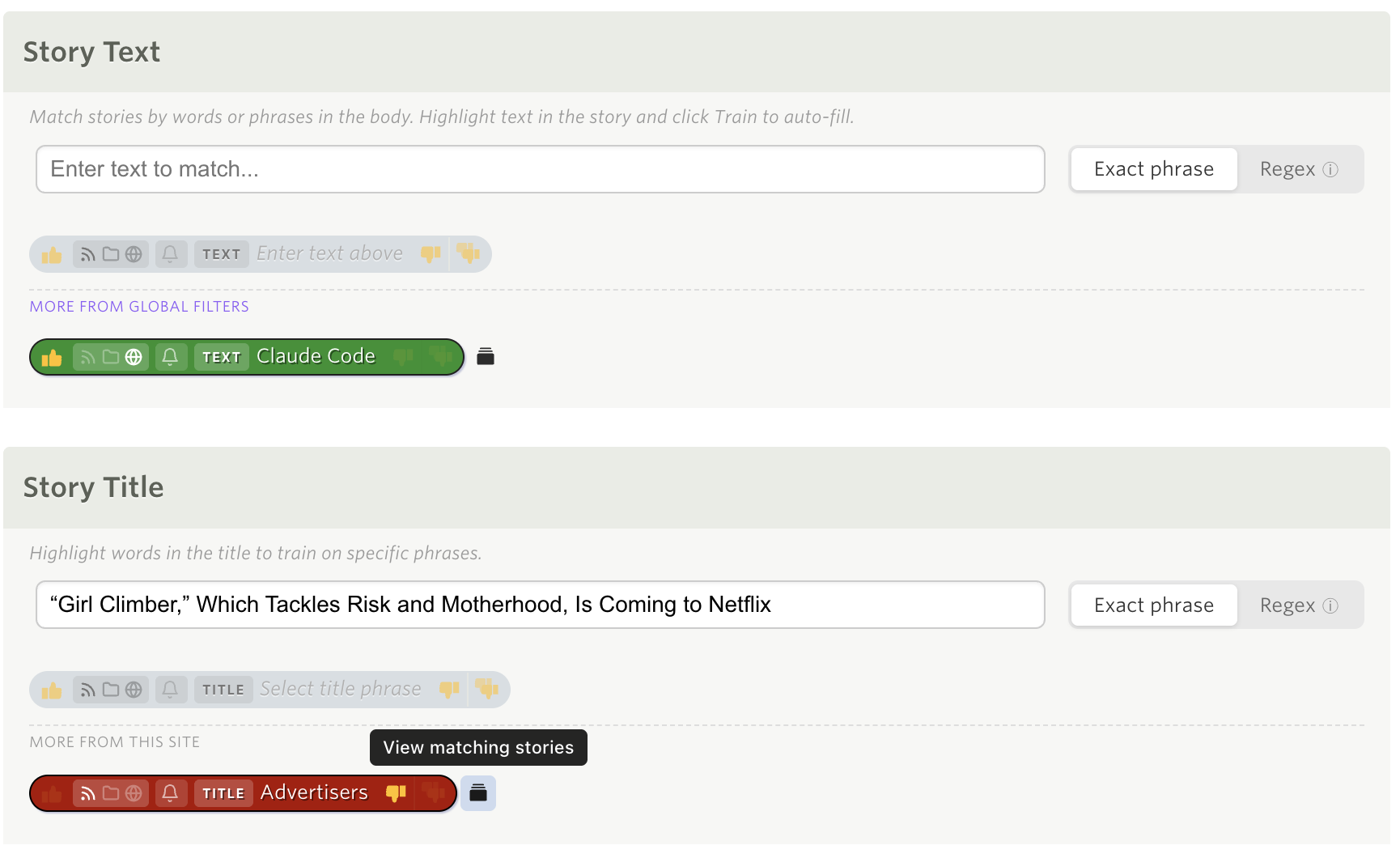
The same button lives in the Intelligence Trainer on every tag, author, title, URL, and text classifier you’ve saved. This is the part I’ve wanted for years. You trained “sponsored” as hidden a long time ago and have a nagging feeling it’s swallowing something it shouldn’t. Click the magnifying glass on that classifier, the trainer closes, and you’re looking at exactly the stories it hides. A Back to trainer link in the banner takes you back to where you were.
Regex classifiers and natural language classifiers don’t get the button, since neither one matches a single exact value.
The banner
At the top of every filtered list is a banner that names the filter and gives you three things to do with it.
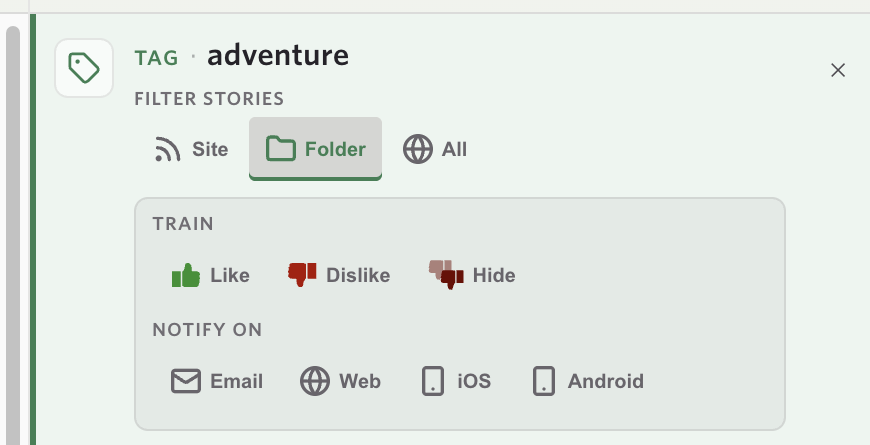
Filter stories widens the list from this site to the whole folder or to all of your sites. Site scope is available to everyone. Folder and All follow the same rule as folder and global classifiers, so they need Premium Archive. On Archive, a folder or all-sites tag filter runs against the story search index rather than a window of recent stories, so a tag that appears on a dozen stories spread across forty sites turns up all twelve.
Train is Like, Dislike, or Hide (the super dislike). It saves the same classifier the trainer would, and the list recomputes in place: the score flips on each row, the unread counts in the sidebar update, and stories you just trained down stay in the list so you can see what you did instead of watching rows vanish out from under you.
Notify on is Email, Web, iOS, and Android. These are the per-classifier notifications from earlier this year, now reachable from the same banner. You find a tag, confirm it matches what you think it matches, and turn on a notification for it without ever opening the trainer.
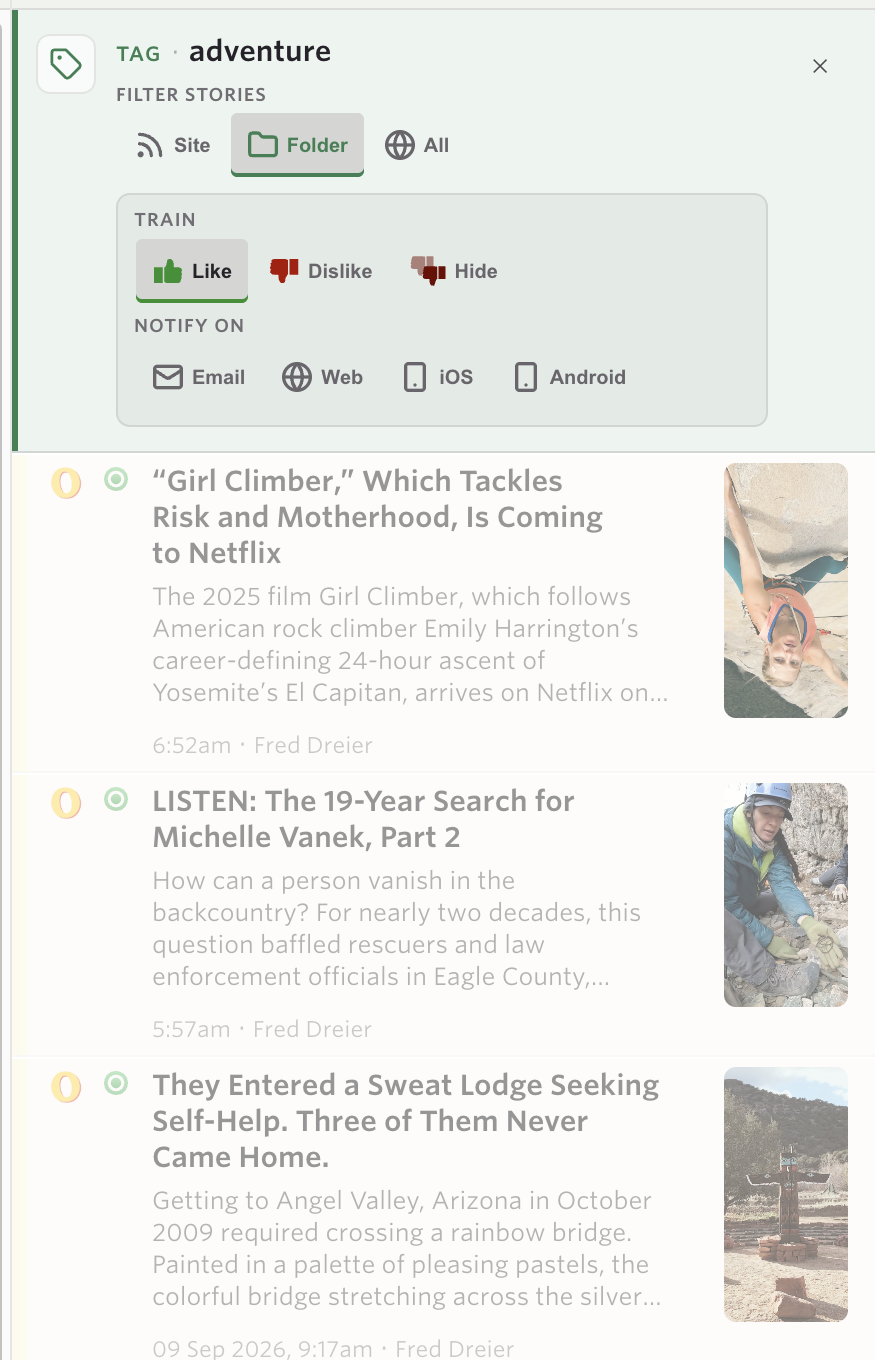
One detail worth knowing: the Filter stories toggle only changes what you’re looking at. Training and notifications still write to the classifier’s own scope. Browsing a tag across a folder doesn’t quietly turn a site classifier into a folder classifier.
A few ways I’ve been using it
- Deciding whether to follow an author. A group blog has a new writer. Click the button beside their name, read three of their stories, then Like them from the banner.
- Auditing a hidden tag. Open the trainer, click the magnifying glass on a red tag, and check that it’s hiding what you meant it to hide.
- Pulling up a series. Click the button on the URL line of a story with
/podcast/in the link and every episode on the site lines up. - Setting up a notification with confidence. Widen a tag to a folder, see that it matches the right kind of story, and turn on the iOS notification right there.
Availability
Matching Stories is available now on the web for everyone. Site scope, training, and highlighting work on every account. Folder and All scopes and the Notify on controls follow the existing rules for Premium Archive and Premium Pro.
If you find a tag or author that should match and doesn’t, or have an idea for where else this button belongs, let me know on the NewsBlur forum.