
A folder picker with room for every folder
When you right click a site and choose Change folders, NewsBlur shows a list of your folders. For years that list was a tiny box about four rows tall, no matter how big your screen was. A reader on the forum who files a lot of newsletters wrote up what was wrong with it: the box was too small, it ignored the custom folder icons they use to find things at a glance, and checking a new folder added the site there instead of moving it. They were right on all three, so I rebuilt it.
The list now grows to show every folder you have, as many as your window has room for, with the same icons you see in your sidebar. It opens scrolled to the folder the site is in now, and the text follows your sidebar’s text size.
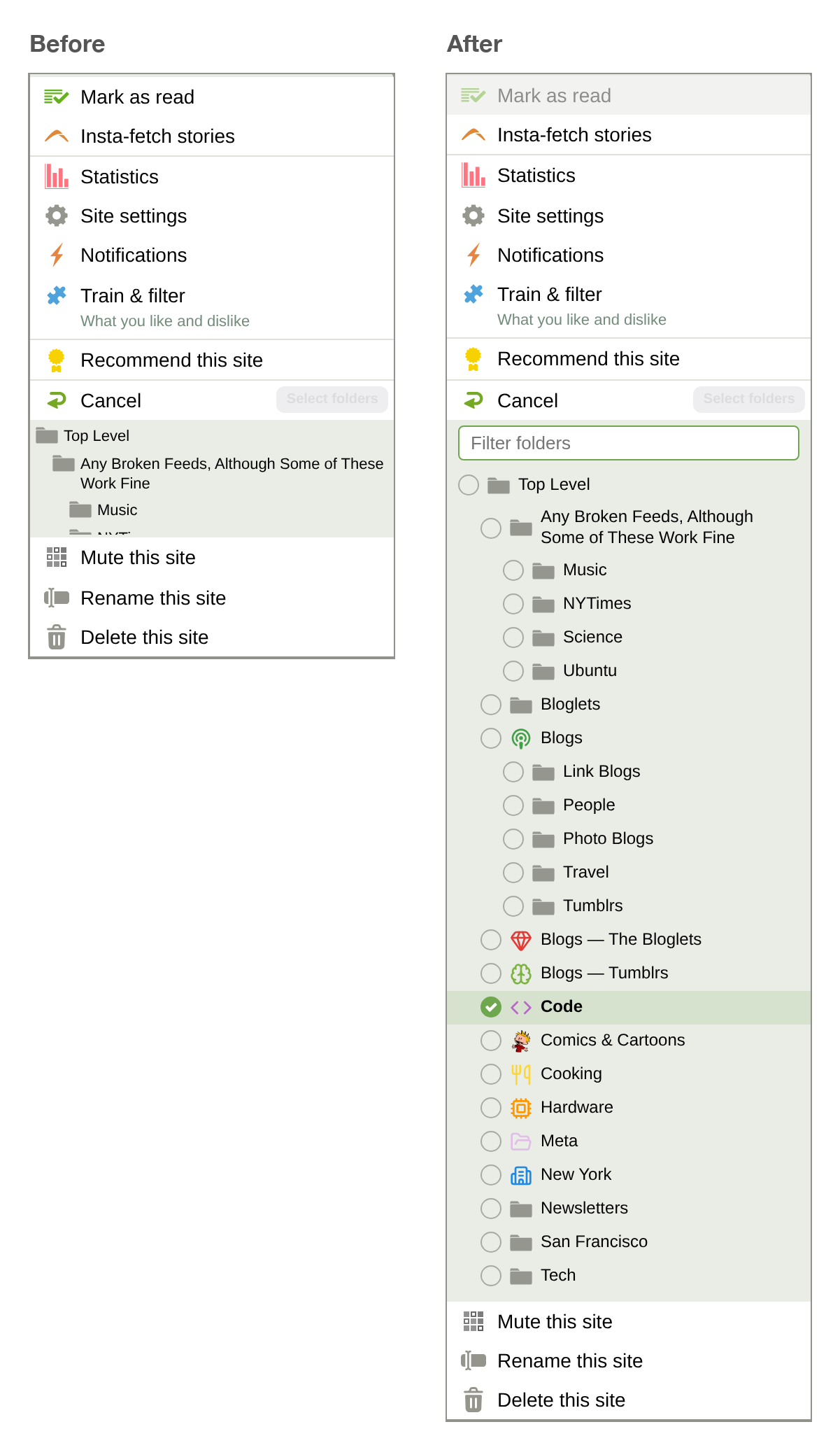
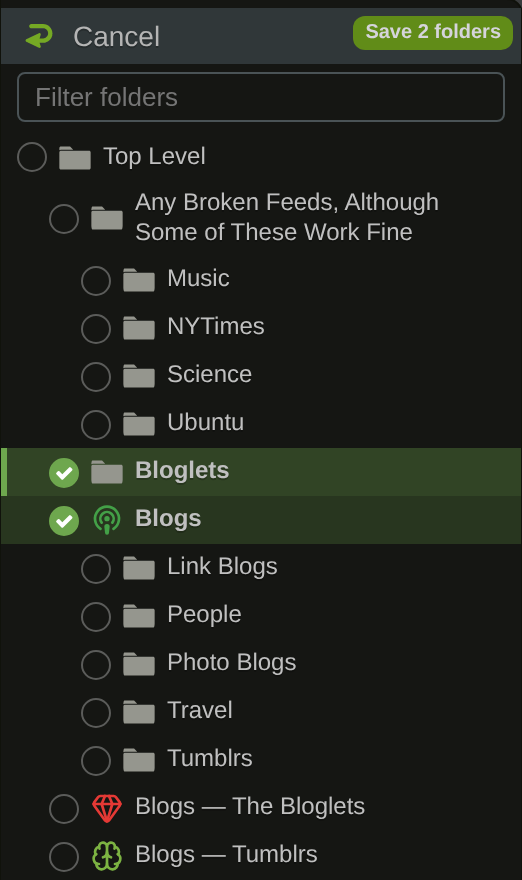
Click a folder’s name and the site moves there. The old folder unchecks itself, and the button at the top reads Move to Tech, so you know exactly what’s about to happen. If you keep a site in more than one folder, click the circles beside the folders instead. Each circle adds or removes just that folder, and the button reads Save 2 folders.
Type to find a folder
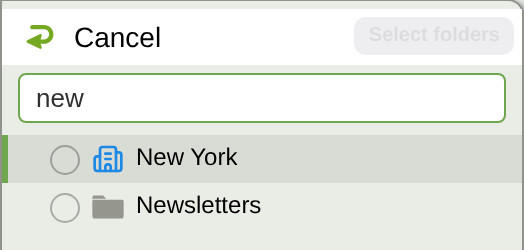
There’s a filter box at the top of the picker, ready for typing as soon as it opens. Type a few letters and the list narrows to the folders that match, with their parent folders kept in place. The arrow keys move between matches, Enter picks one, and Enter again moves the site. So moving a site from Newsletters into Cooking can be a right click, a few letters, and two presses of Enter.
The new folder picker is available now on the web. If something about it doesn’t feel right, let me know on the NewsBlur forum.