
Listen: NewsBlur reads your stories aloud on the web, iOS, Mac, and Android
Every story in NewsBlur now has a Listen button. Press it and NewsBlur reads the story to you, starting with the headline and going paragraph by paragraph, highlighting each one as it goes. When the story ends, the next one starts. It works on the web, iPhone, iPad, Mac, and Android starting today, and it can read stories in all 21 languages NewsBlur speaks.
Here’s Jon, the default English voice, reading that paragraph:
And if you’re reading this in NewsBlur, you can press Listen right now and have the rest of this post read to you.
This one launched everywhere on the same day. The web, the iOS and Mac apps, and the Android app all got Listen together, with its interface translated into the same 21 languages from last week’s language launch. If you already play podcasts in NewsBlur’s media player, Listen turns any story into one more thing to queue up.
Press Listen
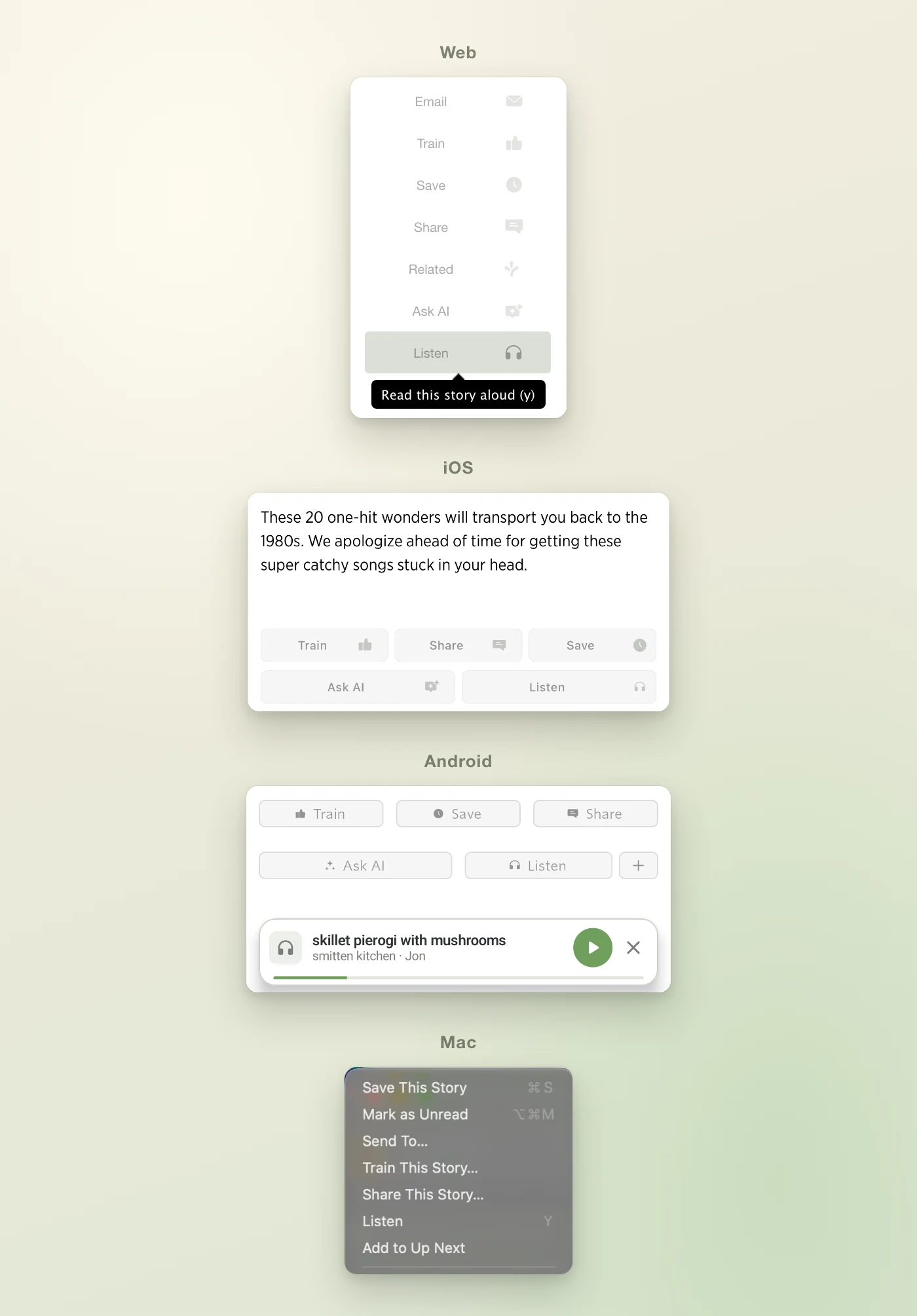
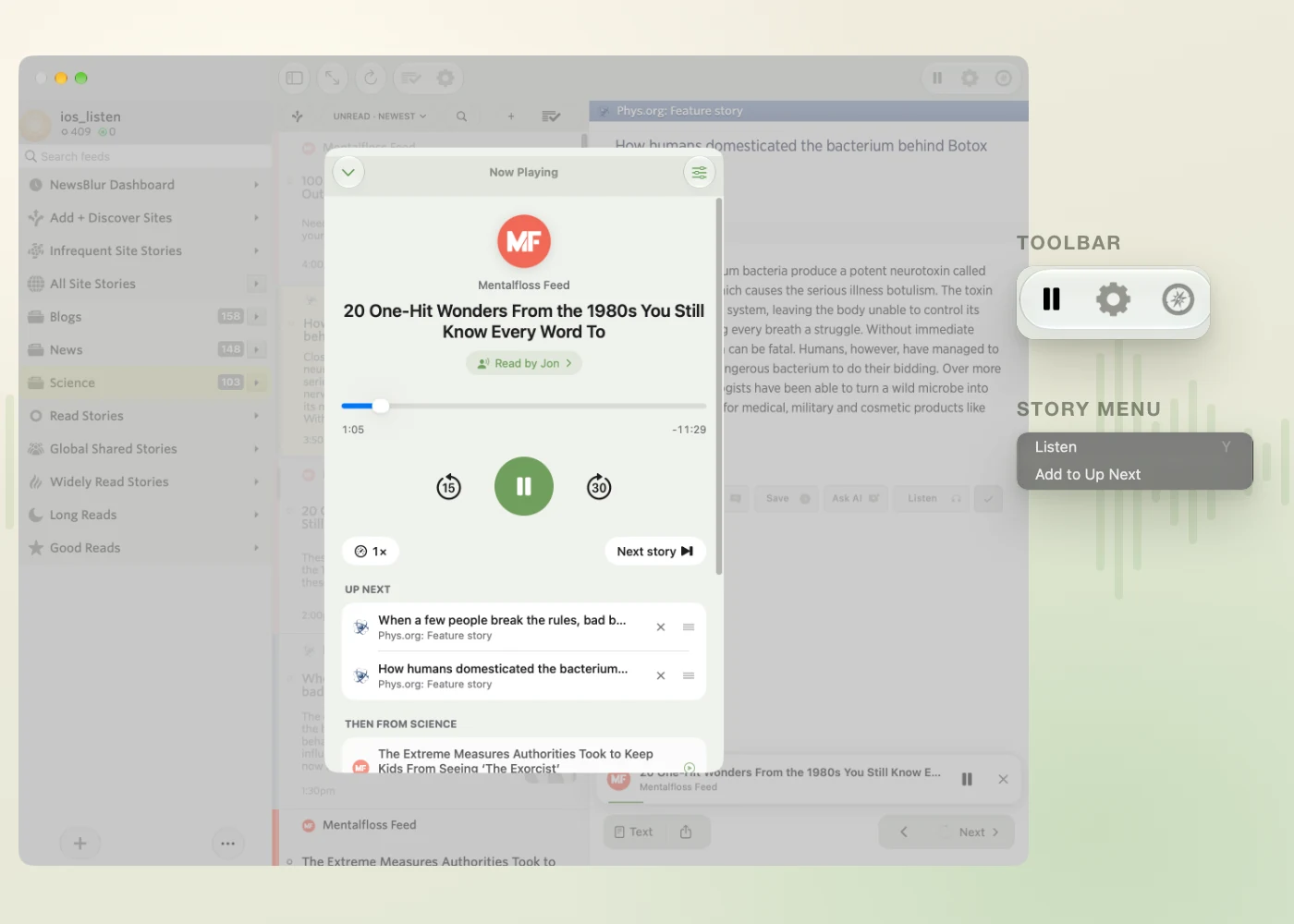
On the web, Listen sits with the other story buttons, and the y key does the same thing. On iPhone, iPad, and Android it’s in the row of buttons at the end of each story. On the Mac it’s in the Story menu, also on Y, with a play and pause button in the toolbar.
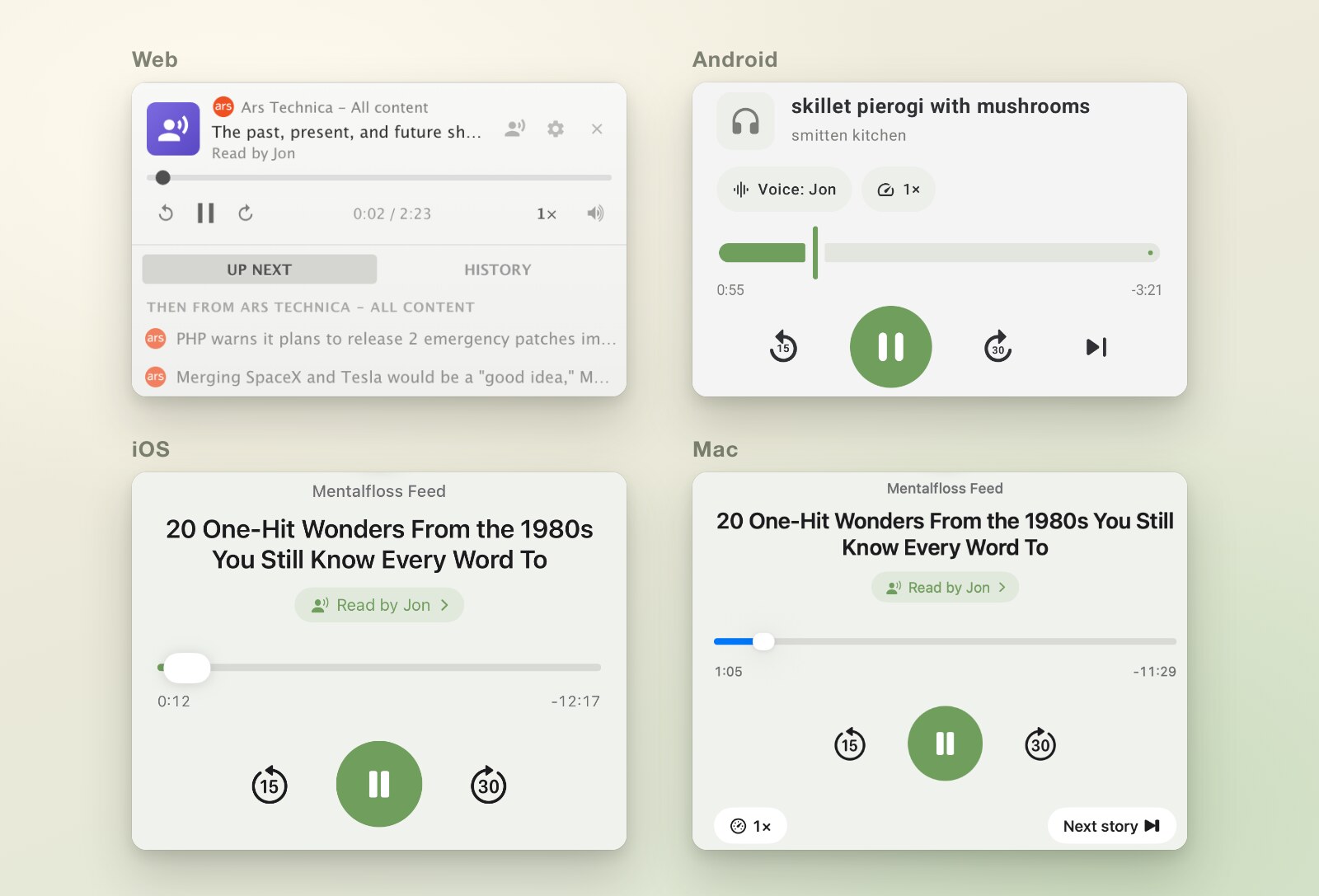
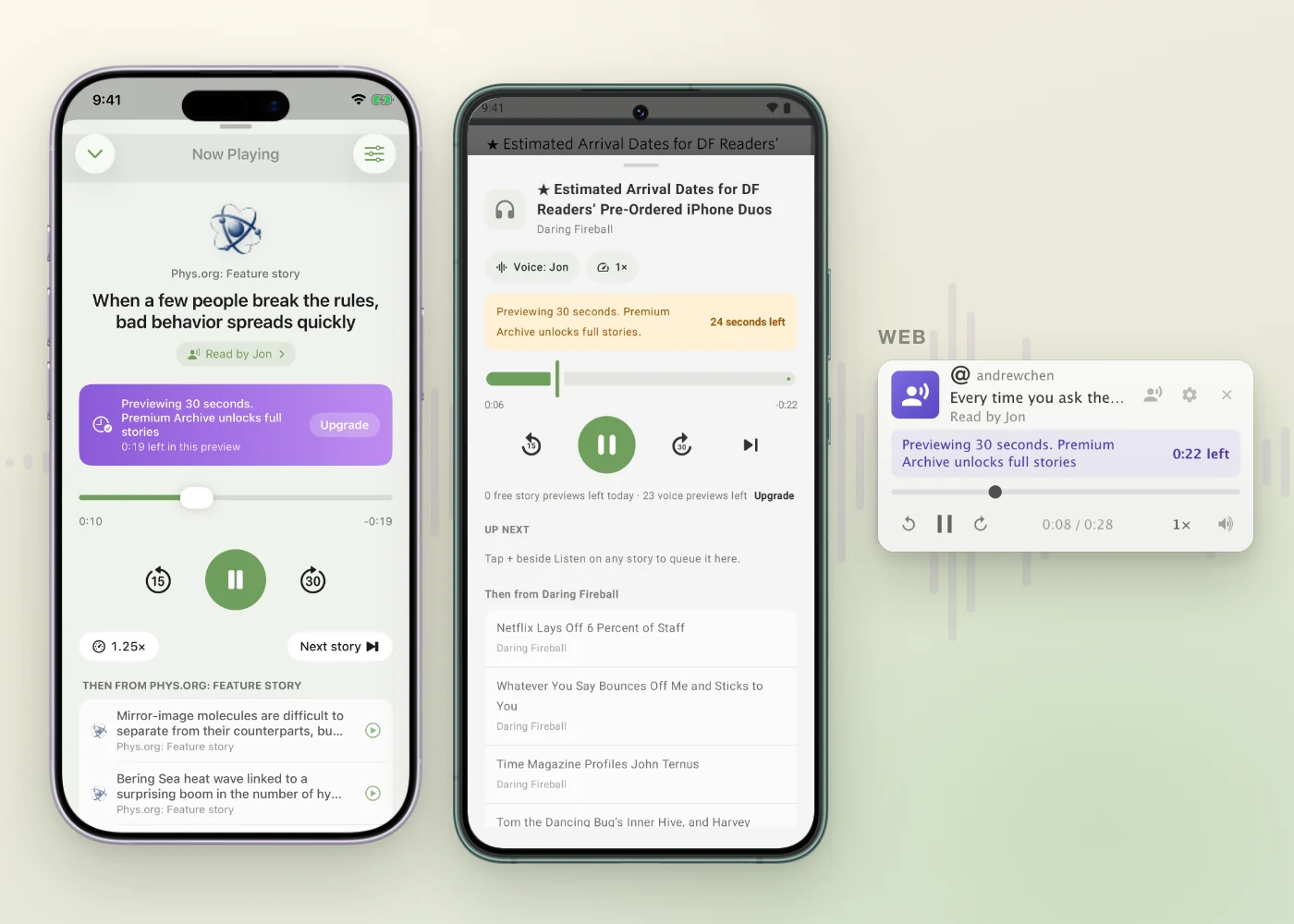
On the web, stories play in the sidebar, in the same mini player that handles podcasts and YouTube. On iPhone, iPad, and Android, a mini player sits above the bottom bar. Tap it to open Now Playing, with a scrubber, 15 seconds back, 30 seconds forward, speed, and a button to skip to the next story.
Follow along
While a story plays, the paragraph being read is highlighted and the story scrolls gently to keep it in view. If you scroll away to look at something, it waits a few seconds before following again. Click or tap any paragraph to jump straight to it, which is also the quickest way past a long intro.
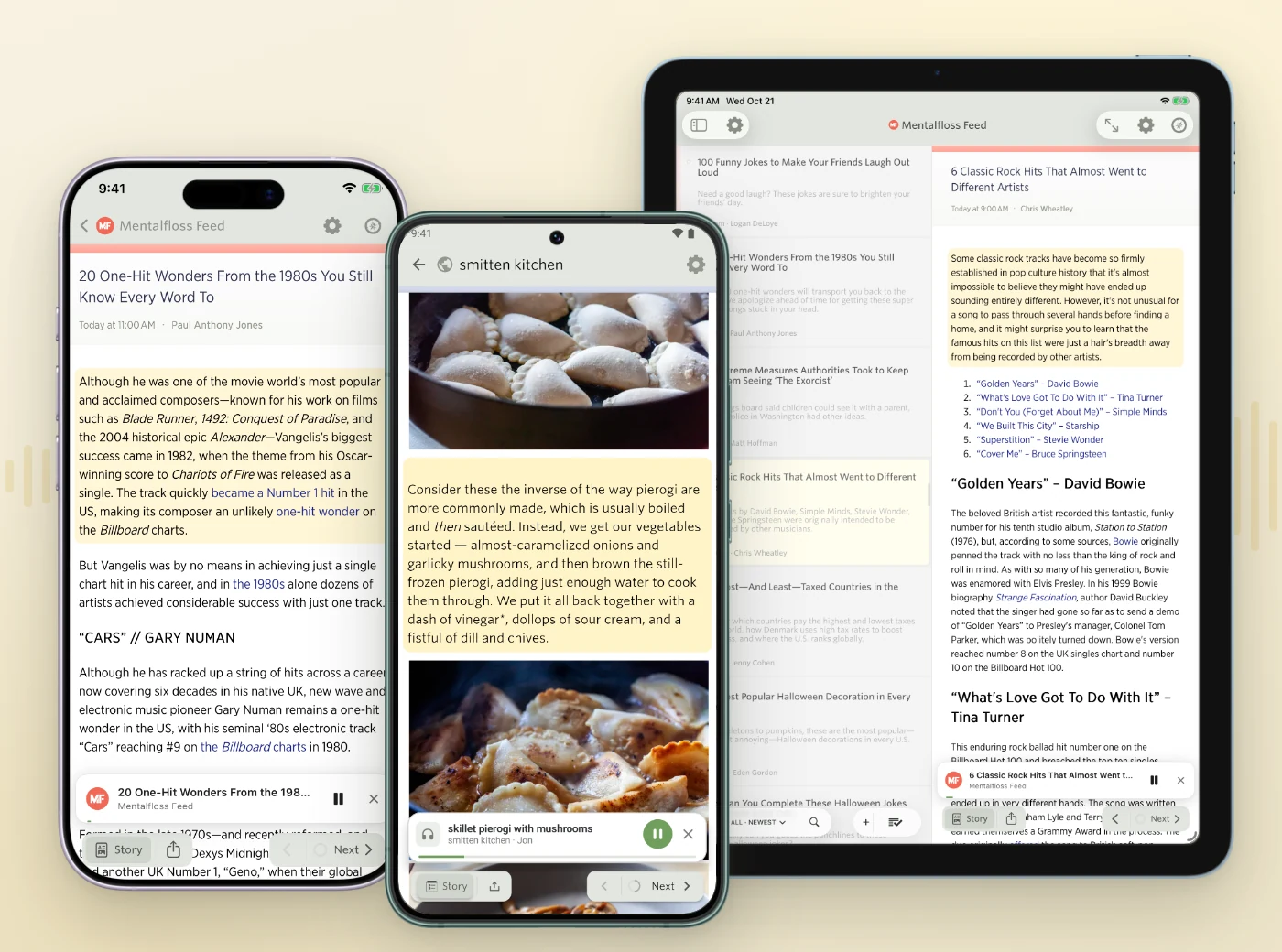
Listen reads the headline, then the article’s paragraphs, headings, lists, and quotes. It skips what doesn’t work out loud: images, captions, code blocks, tables, and embeds. And if a feed only publishes a summary, Listen fetches the full article from the site and reads that, so you hear the whole story and not just the first two sentences.
Up Next
Next to Listen is a small + that adds the story to Up Next. Queue a few stories while you read, press play, and walk away. Drag to reorder, and swipe or tap × to remove one.
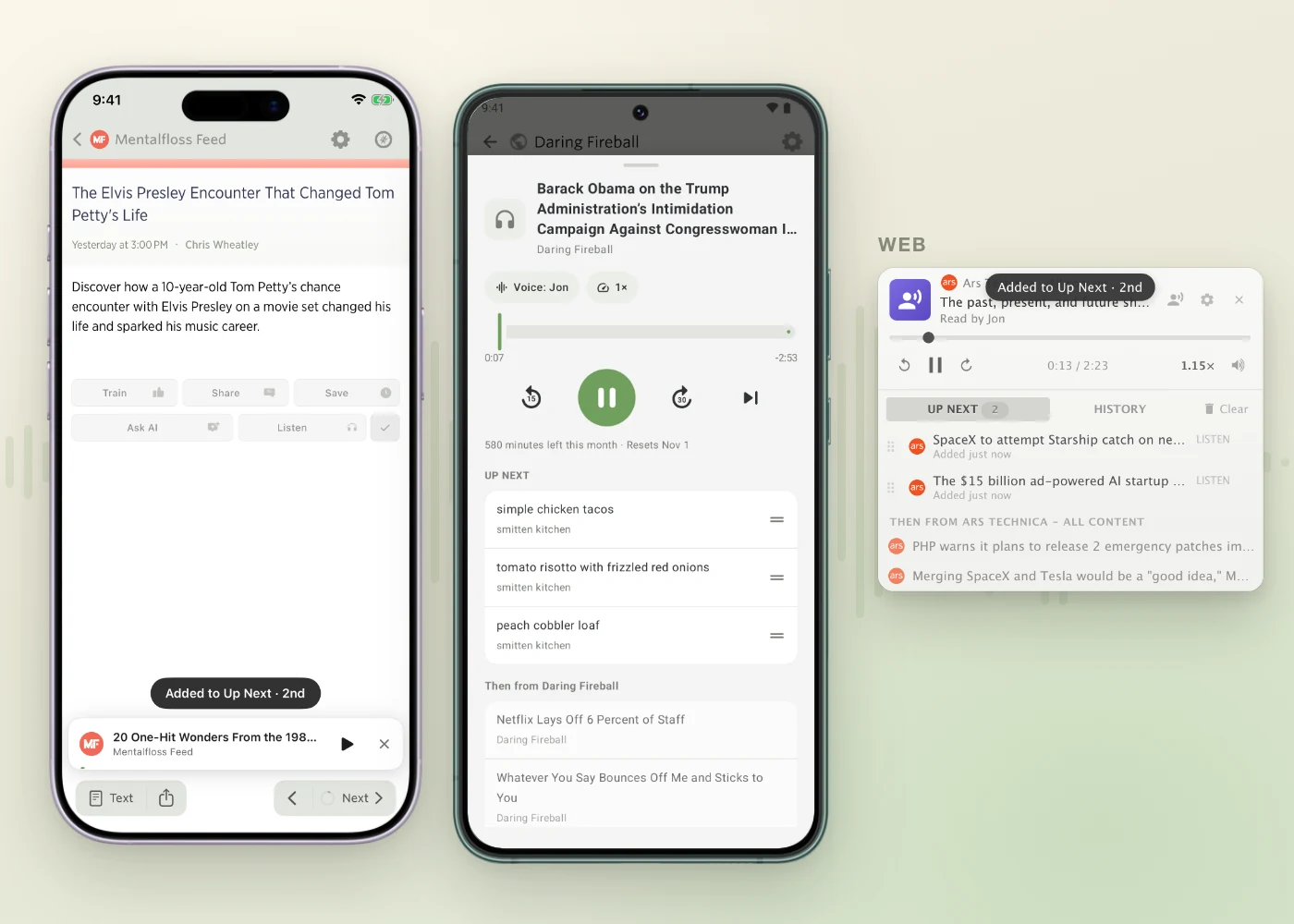
When Up Next runs out, Listen keeps going with the next unread stories in whatever feed or folder you’re in. Each story is marked read when it finishes, and the reader follows along to the next one. If you’d rather it stop after each story, turn off Auto-continue.
Up Next is the same queue your podcasts use, and it’s saved to your account. Queue a story on your phone and it’s waiting in Up Next on the web.
Pick a voice
The voices come from ElevenLabs. Each language has ten recommended voices, and you can search the rest of the ElevenLabs library by gender, age, accent, and style. Every voice has a play button so you can hear it before you choose.
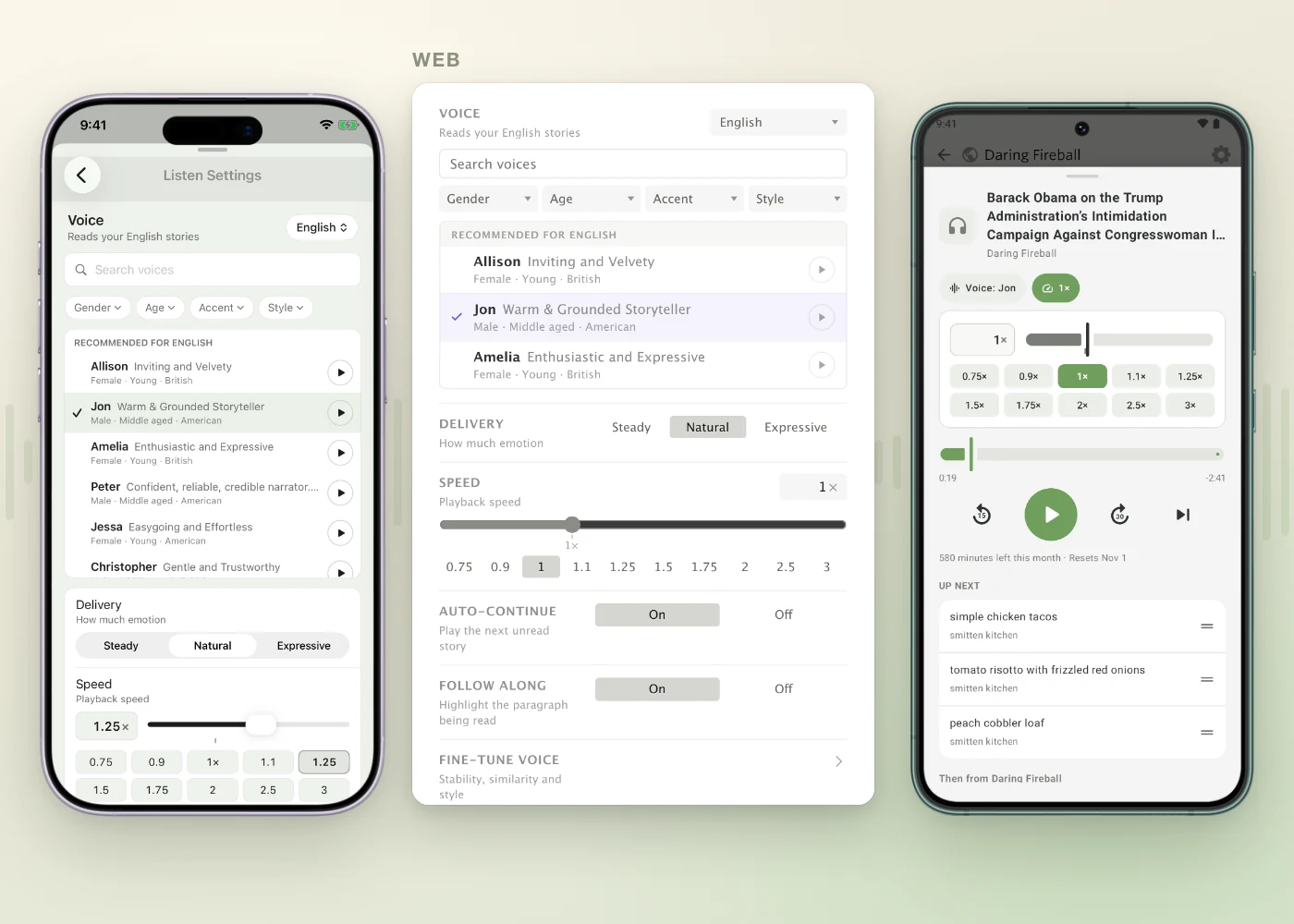
Delivery sets how much emotion goes into the reading: Steady, Natural, or Expressive. Fine-tune voice opens up the stability, similarity, and style settings behind those three if you want to tinker.
Speed goes from 0.5× to 3×, with presets and a slider for anything in between. The pitch stays put at any speed, so 1.5× sounds like a fast talker and not a chipmunk.
Every language gets its own voice
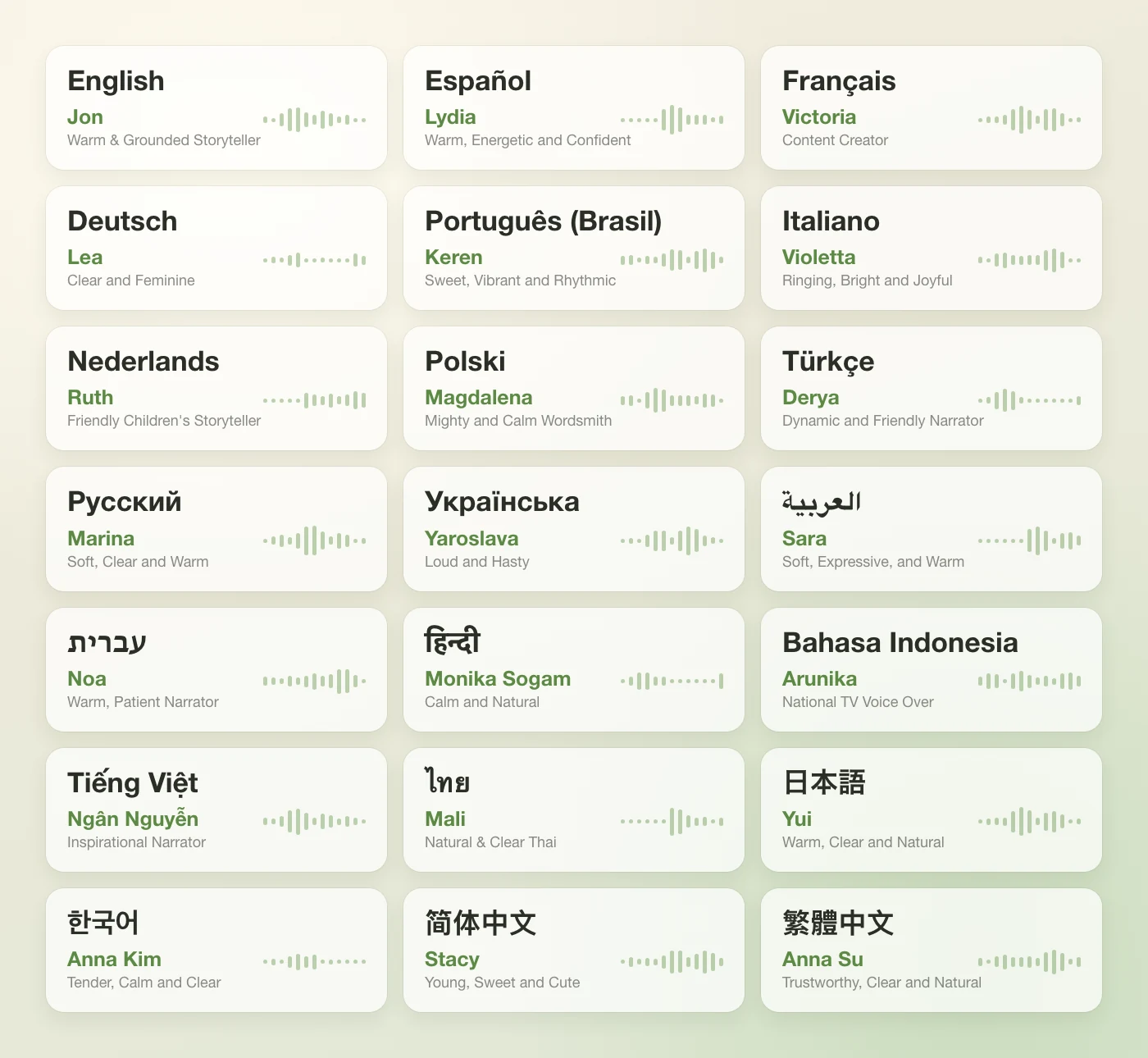
Listen works out what language each story is written in and reads it with your voice for that language. Jon reads my English stories, and when a French story comes through, Victoria picks it up. Choose a different voice for any language from the menu at the top of the voice list. These are the defaults:
Keeps playing with the screen off
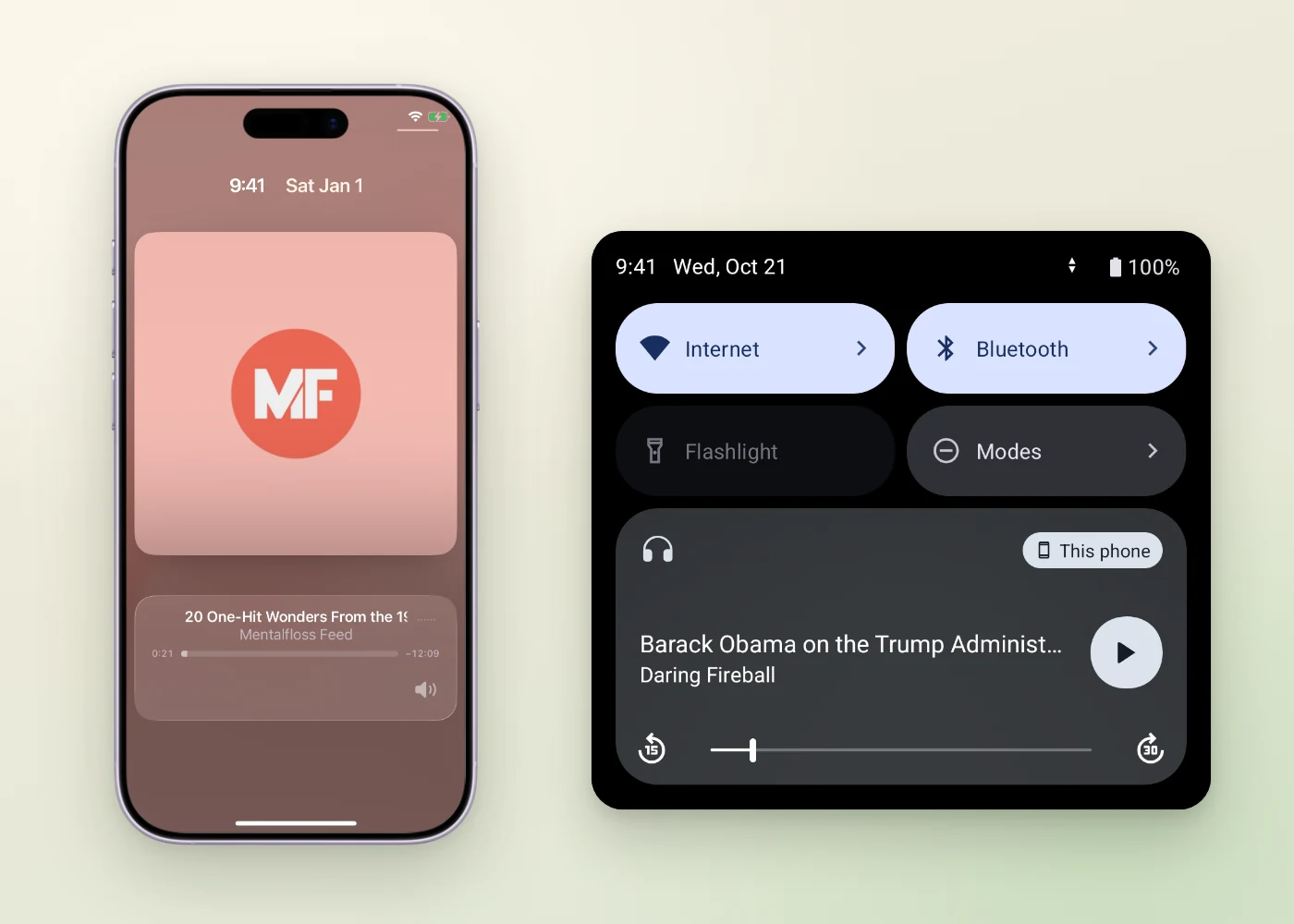
On iPhone, iPad, and Android, Listen keeps going when you lock your phone or switch apps. It shows up on the lock screen, in Control Center, and in Android’s media controls, with the same 15 and 30 second skips, and headphone buttons play and pause.
On the Mac
The Mac app has Listen and Add to Up Next in the Story menu, and a play and pause button in the toolbar so you can stop a story without hunting for the player. Now Playing opens as a sheet over the reader, with the same Up Next list as everywhere else.
Try it for 30 seconds
Listen is part of Premium Archive and Premium Pro. On a free or Premium account you can still try it: Listen plays a 30 second preview of a few stories a day. Voice previews in the picker work too, so you can find a voice you like first.
How it works
Reading every story in everyone’s feeds ahead of time would be a huge waste, so Listen makes the audio on demand. When you press play, NewsBlur splits the story into short segments, usually a paragraph each, and asks ElevenLabs for the first one. The audio streams to you while it’s still being generated, so it starts quickly, and the next segment is fetched while the current one plays. Each segment is sent along with the text around it so the voice keeps its rhythm across paragraph breaks.
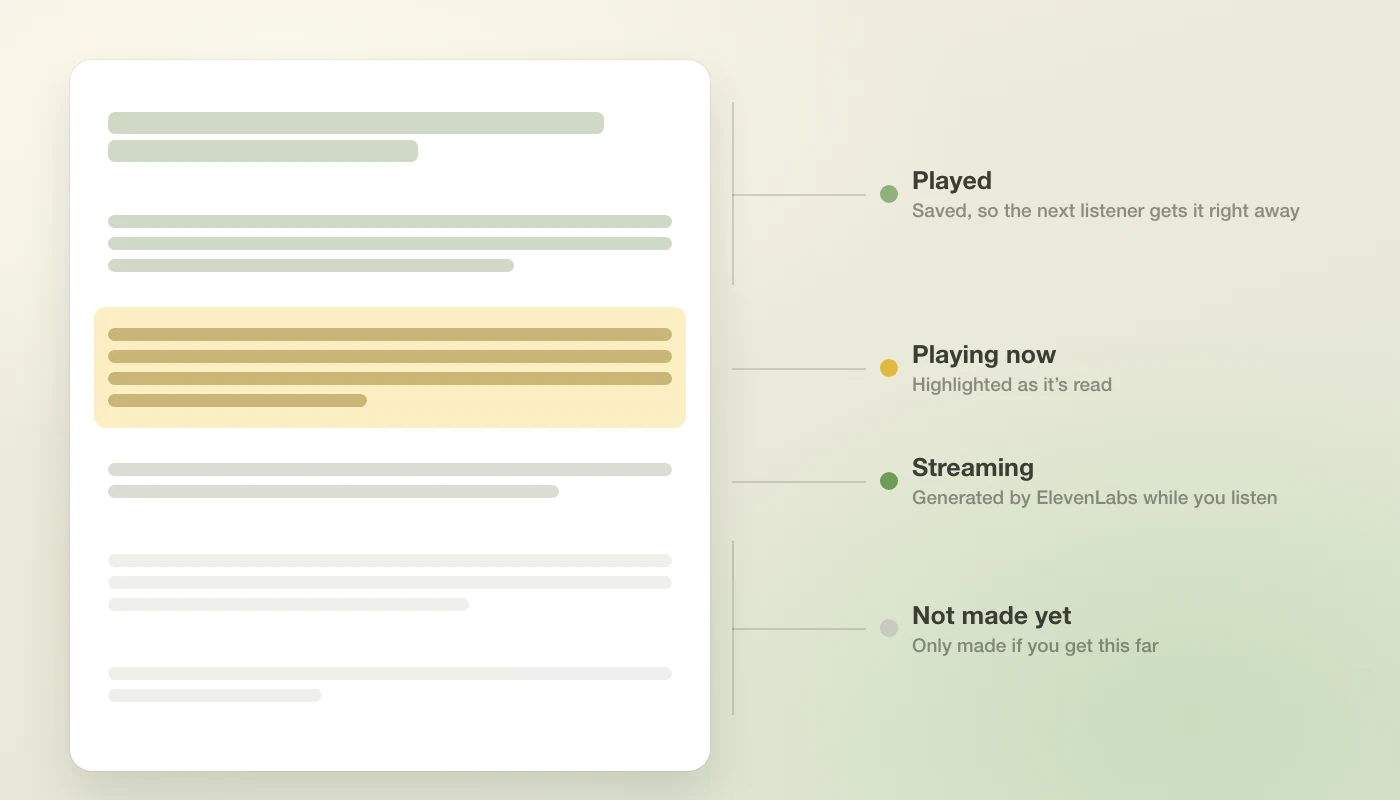
Once a segment has been read in a voice, it’s saved. The next person who listens to that story with the same voice gets it right away, and if you stop halfway through a story, the rest of it never gets made at all.
Availability
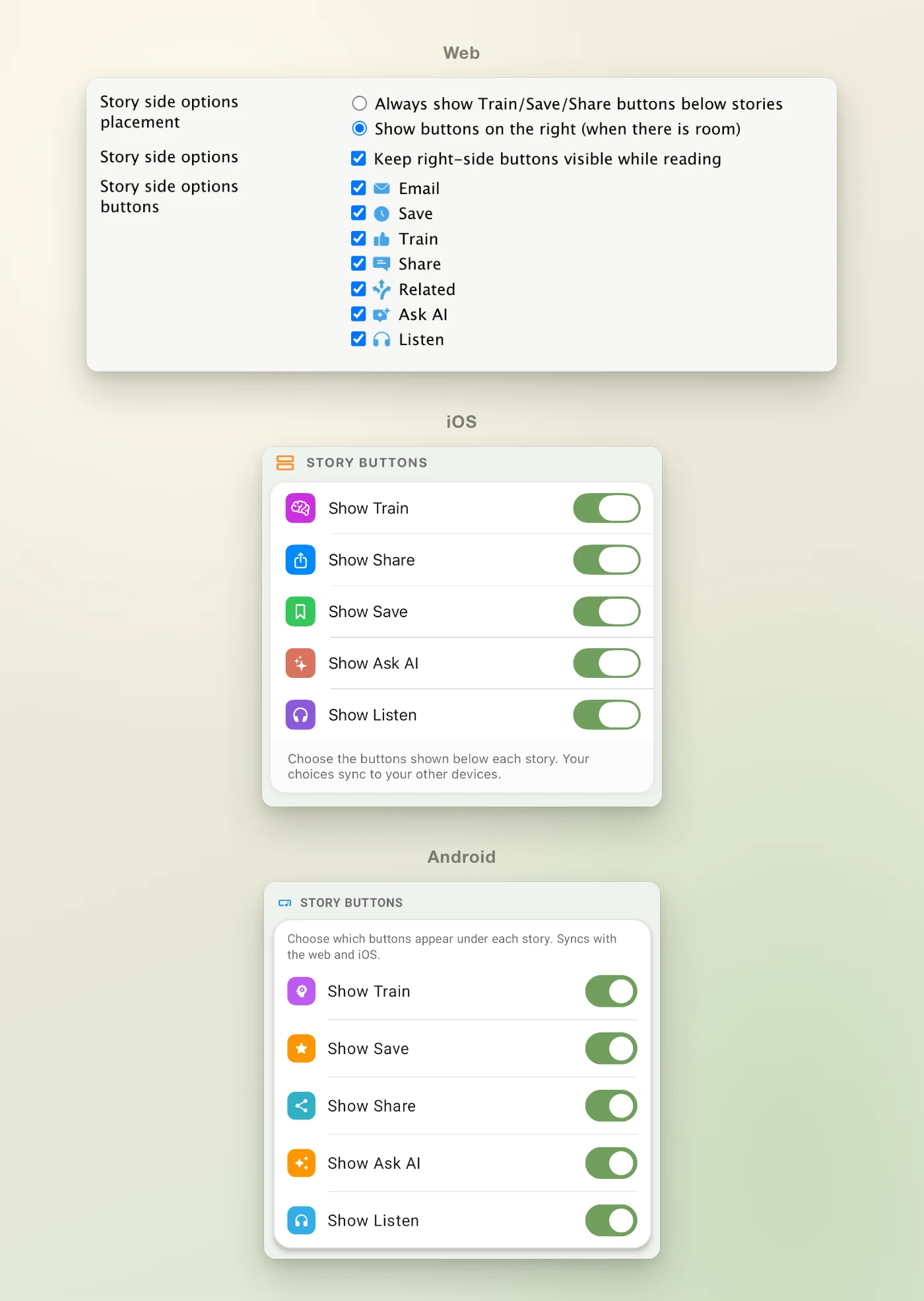
Listen is available today on the web, in NewsBlur for iPhone, iPad, and Mac on the App Store, and in NewsBlur for Android on Google Play. If you don’t want the button, you can hide it, along with any other story button, in Preferences on the web and in the apps, and that choice syncs between them.
I’d love to hear which voice you picked and how Listen handles your feeds. Let me know on the NewsBlur forum.