
A new first-time experience on iOS and Android: find your first feeds
An empty reader is a hard place to start. If you already know which sites you want to follow, adding them is straightforward. But if you’re trying RSS for the first time, finding those first few feeds is part of the work. I wanted NewsBlur to help with that, right inside the app.
I’ve rebuilt the first-time experience on iOS and Android around exploring interests, previewing feeds, and choosing what goes into your reader. You can put together a few folders of things you care about, or bring your existing collection from another app with an OPML import.
Explore your interests on iOS
After creating your account, the iPhone and iPad apps open a setup screen with Explore interests. Browse categories such as science, books, cooking, and technology, or search for a topic. A little of everything gives you a starting point if you’d rather sample a mix.
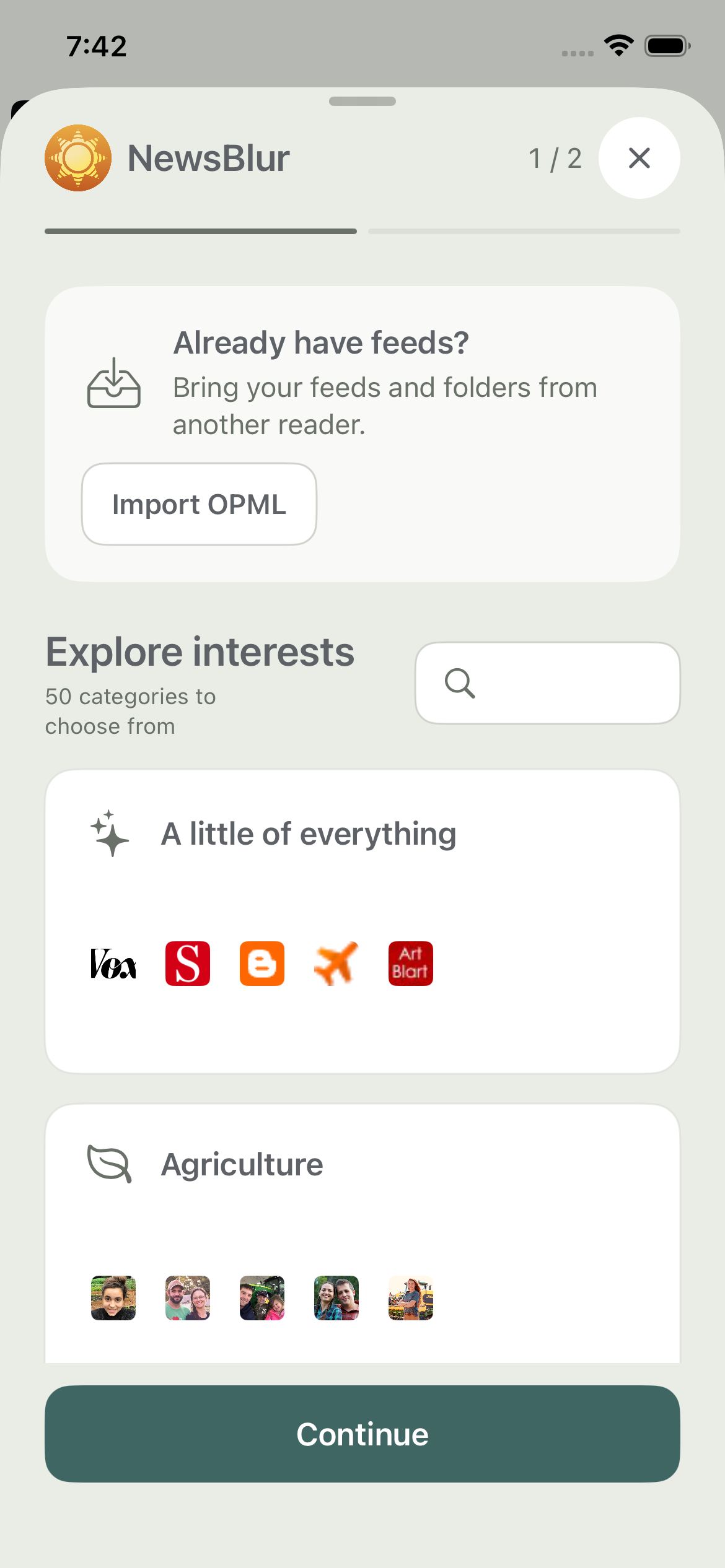
Each category opens a bundle of feeds. You can see what the sites actually publish through recent story previews, rather than choosing from names alone. Deselect feeds you don’t want, give the folder a name, and add the ones you like.
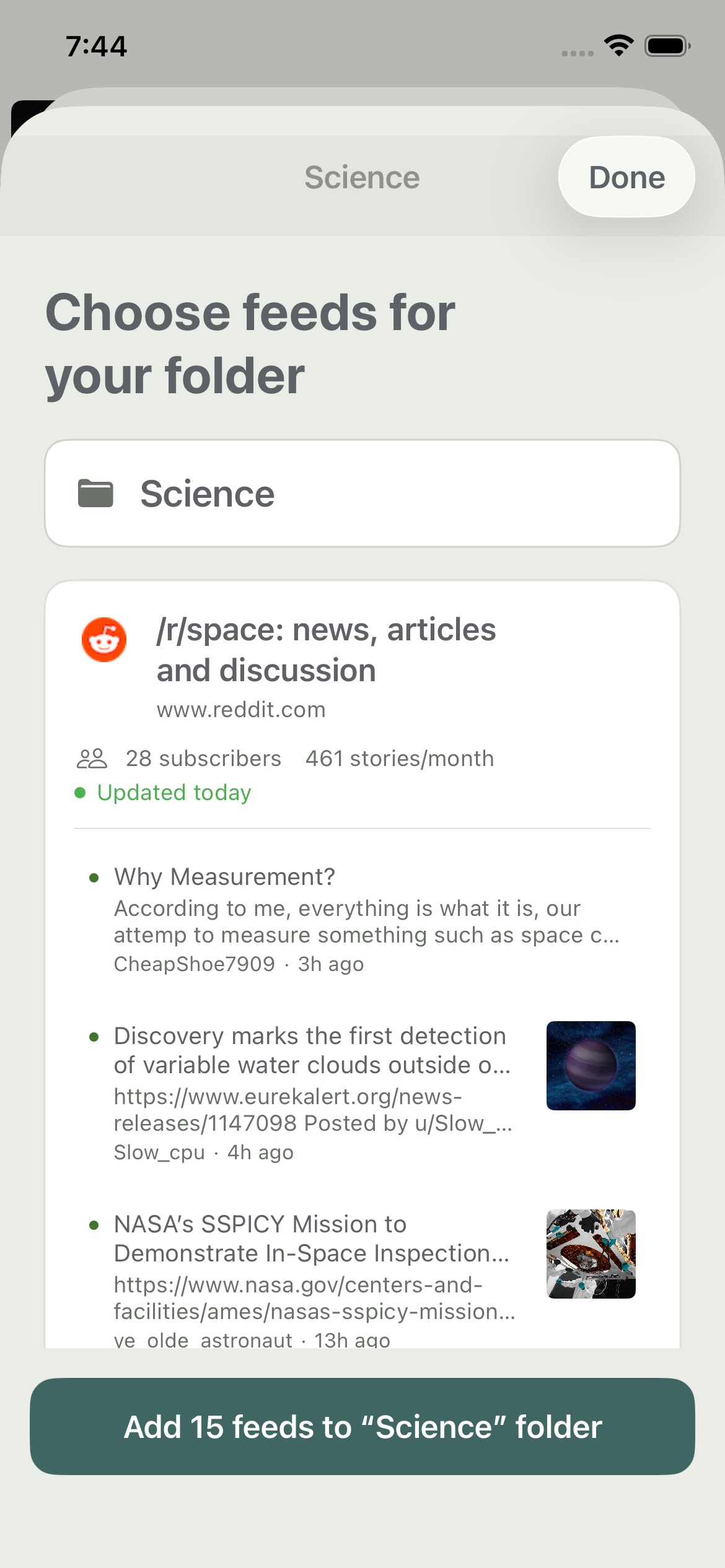
You can keep exploring and add another bundle before heading into the reader. The idea is to make those first subscriptions your own, with enough context to decide whether a feed belongs in your daily reading.
Build your first folders on Android
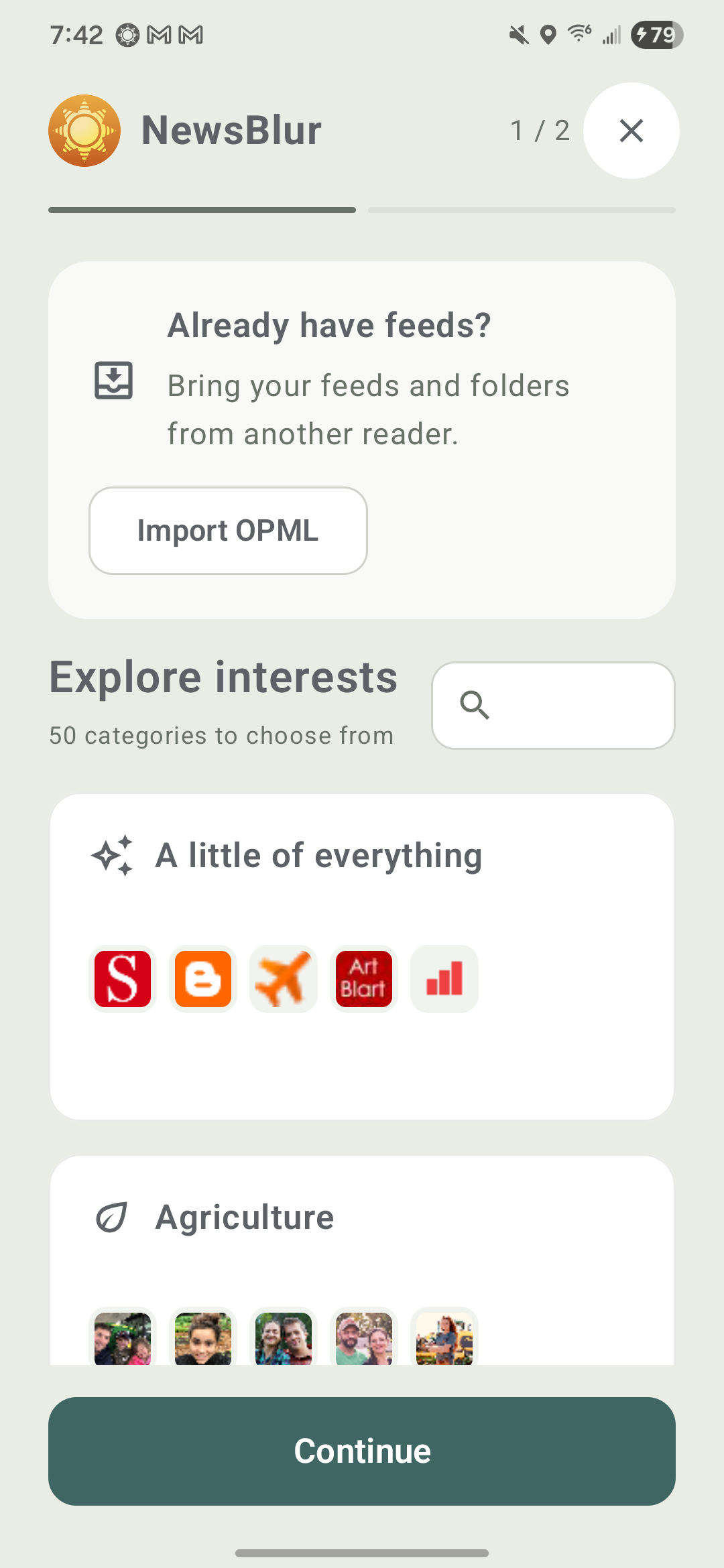
Android gets the same interest-based setup. Browse or search the catalog, open a bundle, and look through its feeds before subscribing. The import option is right at the top if you’re coming from another reader.
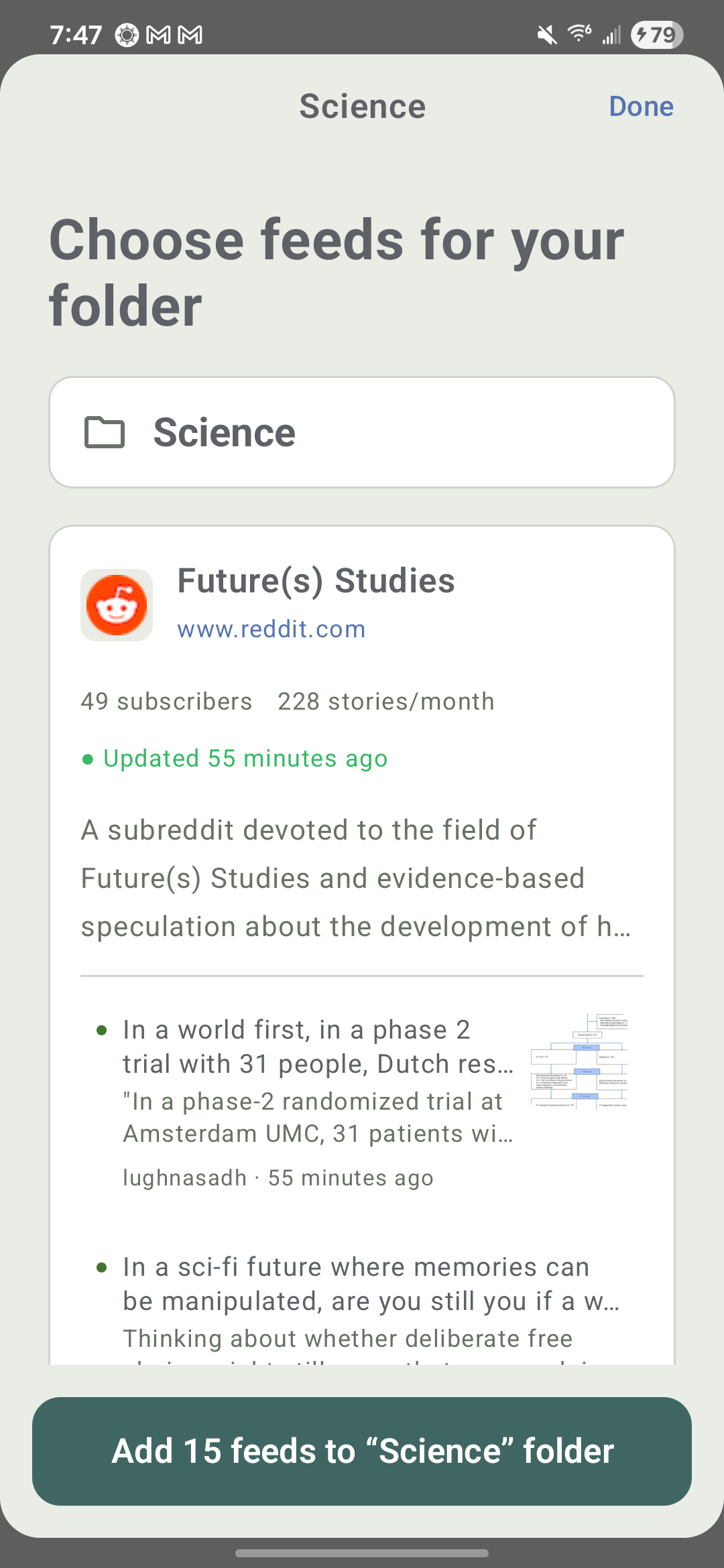
Feed cards show recent stories, how often a site publishes, and when it last updated. Choose the feeds you want and name the folder they’ll go into. A science folder, a cooking folder, and a handful of personal blogs can give you plenty to read without having to assemble every subscription one at a time.
The final setup step shows what you’ve added. Tap Start reading to head into your reader with your folders ready.
Bring your feeds, or come back for more
On both platforms, Import OPML brings your feeds and folders from another reader. Export an OPML file from your old app, save it somewhere your phone can access, and select it during setup.
You don’t need a new account to use the bundles. Existing readers can open Import or upload sites from the iOS menu or Import and feed bundles from the Android menu. It’s a way to explore a new interest whenever you want to add something to your reading.
The new setup experience is coming in the next iOS and Android updates, alongside Sign in with Apple and Google. I’d love to hear how the first few minutes feel, whether you’re starting fresh or helping someone else get into RSS. Let me know on the NewsBlur forum.