
Three new features in Listen: podcasts, your music, and voice rotation
When a story has a podcast episode in it, the iPhone, iPad, Mac, and Android apps used to play it with the plain audio control built into the story. It had no skip buttons and no lock screen controls, and it started from the beginning every time you came back to it. Now episodes play in the same player as Listen, with everything that comes with it. Listen itself can now read over your music, and take turns between voices from one story to the next.
Play, Play Next, Play Last
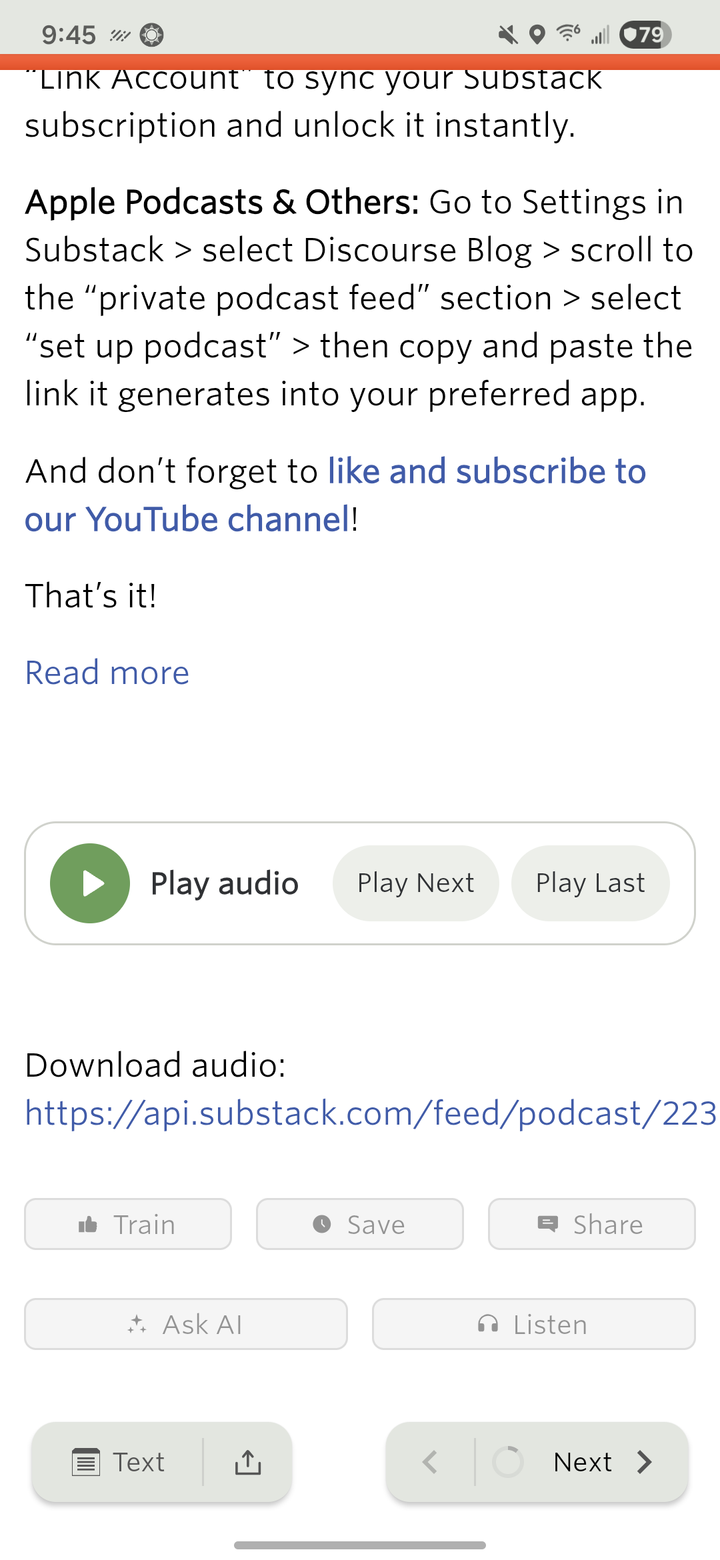
Each episode in a story is now a card with three buttons. Play audio starts it right away, Play Next puts it at the top of Up Next, and Play Last puts it at the end.
The episode plays in the mini player above the bottom bar. Tap it to open Now Playing, with the scrubber, the skip buttons, speed, and Up Next. It keeps playing with the screen off, with controls on the lock screen, in Control Center and Android’s media controls, and on your headphones. iPhone and iPad have an AirPlay button, and Android shows its output picker. The skip buttons use the same intervals you set in the web’s player.
Videos and YouTube embeds still play inside the story.
Pick up where you left off, on any device
Your place in an episode is saved to your account every few seconds while it plays, and again whenever you pause, skip, or leave the app. Start an episode on your phone and the web picks it up at the same spot, or the other way around. Finished episodes move to History, and Up Next holds podcast episodes and Listen stories in one queue. Starting an episode stops a Listen story that’s playing, and the other way around.
This turned up a bug on the server. When you came back to an episode, the web resumed from the last place you paused or started it, not from where you’d actually gotten to while it played. Every device, the web included, now resumes from the latest position.
Listen over your music
Listen used to pause whatever else was playing. On iPhone, iPad, and Android it can now read your stories over music from another app, like Apple Music or Spotify. Open Now Playing and turn on Play over other audio in the new Music section.
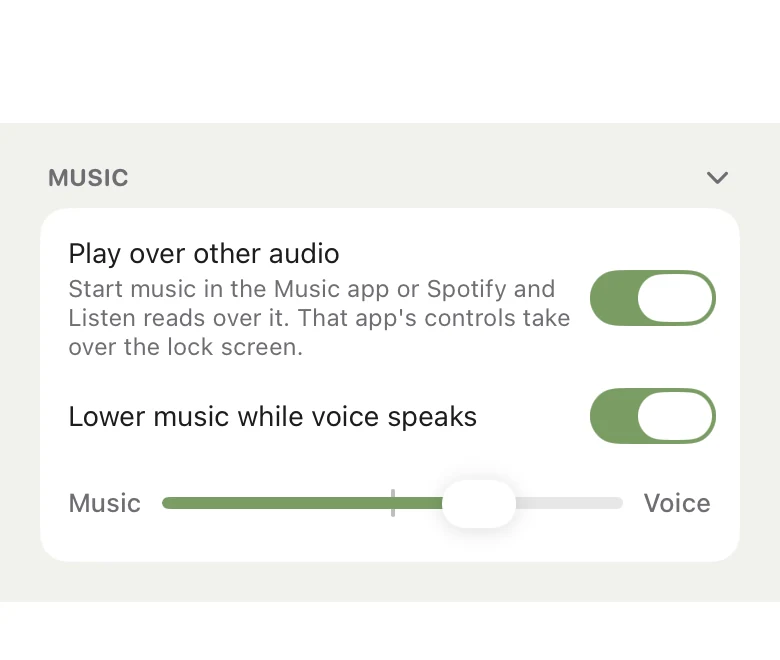
Lower music while voice speaks is on by default. It dips the music while a story is being read and brings it back up when you pause.
The Music and Voice slider sets the balance between them. Neither iOS nor Android lets one app turn down another app’s music, so the slider works on the voice instead. Toward Music the voice gets quieter, and toward Voice it gets louder than it would normally play, with a limiter so it doesn’t distort.
These settings stay on each device and don’t sync. The Music section folds away with the arrow in its header, and stays folded. Podcast episodes still pause your music like before. On the Mac, apps already play over each other, so there’s nothing to turn on.
A different voice for each story
Listen can also take turns between voices, one per story. In the voice picker, the + next to a voice adds it to your rotation, and the list at the top shows the order. The first story gets the first voice, the next story gets the second, and so on. Each time you start listening, the rotation starts again from the top.
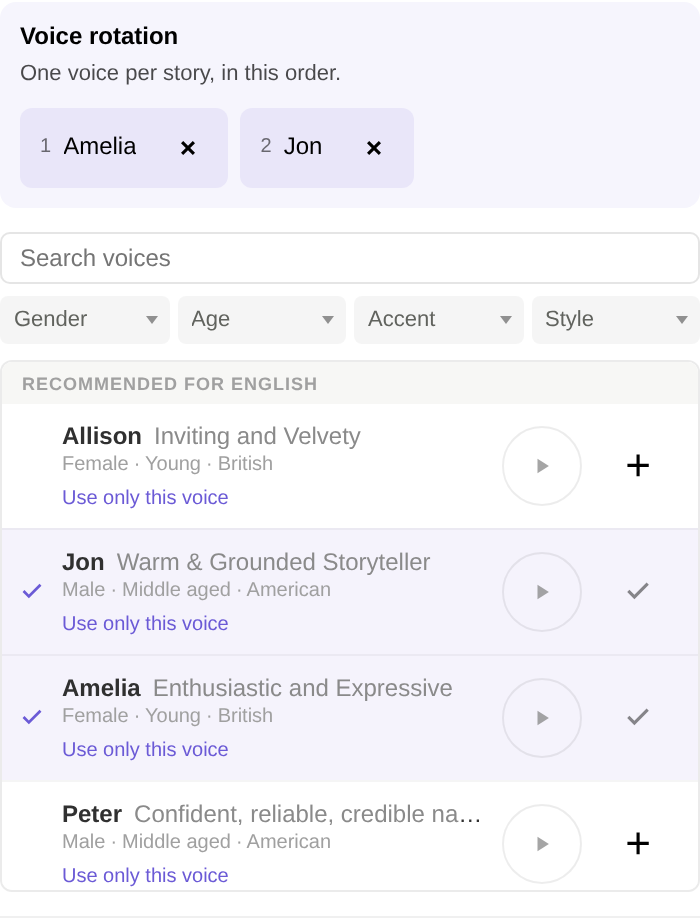
The × on a voice takes it out of the rotation, and Use only this voice goes back to a single narrator. Click a name in the rotation to find that voice in the list. Each language has its own rotation, and your list syncs between the web and the apps.
Availability
Podcasts in Listen’s player and Listen over your music are in NewsBlur 16.2 and later for iPhone, iPad, and Mac on the App Store, and for Android on Google Play. Voice rotation is on the web now, and comes to the iPhone, iPad, Mac, and Android apps with their next updates. Listen itself is part of Premium Archive and Premium Pro.
If an episode doesn’t play the way you’d expect, or the balance between your music and Listen needs more range, let me know on the NewsBlur forum.